
 in the Tree of Hypotheses. Click the hypothesis to show its properties in the Properties window.
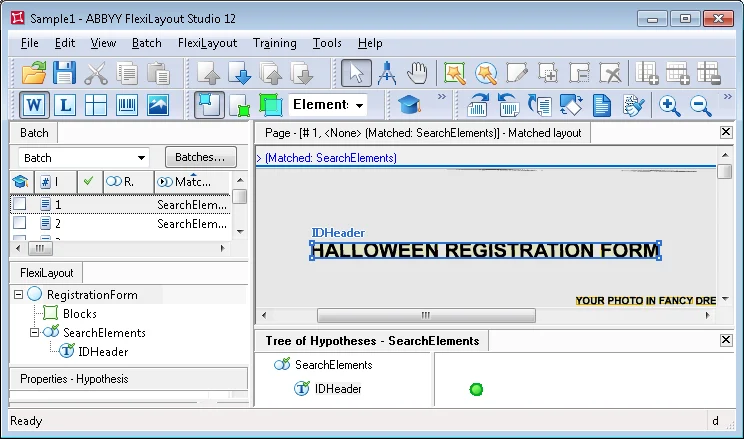
 ). The document heading spans two lines on this image, but you described IDHeader as single-line text.
Test the IDHeader identifier element in Sample 1 by matching the FlexiLayout with each batch image and reviewing results in the Tree of Hypotheses.
in the Tree of Hypotheses. Click the hypothesis to show its properties in the Properties window.
). The document heading spans two lines on this image, but you described IDHeader as single-line text.