
1
Create the Character String element
Create an element of type Character String and name it PlanetName.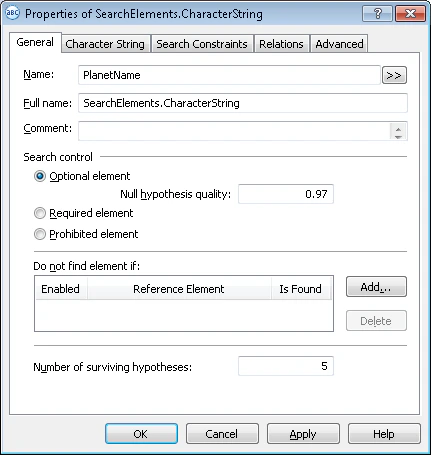
2
Open the Character String tab
Click the Character String tab.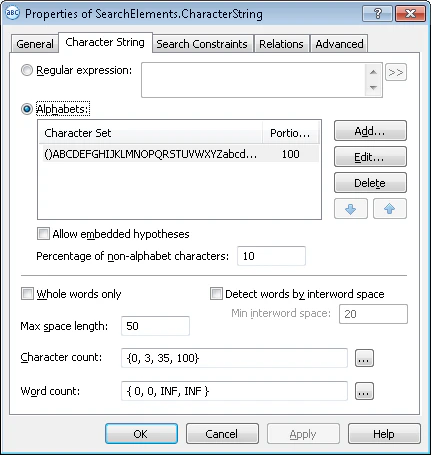
3
Set the alphabet
The alphabet is all the characters that may appear in planet and satellite names. In the test images, these are English letters and parentheses.To set it, click Add… and select the required characters in the Add New Alphabet dialog box.
The selected characters appear in the Character Set column (on the Character String tab, in the Alphabets field).
4
Set the percentage of alphabet characters
In the Percentage of alphabet characters field, enter 100. FlexiLayout Studio then considers only this element’s characters when searching for the PlanetName object.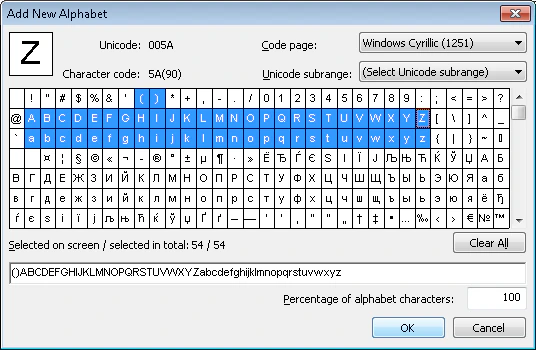
You can specify several alphabets for one element. In the Percentage of alphabet characters field, specify the maximum percentage of characters from each alphabet.
5
Disable embedded hypotheses
Clear the Allow embedded hypotheses check box. This lets FlexiLayout Studio formulate hypotheses of the maximum length that meet all search criteria.Otherwise, FlexiLayout Studio may formulate several embedded hypotheses, each consisting of portions of one of the selected alphabets (taking into account the allowed percentage of non-alphabet characters).
6
Set the percentage of non-alphabet characters
In the Percentage of non-alphabet characters field, set the maximum to 10%.This value can only be selected by trial and error, and you can change it when adjusting the FlexiLayout.
7
Set the character count
In the Character count field, specify this fuzzy range:
{0, 3, 35, 100}. This estimates the string length, assuming planet names have 3 to 35 characters. Any hypotheses outside this range are penalized.This value can only be selected by trial and error, and you can change it when adjusting the FlexiLayout.8
Open the Relations tab
Click the Relations tab.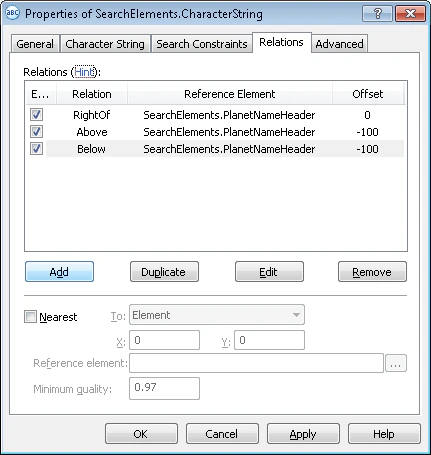
9
Set the reference element
Use the PlanetNameHeader element as the reference element for the PlanetName element. The planet name always appears to the right of the field name, on the same level. Specify the element’s location relative to the field name and its top and bottom boundaries.Otherwise, FlexiLayout Studio treats any text fragment in the alphabet as a valid hypothesis, even one above or below the field name.
10
Place the element to the right of the reference
Specify that the PlanetName element is to the right of the PlanetNameHeader element.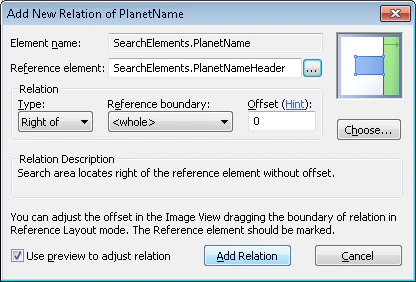
- Click Add.
- In the dialog box that opens, select PlanetNameHeader in the Reference element field.
- From the Type drop-down list, select Right of and leave the default Offset value of 0.
- Click Add Relation.
11
Set the lower boundary of the search area
Specify that the PlanetName element is not lower than the PlanetNameHeader element.
- Click Add.
- In the dialog box that opens, select PlanetNameHeader in the Reference element field.
- In the Type drop-down list, select Above and set Offset to -100 (this value can only be selected by trial and error).
- Click Add Relation.
12
Set the upper boundary of the search area
Specify that the PlanetName element is not higher than the PlanetNameHeader element.
- Click Add.
- In the dialog box that opens, select PlanetNameHeader in the Reference element field.
- In the Type drop-down list, select Below and set Offset to -100 (this value can only be selected by trial and error).
- Click Add Relation.
How the Reference boundary field works
The Reference boundary field determines how positive Offset values constrain the search area:- If you select <whole>, positive Offset values allow only these locations:
- To the right of the right boundary of the element
- To the left of the left boundary
- Higher than the top boundary
- Lower than the bottom boundary
- If you select Top and Bottom, positive Offset values limit the search area by the top and bottom boundaries of the element and exclude hypotheses that go beyond the top and bottom boundaries of the field name.