
 in the FlexiLayout tree.
Character String elements are used to look for unspecified text. The program considers as candidates the Recognized Words objects detected during pre-recognition in the element’s search area.
Usually, character strings are located next to static text. For example, to find the Ref. No. of a document, FlexiLayout Studio first finds the static text “Ref. No.” and then looks for the digits next to it.
in the FlexiLayout tree.
Character String elements are used to look for unspecified text. The program considers as candidates the Recognized Words objects detected during pre-recognition in the element’s search area.
Usually, character strings are located next to static text. For example, to find the Ref. No. of a document, FlexiLayout Studio first finds the static text “Ref. No.” and then looks for the digits next to it.
Describe the search text
Click the Character String tab in the Properties dialog box to describe the corresponding object. To open the Properties dialog box, right-click the element in the FlexiLayout tree and select Properties… on the shortcut menu.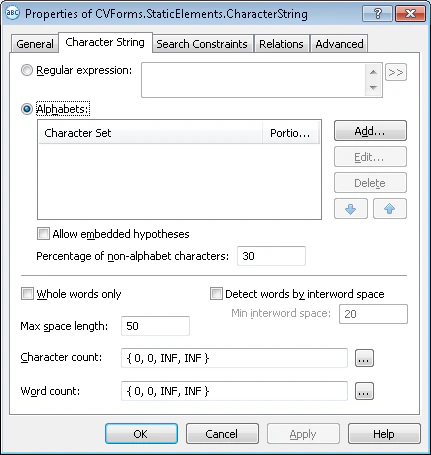
Describe search text with a regular expression
A regular expression defines possible combinations of characters. If you use one, the hypothesis must meet its conditions. Use this method on good-quality documents that are recognized without errors. To enter a regular expression, select the Regular expression option and enter the expression in the field next to it. You can also click the button, which opens a drop-down list of options (Any Letter, Character From Set, and so on). Select the option to enter the corresponding regular expression into the field.
Regular expression syntax
Describe search text with an alphabet
An alphabet lists the characters that can occur in the search text. Use this method when the character string cannot be described with a regular expression, or when the recognized text contains too many errors because of poor image quality. You can specify several alphabets for a Character String element. If the format of the text is unknown, specify no alphabets. In that case, FlexiLayout Studio considers all possible characters when looking for the object that corresponds to the element.1
Select a hypothesis generation mode
To use the characters in the search area to generate all the possible hypotheses, including intersecting and embedded hypotheses, select Allow embedded hypotheses. To generate hypotheses of maximum length, clear Allow embedded hypotheses.
2
Create one or more alphabets
For each alphabet:
- Click Add….
- In the Add New Alphabet dialog box, select the required code page from the Code page list.
- In the Character map, select the characters that occur in the search text. The selected characters and their number are displayed in the Selected on screen/selected in all field.
- In the Percentage of alphabet characters field, specify the required percentage of alphabet characters in the search text.
You can specify several alphabets, but they must not overlap, that is, include the same characters.
Additional Character String properties
Depending on the method used to describe the search text, you might need to specify the following properties:- Whole words only – Finds whole words only.
-
Detect words by interword space – Specifies how lines are divided into words. Disable this option to detect words automatically. Enabling it divides a line into words whenever the space between neighboring characters is greater than or equal to the value entered in Min interword space.
In the case of automatic word detection, word ends are detected based on spaces, on other symbols that separate words (for example,
,,;,/, or?), or on other attributes. The exact set of separator symbols depends on the selected pre-recognition language. To make sure that FlexiLayout Studio correctly divides lines into words, review the text objects on the test images (View → Images → Objects → Recognized Words). -
Word count – Specifies the number of words in the character string, using a fuzzy interval. The default interval is
{-1,-1,INF,INF}(that is, hypotheses with any number of words are matched). - Max space length – Specifies the maximum length of the space inside the object, measured in the user-defined units of measurement. You can estimate the space length by looking at the coordinates of neighboring objects: rest the mouse cursor on a neighboring object to display its coordinates in the status bar. When looking for text, characters are added to the character string until the distance between neighboring elements exceeds Max space length.
-
Character count – Specifies the length of the character string (the number of characters), using a fuzzy interval, which also assesses the quality of the hypothesis based on its length. Use the
 button to specify fuzzy intervals in a separate window that visualizes them.