
 in the FlexiLayout tree.
The program uses Static Text elements to search for static text, that is, for text that is known in advance. The program considers Recognized Words and Recognized Lines objects that were detected during pre-recognition and located in the element’s search area as static text candidates.
Usually, all or many images in the batch include static text. This can be the heading of the document (for example, Invoice) or the names of fields (for example, Date, To:, From:).
Such objects, detected as Recognized Words during pre-recognition, are usually used as “signposts” when looking for any text that can be entered in their corresponding fields. For example, it is natural to expect a date next to the static text “Date”.
in the FlexiLayout tree.
The program uses Static Text elements to search for static text, that is, for text that is known in advance. The program considers Recognized Words and Recognized Lines objects that were detected during pre-recognition and located in the element’s search area as static text candidates.
Usually, all or many images in the batch include static text. This can be the heading of the document (for example, Invoice) or the names of fields (for example, Date, To:, From:).
Such objects, detected as Recognized Words during pre-recognition, are usually used as “signposts” when looking for any text that can be entered in their corresponding fields. For example, it is natural to expect a date next to the static text “Date”.
Static Text element properties
The properties of a Static Text element are specified on the Static Text tab of the element’s Properties dialog box. To open the Properties dialog box, right-click the element in the FlexiLayout tree and select Properties… on the shortcut menu.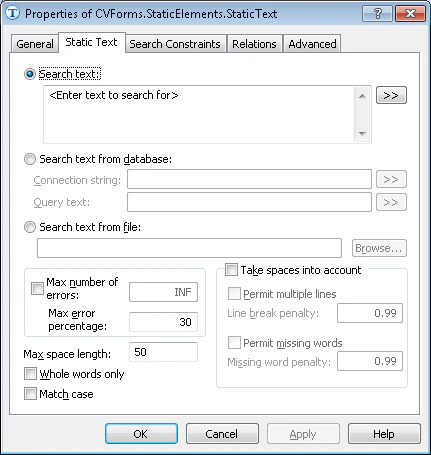
Search text
The text to find on the image. If you need to find a phrase or several words and you know that they will always be located on the same line, ignore spaces (leave the Take spaces into account option unchecked) to speed up the search. In this case, you can type your search phrase without spaces. The program removes them anyway when the Take spaces into account option is not selected. For example, to find the name ‘Purchase Agreement’, which is written on one line in all of the documents, enterPURCHASEAGREEMENT.
Use a vertical line (the | symbol) to separate variants. For example, if similar documents can have names such as Contract or Agreement, enter CONTRACT|AGREEMENT.
Variants of phrases are enclosed in curly braces and separated by a vertical line, in the form { }|{ }. You can list variants of words within phrases (the Take spaces into account option must be selected).
For example, if you enter {SALE|PURCHASE AGREEMENT|CONTRACT}|{CUSTOMER|CLIENT APPLICATION} in the Search text field, the program looks for the following phrases: sale agreement, purchase agreement, sale contract, purchase contract, customer application, and client application.
To enter long strings, click  to open a separate data entry window.
Search text from database
Search your image for a text fragment from a database. An SQL query that starts with theSELECT command finds the relevant fields in the table. The program then searches the image for the text contained in the found field.
1
Set the connection string
In the Connection string field, type the database connection string, or click to open the standard database connection dialog box.
to open the standard database connection dialog box.2
Enter the query
In the Query text field, type your query. You can also click to open a separate data entry window.
to open a separate data entry window.Search text from file
Search your image for a text fragment from a file. Click the Browse… button to select the file. For more information, see Databases and text files in the FlexiLayout language.Max number of errors
The maximum number of errors in the word. The program checks each word in the phrase if the words in the phrase are separated by spaces. Otherwise, the phrase is considered to consist of only one word. If the number of errors in a word is higher than the number specified in this field, the word is considered not detected. One error corresponds to one delete, insert, or replace operation required to adjust the text so that it matches the text typed in the Search text field. By default, this property is unlimited. For example, suppose the Search text field contains the word ‘meet’ and the maximum number of errors is set to 1. If the program finds the word ‘moot’ in this search area, there are 2 errors in the word, so ‘meet’ is considered not found.Max error percentage
The maximum percentage of errors in the word, calculated as the ratio of the number of errors in the hypothesis to the number of letters in the hypothesis. If the percentage of errors in a word is higher than the percentage specified in this field, the word is considered not detected. The default value is 30%. If you specify both the maximum number of errors and the maximum percentage of errors, the program uses the stricter criterion and ignores the other.Max space length
Sets the maximum length of the space inside the detected object.Whole words only
Searches for whole words only.Match case
Enables case-sensitive search, so the program distinguishes between lowercase and uppercase letters.Take spaces into account
Allows spaces in the search string. If this option is not selected, spaces are removed from the search string, which makes the search faster. However, if your search phrase can be located on multiple lines, or if some words in the phrase can be missing, enable the Take spaces into account option and type your search phrase preserving the spaces. The following options are available only if Take spaces into account is selected:
Each penalty is a number from 0 to 1. The program multiplies the quality of the hypothesis by the penalty once for every line break or missing word in the phrase. To permit line breaks or missing words without lowering the quality of the hypothesis, set the penalty to 1, because multiplying the quality by 1 leaves it unchanged.
Recommendations for creating a Static Text element
Since static text is known in advance, a Static Text element can be used as a reference element to look for other image objects. Use the following guidelines:-
To make sure that the selected static text can be reliably recognized on all of the images, view the pre-recognition results by clicking
 or
or  for words and phrases respectively. Make sure that the letters are correctly grouped into words and the words are correctly grouped into lines.
- It is best to select static text printed in larger letters that remains the same even on poor-quality scans, or in which the number of OCR errors is predictable.
-
If the documents contain only small-print static text that cannot be reliably recognized during pre-recognition (that is, the number and types of errors vary greatly across images), describe such text fragments as Object Collection with the Text and Punctuation mark options selected, rather than as Static Text.
You might also need to select the Picture option. Click
 (Raw Objects) on the toolbar and select the corresponding object on the image. The object type appears in the DataType line of the Properties window.
- It is preferable to select unique static text fragments to prevent wrong hits and to keep additional search constraints to a minimum.
- If there are both single-word names (which you plan to find using Static Text elements) and phrase names that contain the same words as the single-word names, create the elements for the phrases first. This prevents the program from wrongly detecting single-word names within phrase names.
Recommendations for Chinese, Japanese, and Korean languages
For strings in Chinese, Japanese, and Korean, you can use a search parameter. This parameter affects how the program counts the number of errors in the found hypothesis compared with the specified value of the Search text element. When this parameter is enabled, only characters with similar shapes are allowed as replacement characters. The insertion, deletion, and replacement operations each count as one error. Replacing a character with a similar character therefore counts as one error, while replacing it with a dissimilar character counts as two errors, because two operations are performed: deleting a character and inserting a new one. This search mode affects only strings in Chinese, Japanese, and Korean.For these languages, a whole-word search is not available, because texts in these languages are often not explicitly divided into words.
SuggestOnlySimilarChars parameter is set to false.