
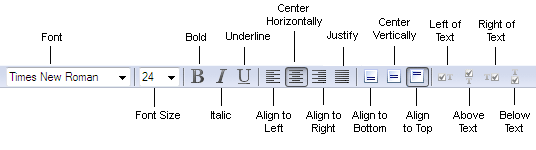
On the Formatting toolbar you will find buttons for formatting text on the form. Click a button to choose the corresponding formatting tool. Select the text you want to format, then select an instrument on the toolbar by clicking the corresponding button.
Buttons on the Formatting toolbar:
ButtonDescription
FontChanges the font of the text within the selected elements.
Font SizeChanges the font size for the text within the selected elements.
BoldChanges the selected text to bold.
ItalicChanges the selected text to italic.
UnderlineUnderlines the selected text.
Align to LeftAligns the text within the selected element to the left edge of the element.
Center HorizontallyCenters the text within the selected element horizontally.
Align to RightAligns the text within the selected element to the right edge of the element.
JustifyJustifies the text within the selected element.
Align to BottomAligns the text within the selected element to the bottom edge of the element.
Center VerticallyCenters the text within the selected element vertically.
Align to TopAligns the text within the selected element to the top edge of the element.
Left of TextPlaces the checkmark field to the left of the explanatory text.
Above TextPlaces the checkmark field above the explanatory text.
Right of TextPlaces the checkmark field to the right of the explanatory text.
Below TextPlaces the checkmark field below the explanatory text.
Note. You may purchase additional fonts and multilingual font support at www.paratype.com/shop/.