
Unhandled exception at 0x00007FFAEAB2A839 (KernelBase.dll) in FlexiEx.exe: 0xC06D007E: Module not found (parameters: 0x000000E126EFE040). Creating and configuring a COM+ application resolves it.
MAPI import requires Microsoft Outlook 2016. Later versions of Microsoft Outlook are not supported.
Before you create a COM+ application
Turn off the Processing Station first. If you leave it running and hit theThe RPC server is unavailable error while configuring MAPI import, restart ABBYY FlexiCapture and the Processing Stations.
Two account conditions also have to hold:
- The ABBYY FlexiCapture services must run under the same user account as the Microsoft Outlook profile. To set this up, open Microsoft Outlook under that account and add the mailbox you want to import documents from.
- That same account must have administrative permissions, because you use it to create the COM+ application.
Create the COM+ application
1
Open the Component Services console
Navigate to Console Root → Computers → My Computer → COM+ Applications.
2
Start the install wizard
Right-click COM+ Applications and click New → Application on the shortcut menu. The COM+ Application Install Wizard opens.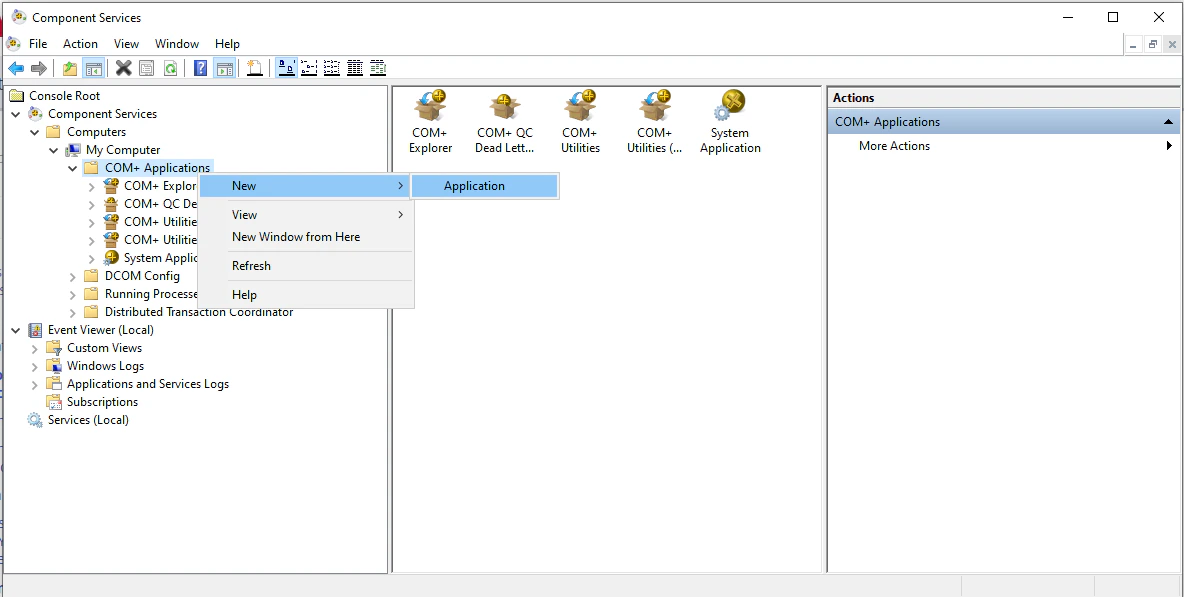
3
Create an empty application
In the Install or Create a New Application dialog box, click Create an empty application.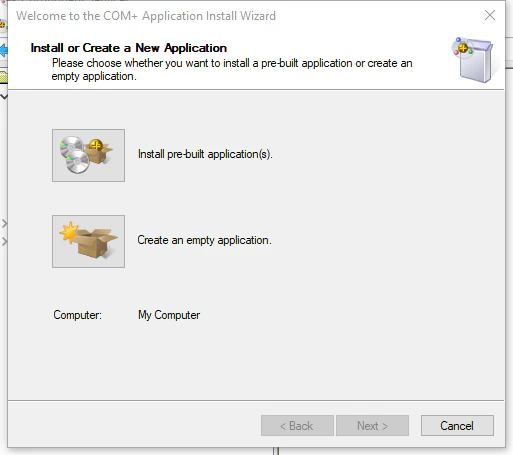
4
Name the application
In the Create Empty Application dialog box, enter a name, select Server application, and click Next.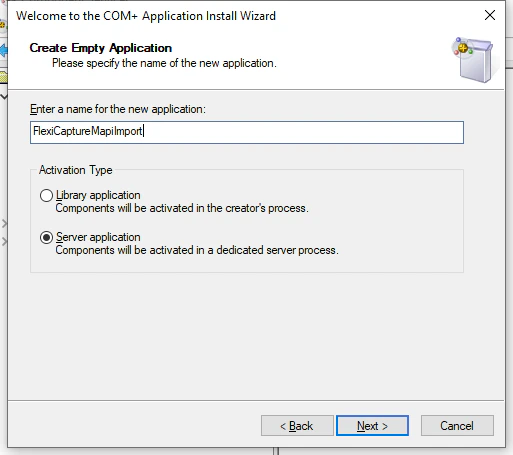
5
Set the application identity
In the Set Application Identity dialog box, select Interactive user - the current logged on user and click Next.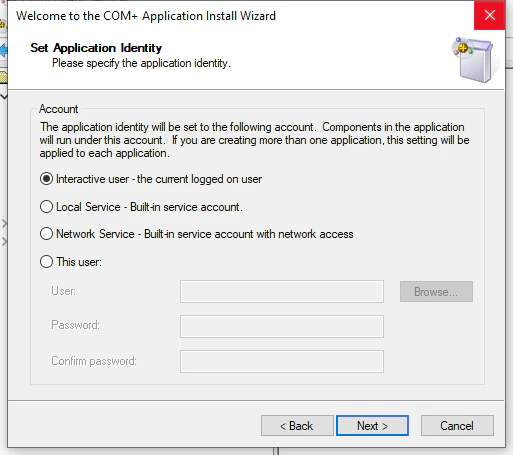
6
Finish the wizard
Click Next through the remaining dialog boxes, leaving the default settings.
Import the FlexiCapture component
1
Add a new component
Find your new COM+ application in the list, right-click its Components folder, and click New → Component.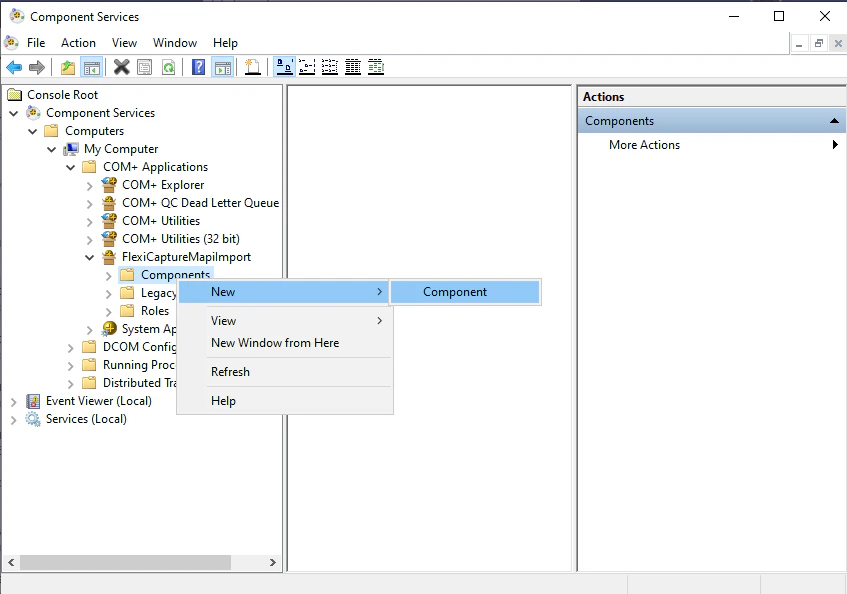
2
Choose to import a registered component
In the Import or install a component dialog box, click Import component(s) that are already registered.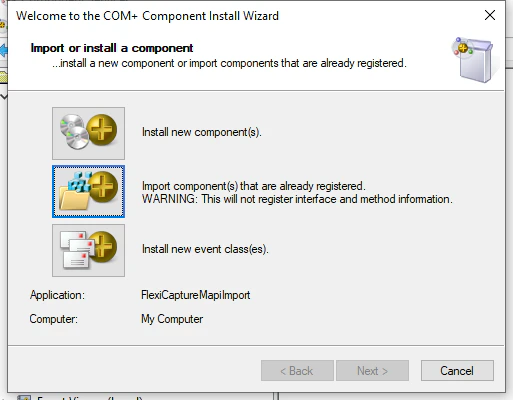
3
Select the component that matches your Office bitness
In the Choose Components to Import dialog box: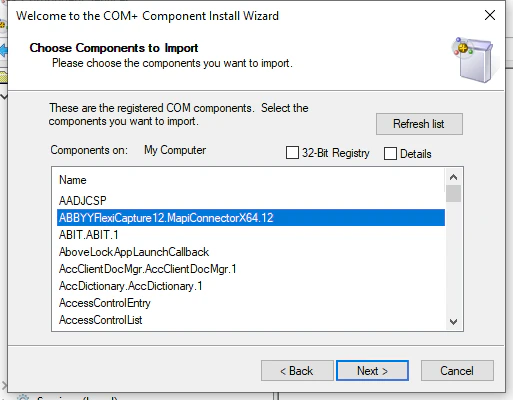
- For 64-bit Microsoft Office, select
ABBYYFlexiCapture12.MapiConnectorX64.12and click Next. - For 32-bit Microsoft Office, select the 32-Bit Registry option, and then select
ABBYYFlexiCapture12.MapiConnectorX86.12and click Next.
4
Open the application properties
Right-click your COM+ application in the list and click Properties on the shortcut menu. Open the Pooling & Recycling tab.
5
Set the pooling values
In the Expiration Timeout (minutes) box, type 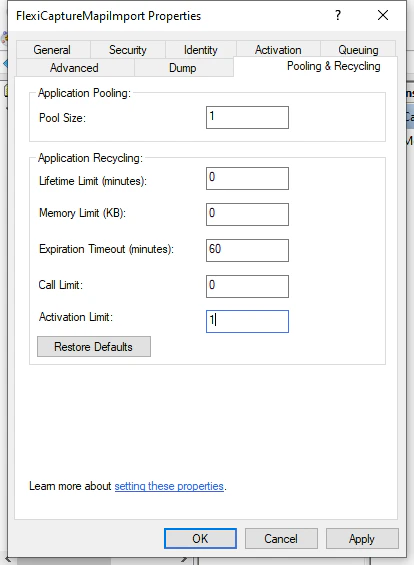
60. In the Activation Limit box, type 1. Click OK.