
Create or select a Timeline project
Create a new ABBYY Timeline project, or use an existing project dedicated to KYC process monitoring and analytics. For the required columns, see Timeline event log schema.Generate a Personal Access Token
A Personal Access Token (PAT) authenticates API requests between IBM watsonx Orchestrate and ABBYY Timeline.The user who generates the token must have the Administrator role in ABBYY Timeline. Administrator permissions are required to create and manage Personal Access Tokens and to grant the API access the integration needs.
1
Log in to ABBYY Timeline
Log in to your ABBYY Timeline environment.
2
Open Personal Access Tokens
Go to your User Profile and select Personal Access Tokens.
3
Create a token
Click Create Personal Access Token.
4
Configure the token settings
Configure the token: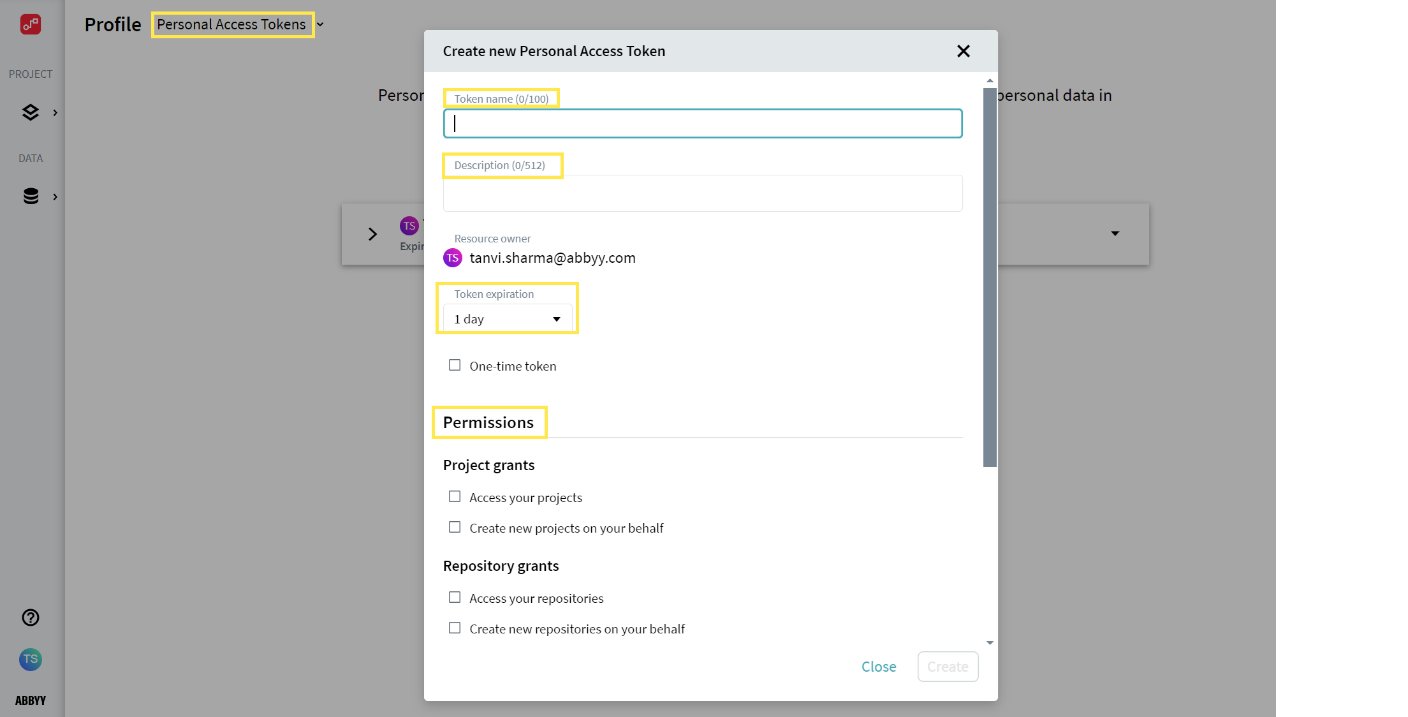
- Enter a Token name.
- Optionally set a Token expiration date.
- Select the required permissions.
5
Grant permissions
Grant the permissions the integration needs:
- Project permissions
- Repository permissions
- Profile permissions (if required)
6
Create and copy the token
Create the token, and then copy the generated value.
Obtain the Timeline project ID
The Timeline project ID identifies the project where process events and analytics data are stored. Find it in the URL of your Timeline project.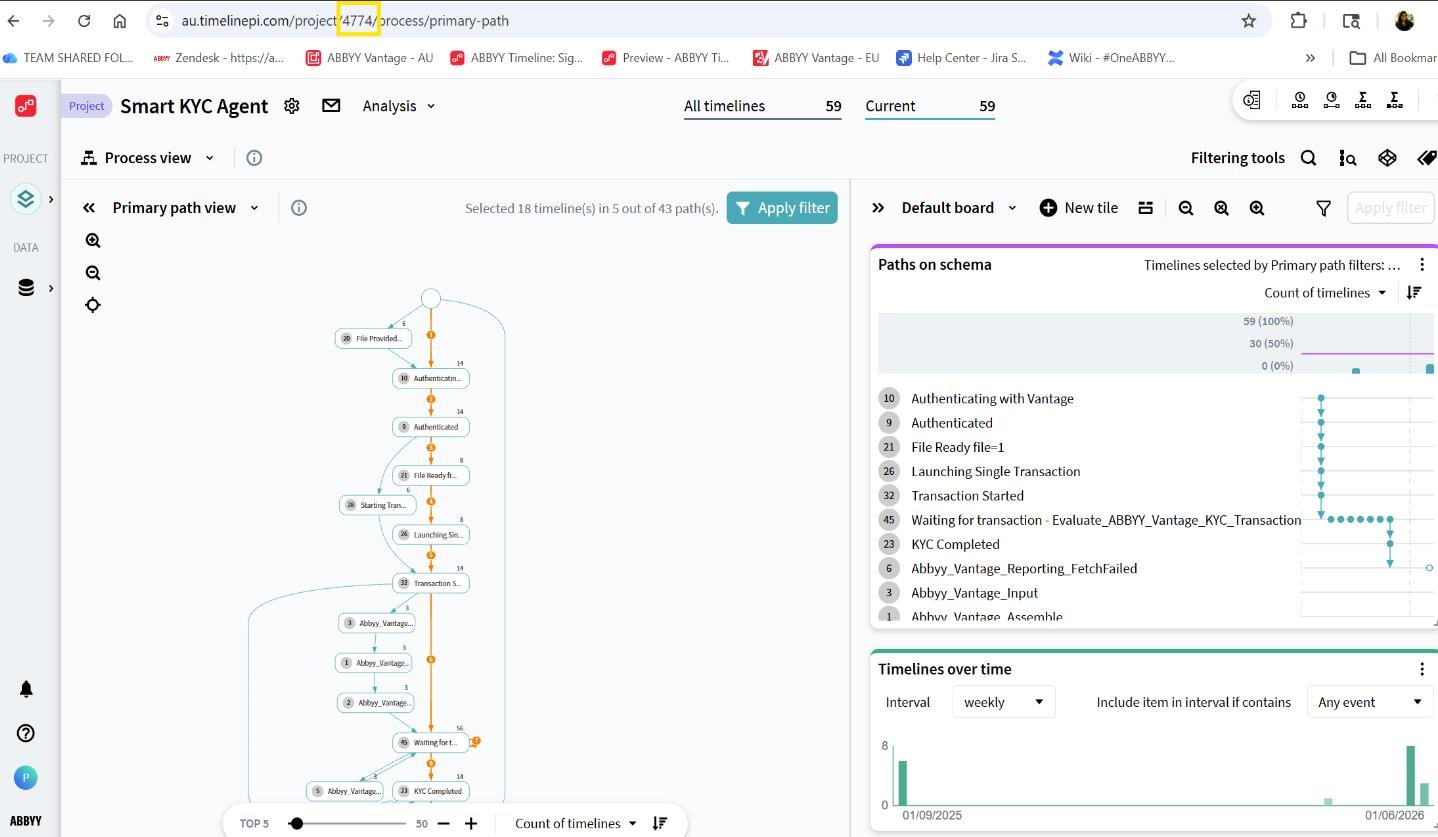
Configure the Timeline connection in IBM watsonx Orchestrate
Populate theabbyy_key_value_abbyy_e073d849 connection (type Key-Value pair) with your ABBYY Timeline details.
Configure monitoring and analytics dashboards
Create or customize ABBYY Timeline dashboards to monitor key business and operational metrics, such as:- Total KYC cases received
- Approved KYC cases
- Rejected KYC cases
- Cases pending review
- Average processing time
- Process bottlenecks
- Failed transactions and exceptions
- End-to-end workflow performance trends