
- System Administrator’s Scope. Covers system administration. Users have the System Administrator role and can manage tenants and users.
- Tenant’s Scope. Covers tenant-specific operations.
- View, create, and delete tenants, and manage tenant subscriptions
- View, create, and delete users
To ensure different clients are logically isolated, users with permissions for one scope cannot access the other. Similarly, tenants cannot access data from other tenants.
Creating a Tenant
- Navigate to the Tenants tab in the left-hand pane.
- Click New Tenant.
- In the dialog, specify:
- Tenant name
- Description
- Email address of the tenant administrator
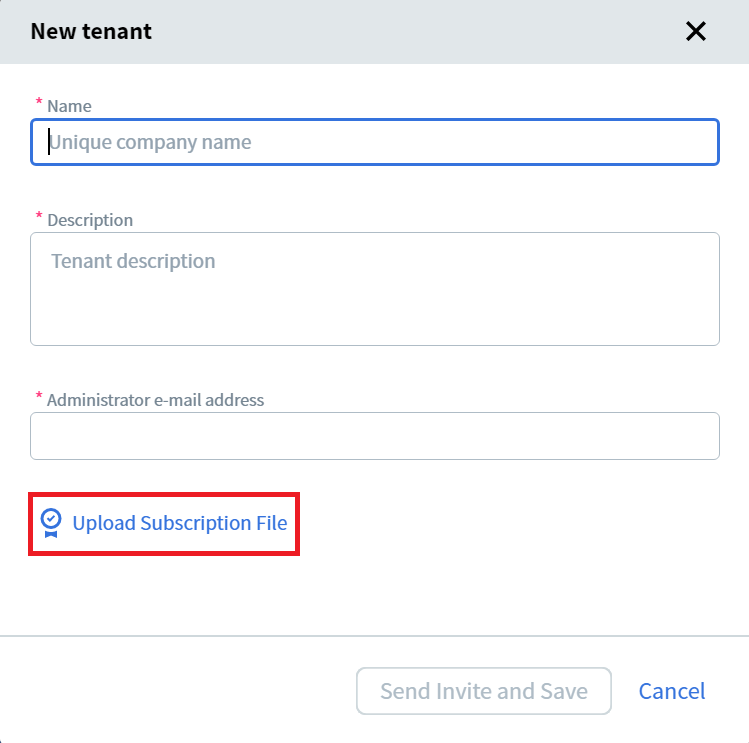
- Click Upload Subscription File to upload the subscription provided to you. For more information about subscriptions, see Subscriptions.
Invites remain valid for 14 days. If the user doesn’t register within this period, the tenant will be deleted from the system.
Resending an Invitation
- Select the desired tenant in the tenant list.
- Click Resend Invite.
- Modify the email address if required, and click Send.
Creating a Tenant via REST API
A System Administrator can assign the Fulfillment Operator role to a Tenant Administrator. A Tenant Administrator with the Fulfillment Operator role can add other tenants to the system via REST API requests and assign this role to other tenant users. To assign the Fulfillment Operator role:- Navigate to the Tenants tab and click on the required tenant.
- Navigate to the General tab and click Allow Tenant Users to Create New Tenants.
Deleting a Tenant
- Select the desired tenant in the tenant list.
- Click Delete and confirm the deletion.
Creating a User
- Navigate to the Users tab in the left-hand pane.
- Click New User.
- Specify the email address and password for the user.
- Confirm the password.
When you add a new user in the System Administrator’s Scope, they automatically get the System Administrator role.
Deleting a User
- Select the desired user in the user list.
- Click Delete and confirm the deletion.
Resetting Password
If you cannot log in using your System Administrator credentials:Ensure kubectl is installed and you’re connected to the Kubernetes cluster before proceeding.
- Access the system administrator’s API:
http://localhost:8080/index.html
- Navigate to the Users section.
- Find your user details with a GET request:
email or name parameters. The response will contain the user identifier.
- Reset the password with a PUT request:
IP Restrictions
If the Tenant Administrator configures IP restrictions incorrectly and cannot access the tenant, the System Administrator can disable them:- On the Tenants tab, click the tenant name.
- Navigate to the IP Restrictions tab.
- Click Disable.