
- Register applications on the Google Cloud Platform and/or the Azure portal.
- Generate account credentials for these applications (Client ID and Client secret).
- Pass the generated credentials to Consul.
Registering the Application in Google
Creating an application requires a Google account.Creating a Project on the Google Cloud Platform
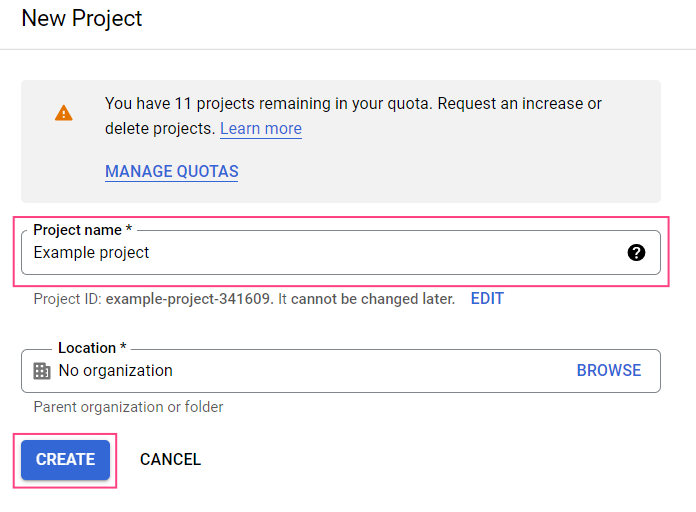
- Navigate to the Google Cloud Platform New Project page.
- Specify a name for your project and click Create.
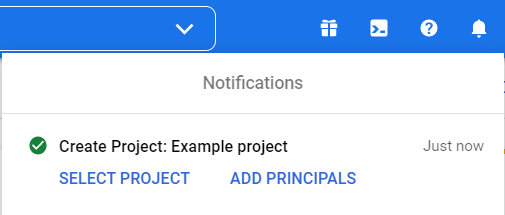
- Wait for a notification saying that your project has been created.
Setting Up the Application
- Navigate to the Google Cloud Console and select the appropriate project.

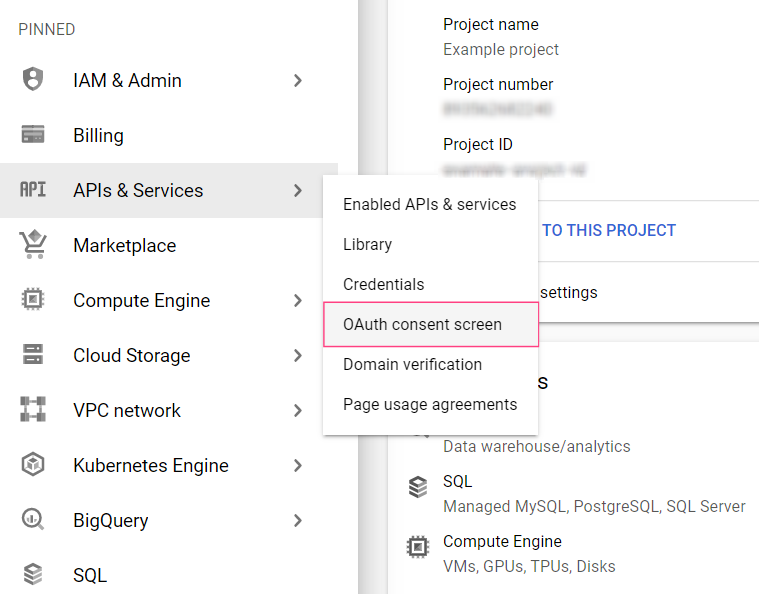
- In the menu on the left side of the screen, select APIs & Services > OAuth consent screen.
- Select the External user type and click Create.
- Specify a name for your application. In the User support email drop-down list field, select your Gmail address.
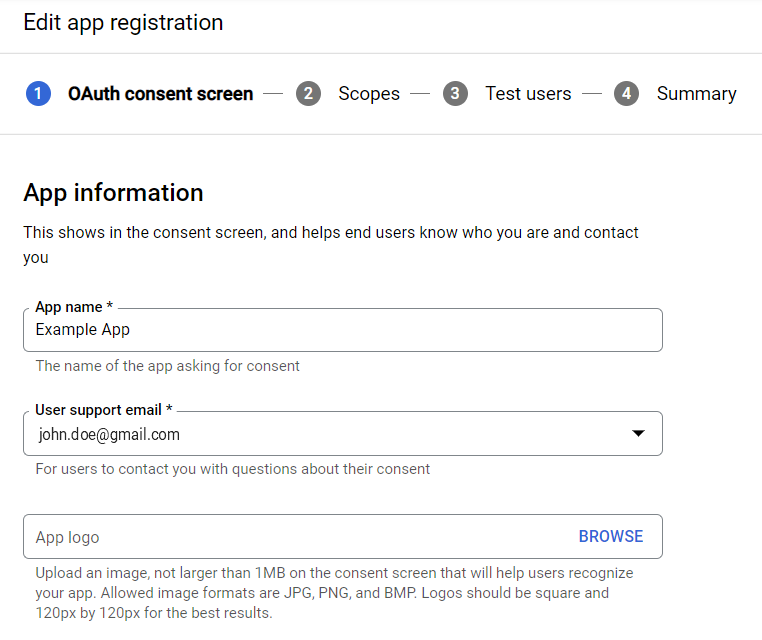
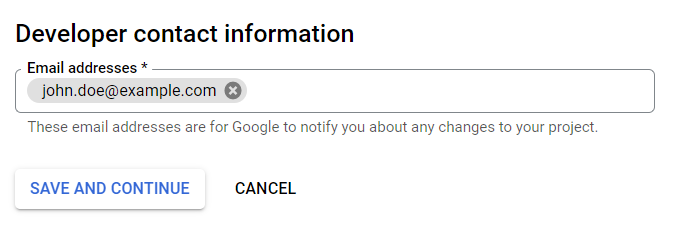
- Specify the developer’s email in the Developer contact information section at the bottom of the page and click Save and continue.
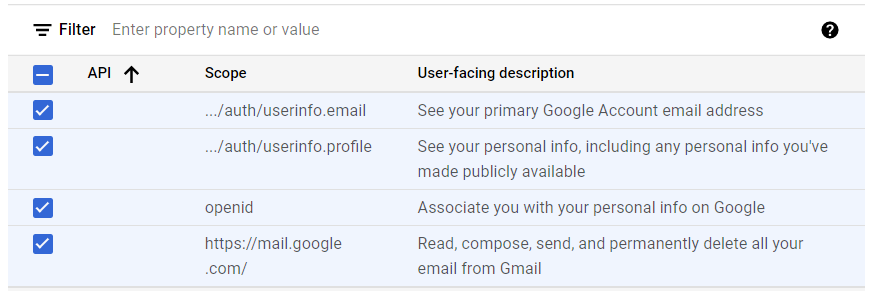
- Click Add or remove scopes. This will open the Update selected scopes dialog on the right.
- Copy and paste the following text into the Manually add scopes field in the bottom part of the dialog and click Add to table:
You can also select scopes manually. The following scopes need to be selected:
openidhttps://mail.google.com/../auth2/userinfo.email../auth2/userinfo.profile
- Click Update. This will close the Update selected scopes dialog and display the selected scopes.
- Click Save and continue at the bottom of the screen.
- Click Save and continue to skip the Test users page settings and navigate to the Summary page.
Creating Account Credentials
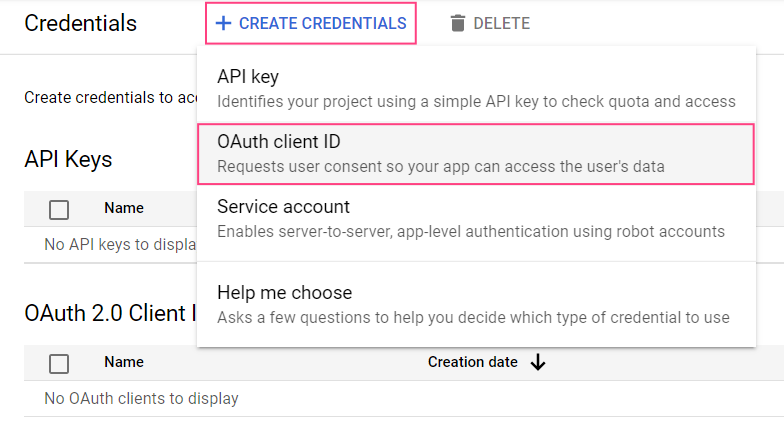
- Select Credentials in the menu on the left side of the screen.
- Click + Create credentials and select OAuth client ID.
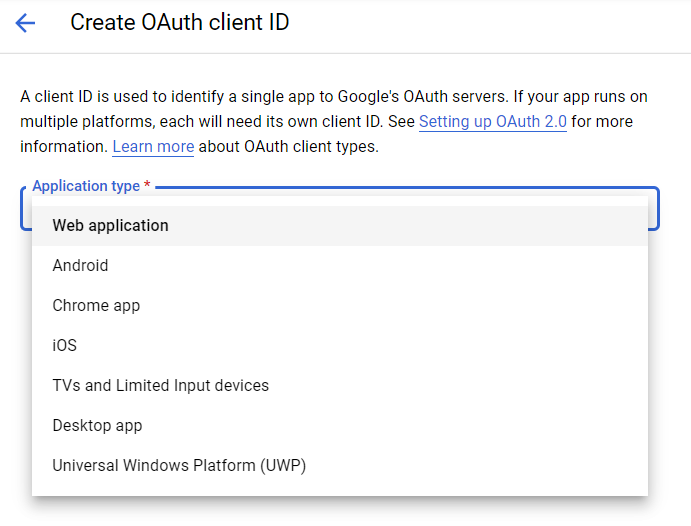
- Select the Web application type.
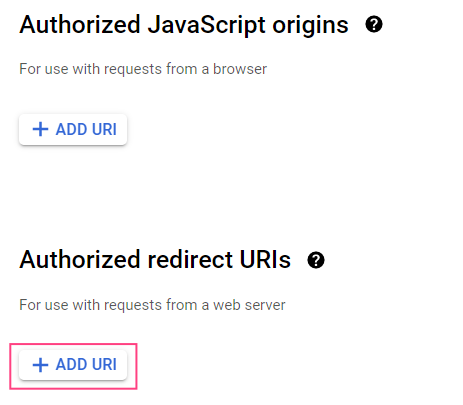
- In the Authorized redirect URIs section, select + Add URI.
- In the field that will appear, specify the redirect URI:
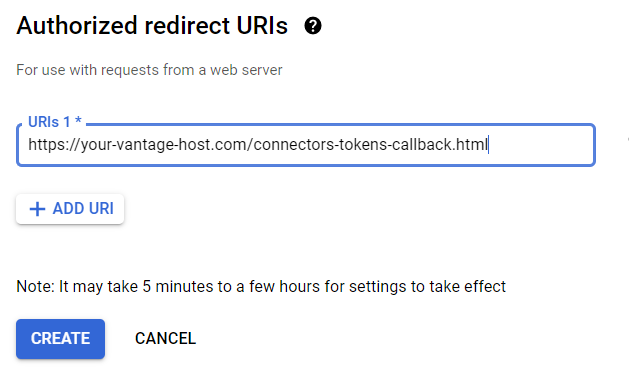
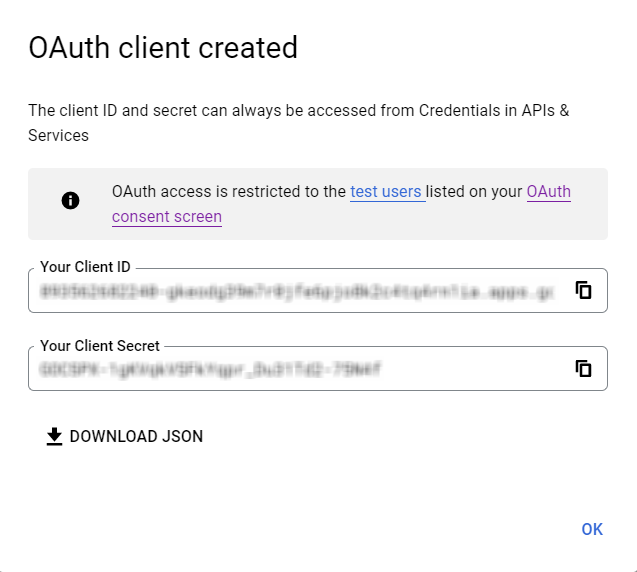
- Click Create.
Publishing and Verification
The publishing status of the application is displayed in the APIs & Services > OAuth consent screen section.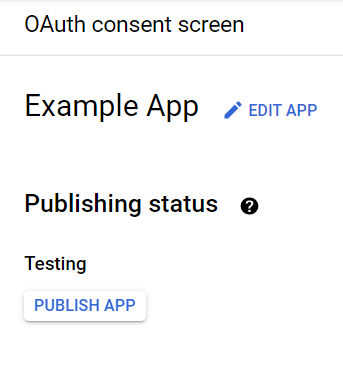
https://mail.google.com/ scope allows the application to access confidential user data, which is why a message saying that the application needs to be verified will be displayed.
To verify the application, you will need to provide:
- An official link to the application’s Privacy policy
- A YouTube video demonstrating the stated purpose of obtaining Google user data using the application
- A text addressed to Google that contains a description of why you require access to confidential user data
- A full list of all your domains verified in the Google Search Console
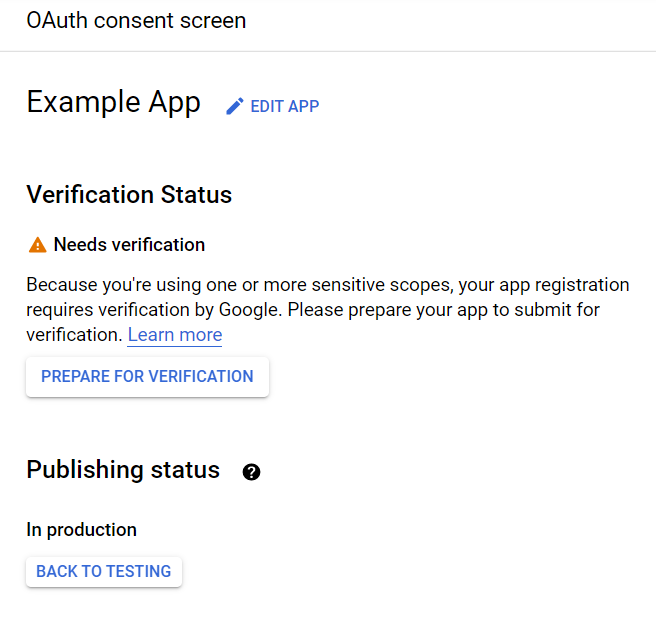
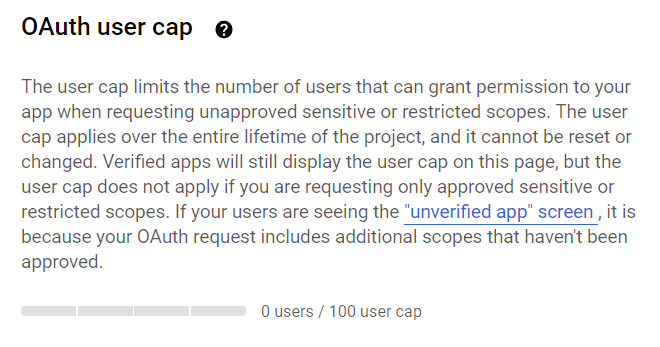
Before your application is verified, only 100 users will be able to use it. The user counter is located in the bottom part of the OAuth consent screen section and cannot be reset during the project’s lifetime.
Registering the Application in Microsoft Azure
To create an application, an Azure Active Directory tenant with application registration and editing permissions is required. You can switch to the correct directory on the Portal settings | Directories + subscriptions page.Registering the Application
- Navigate to the App registrations page.
- Click New registration.
- Specify a name for your application and select the supported account types.
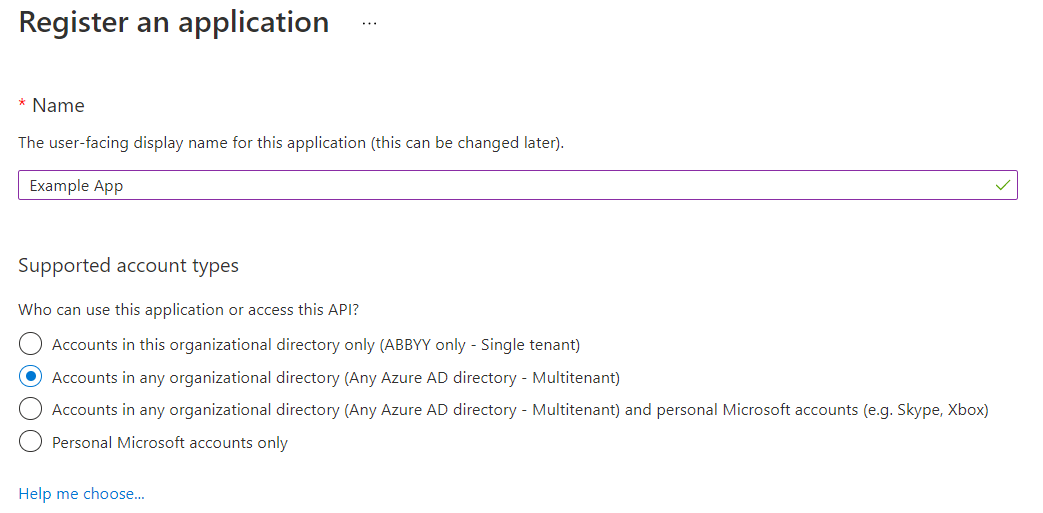
If the Multitenant type is selected for the application, it will be available for users in any Azure AD tenant. Such applications need to be verified, which is only available for Microsoft Partner Network participants. If you are not a participant, select Single tenant, which will only make your app available to users in your own Azure AD tenant.
- In the Redirect URI section, select the Web platform and specify the redirect URI:
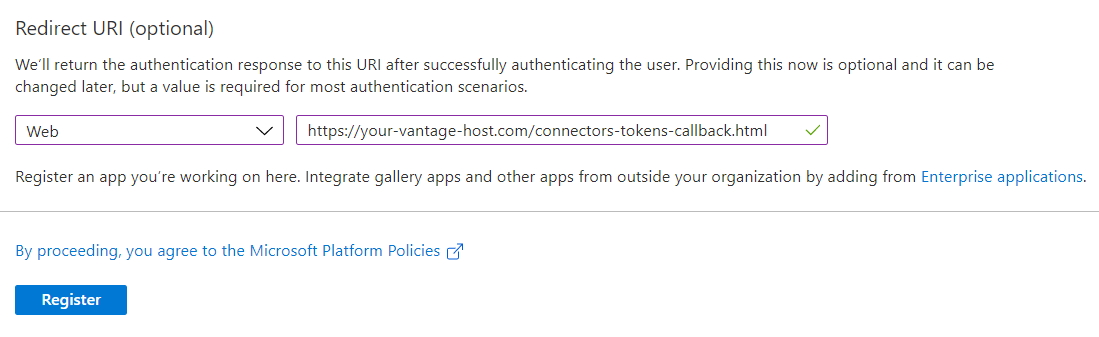
- Click Register.
Setting Up Application Permissions
- Navigate to the API permissions tab.
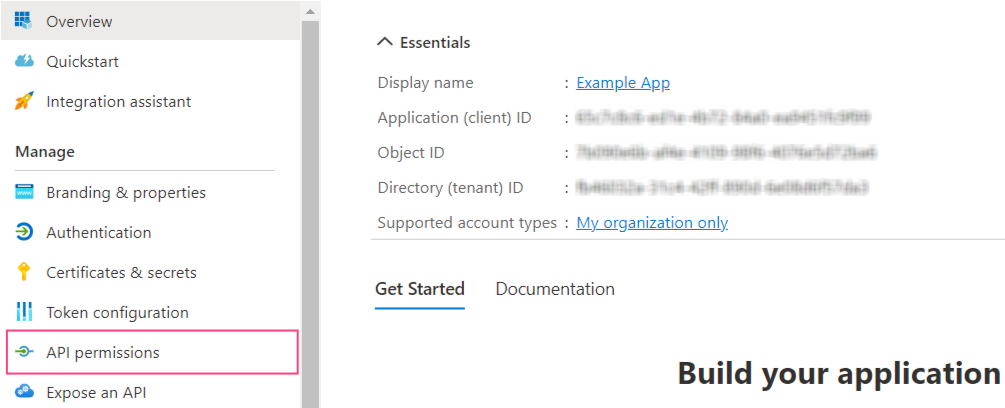
- Click Add permission.
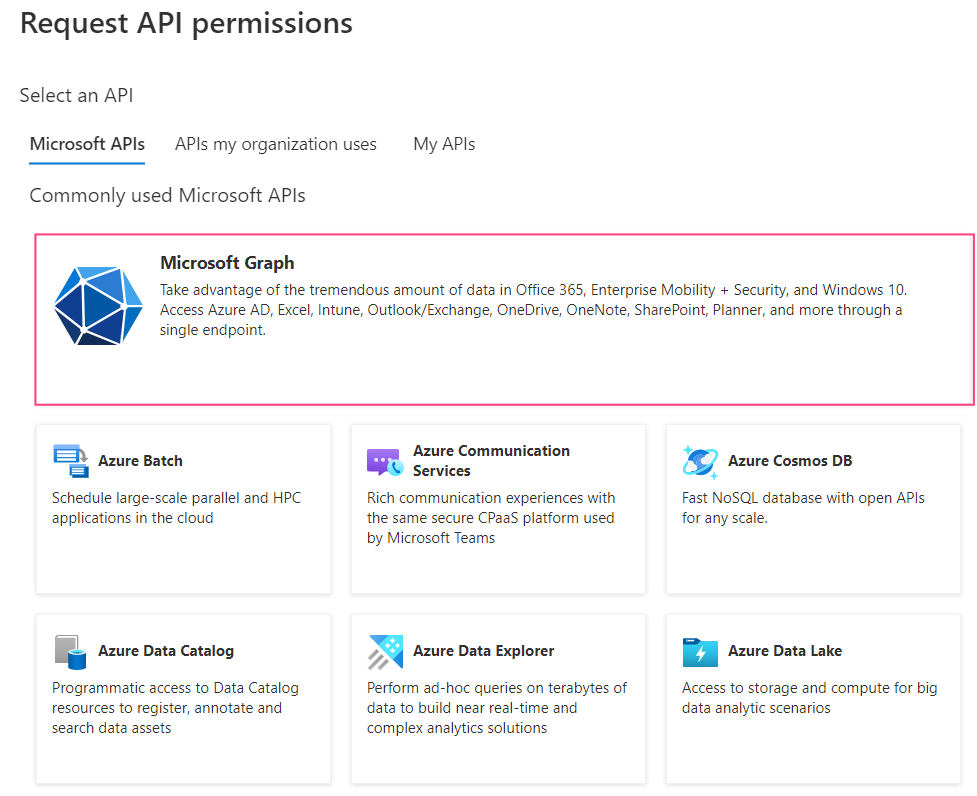
- In the dialog that will open, select the Microsoft Graph section.
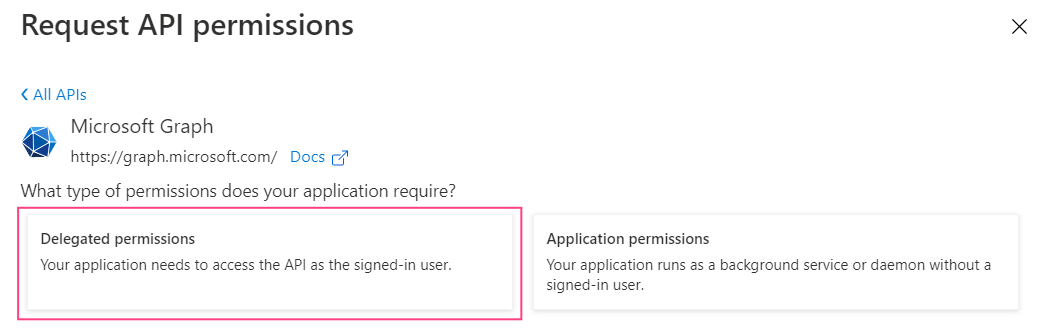
- Select Delegated permissions.
- Add the following permissions:
emailIMAP.AccessAsUser.Alloffline_accessopenidprofile
- Click Add permissions. This will close the dialog and display the selected permissions.
Creating Client Secrets
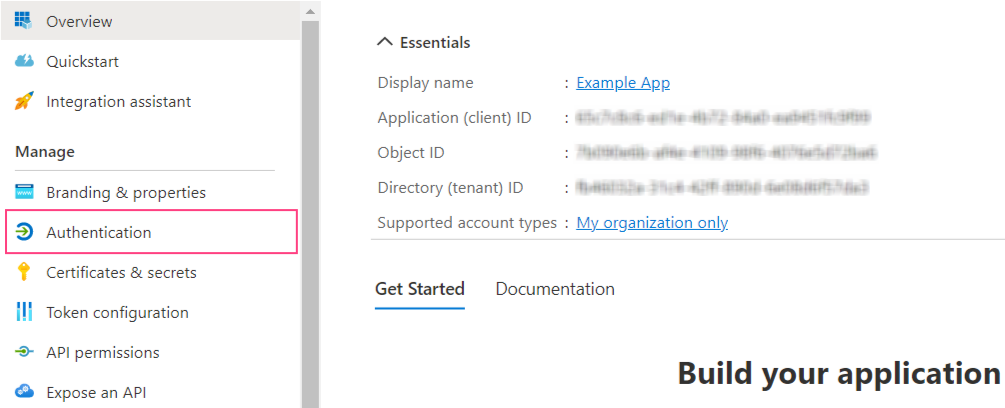
- Navigate to the Authentication tab.
- In the Implicit grant and hybrid flows section, mark ID tokens (used for implicit and hybrid flows).
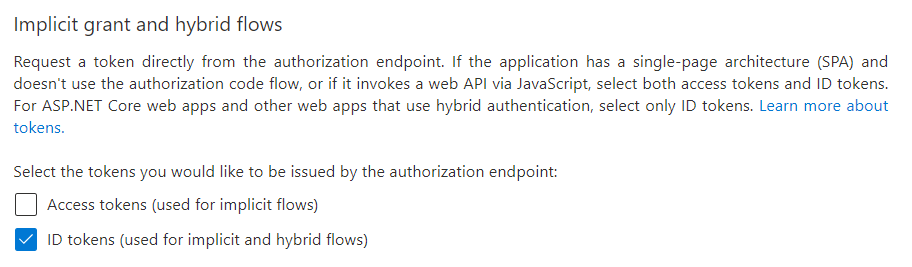
- Click Save at the top of the screen.
- Navigate to the Certificates & secrets tab and click New client secret.
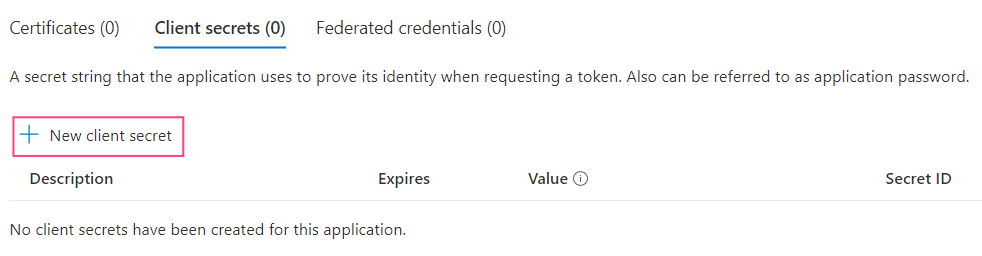
- In the dialog box that will open, specify a name for the client secret and an expiration date.
The maximum expiration date is 24 months.
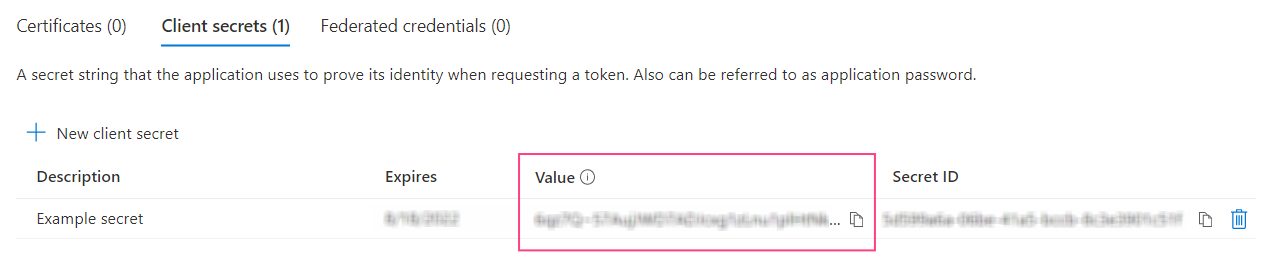
- Click Add. This will close the dialog and display information about your new client secret.
Verifying the Application
To make the application available to users from any Azure AD tenant, verification is required. Verification is not required if accounts from a single Azure AD tenant are used. Only Microsoft Partner Network participants can undergo verification.- Navigate to the Branding & properties tab.
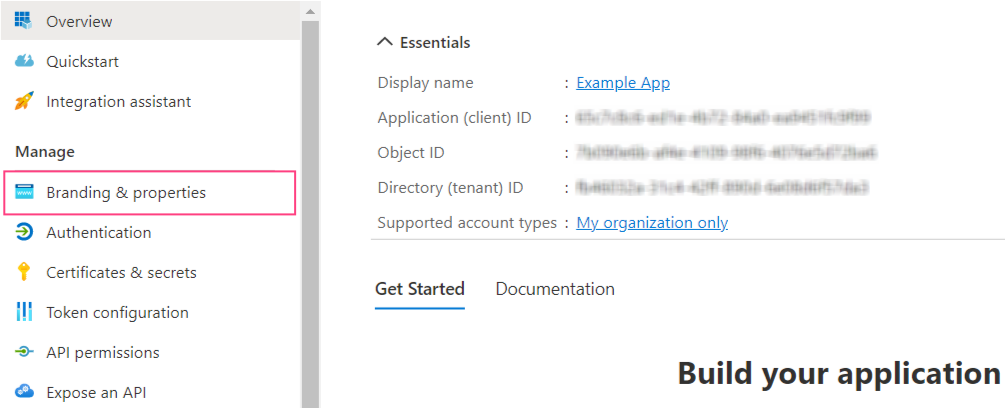
- Verify that the domain is specified in the Publisher domain field. If required, configure your domain by clicking Configure a domain.
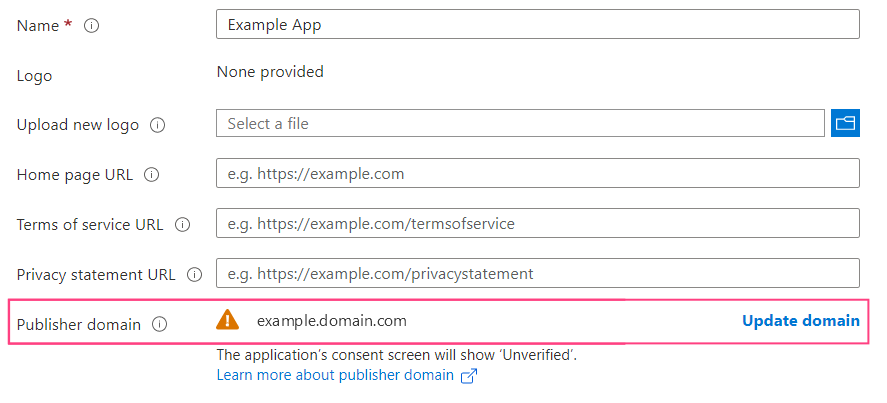
The warning icon displayed next to the domain name means that an application with the specified domain cannot be verified. Click Update domain to specify a different valid domain related to the Azure Active Directory tenant. Alternatively, verify a new domain.
- In the Publisher verification section, specify your MPN ID and click Verify and save.
If you do not have the required permissions to add an MPN ID, verify that all publisher verification requirements are satisfied.
Passing Credentials to Consul
If Vantage is already installed, you need to use Consul to manually enter account credentials generated for Microsoft and/or Google email service authentication. Features specific to the OAuth 2.0 protocol are listed in the TokenManagement service.Before setting up, verify that the kubectl command line tool is installed and that you are connected to the Kubernetes cluster.
- Get access to the Consul web interface by running the following command:
http://localhost:8500/ui/dc1/kv/secret/.
- In the Key/Value tab that will open, select the appropriate Vantage deployment scope. Then, select the vantage project.
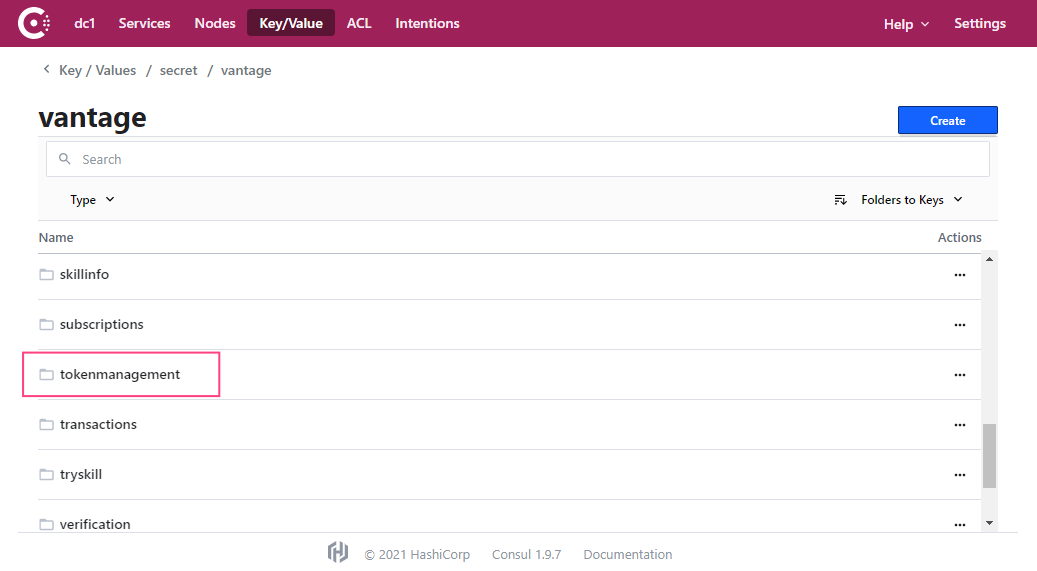
- Select the tokenmanagement service.
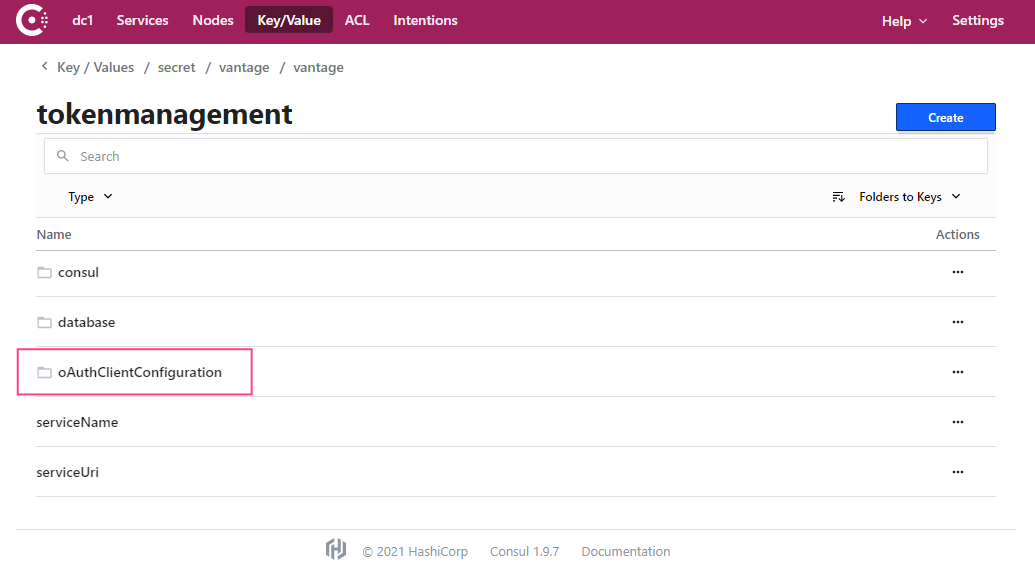
- Navigate to the oAuthClientConfiguration section.
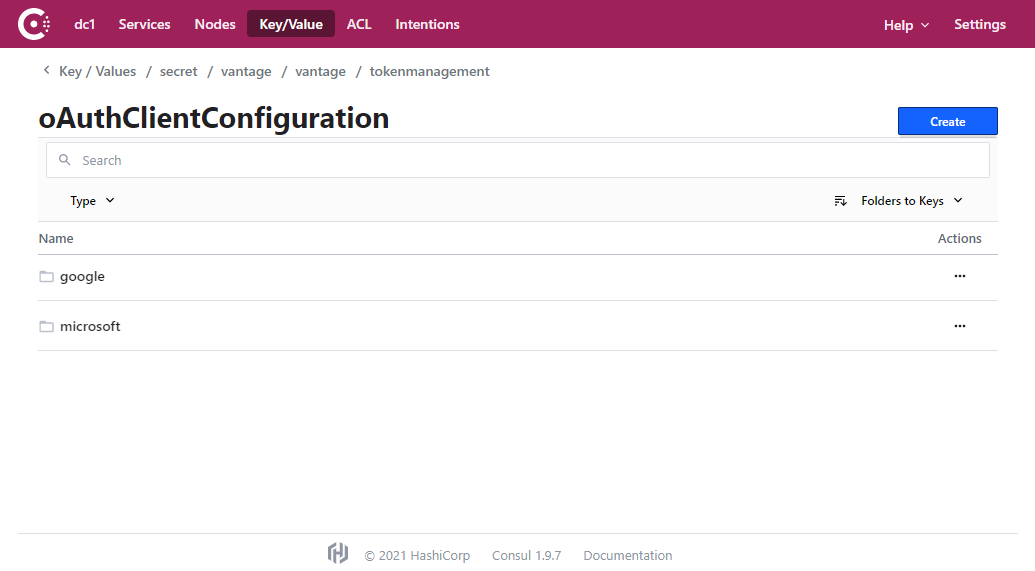
- Select the service for which you want to specify user data (google or microsoft).
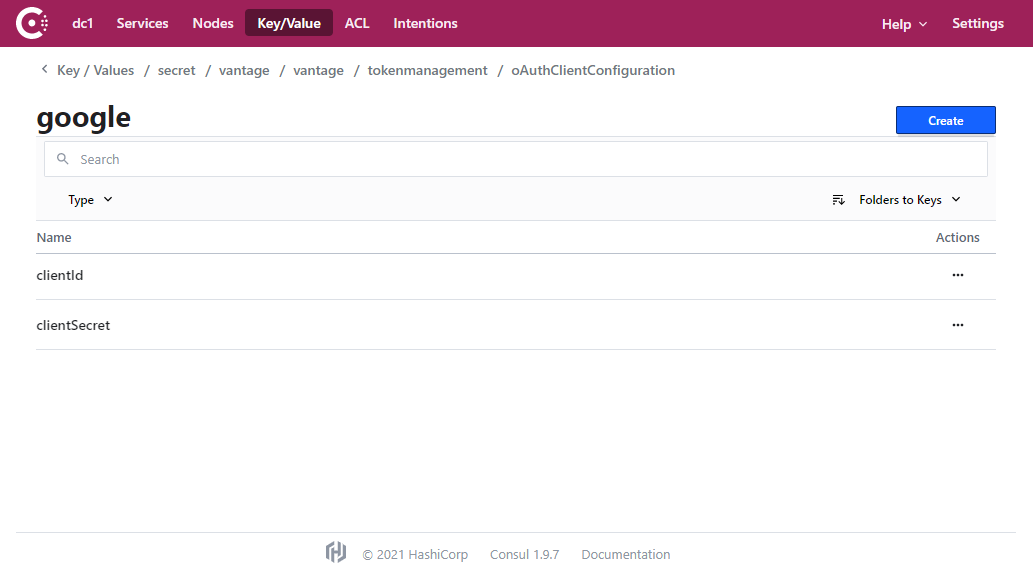
- Select the clientId key.
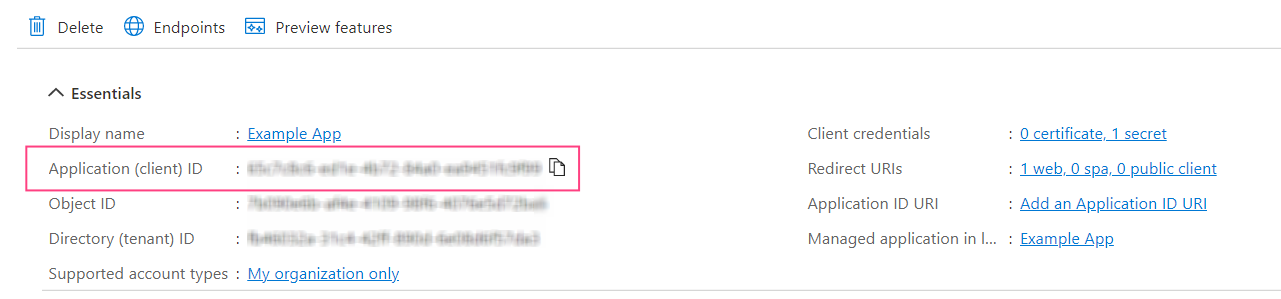
- Copy and paste the Client ID value you saved earlier to the entry field and click Save.
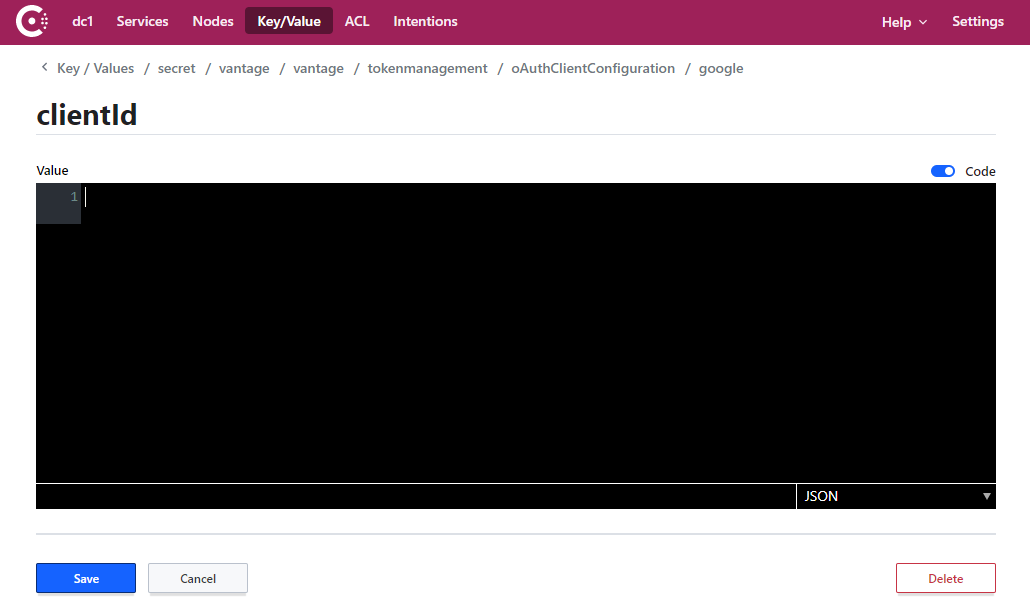
- Repeat steps 6 and 7 for the clientSecret key.
- Restart the tokenmanagement service by running the following command:
Updating Client Secret
The Client secret value is used for server-side client identification and constitutes confidential information. For security purposes, this data should periodically be updated. Some services like Azure Active Directory limit the validity period for such data. Once a new Client secret has been created, the value of the corresponding Consul key should also be updated.Updating the Client Secret in Google
- Navigate to the Google Cloud Console and select the appropriate project.
- In the menu on the left, select APIs & Services > Credentials.
- In the OAuth 2.0 Client IDs section, select the identifier used to authenticate when connecting to the IMAP server.
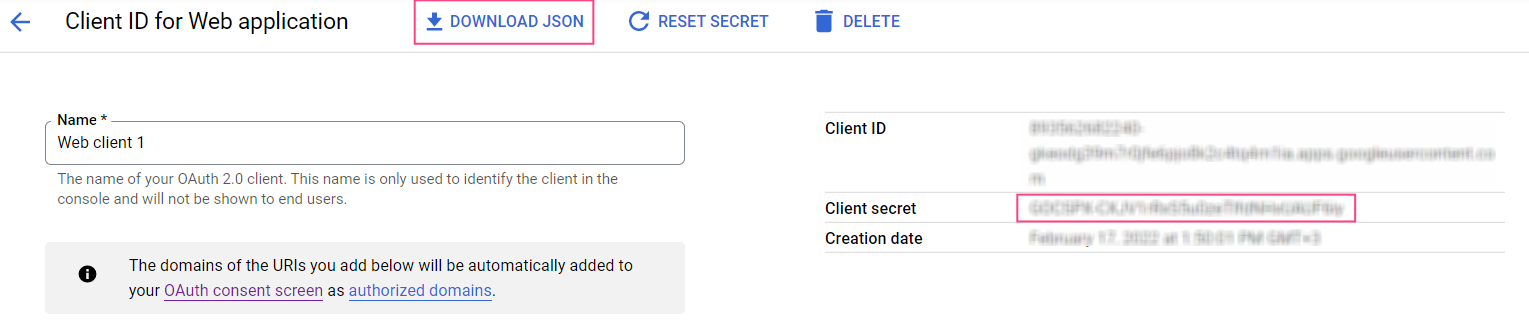
- Click Reset secret.

- Click Reset in the pop-up dialog box. This will update the Client secret value and recall its previous value.
- Download the JSON file containing the credentials. Alternatively, copy the Client secret value from the right side of the screen.
Updating the Client Secret in Microsoft Azure
- Navigate to the App registrations page and select the application used for authentication using the IMAP server.
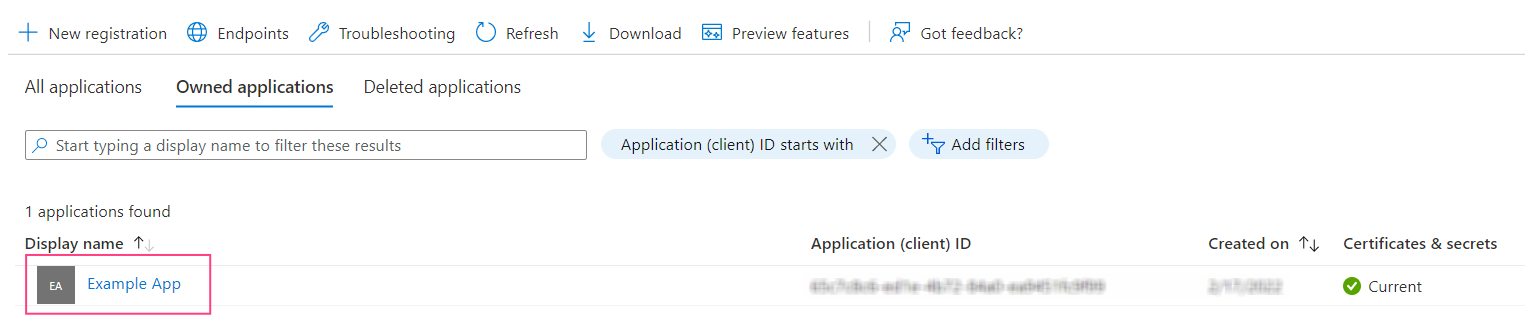
- Navigate to the Certificates & secrets tab and click New client secret.
- In the dialog box that will open, specify a name for the client secret and its expiration date.
- Click Add. This will close the dialog and display information about the new client secret. It is important that you copy and save the Value, since you will not be able to access it again once you close the page.
- If the current client secret has not expired yet, you can delete it in order to only be able to use the new client secret to identify the client.