
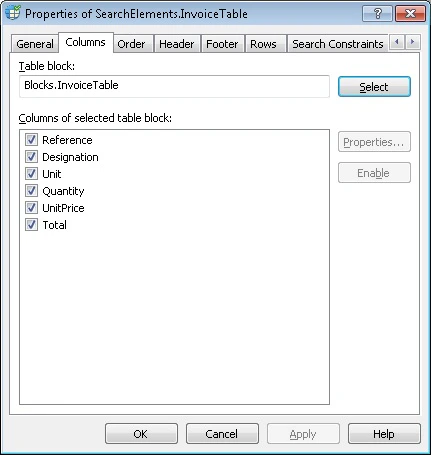
Select a Table block
Each Table element must correspond to a Table block that it is meant to find. To select a Table block, click the Select button and select the Table block that corresponds to the current Table element. A list of all its columns appears in the List1 field. Set the properties for each column. The program uses these properties as search constraints when it looks for the columns. The list of columns displayed on the Columns tab in the element’s Properties dialog box cannot be edited in this dialog box. To edit the list, open the block’s Properties dialog box. To understand how an element and its corresponding block are connected, consider the following. A Table block serves as an interface between the FlexiLayout and a data capture application, whereas a Table element is the implementation of that interface. A Table element contains the instructions about how to find the Table block. You can create several program implementations for any interface. Likewise, you can create several Table elements for a Table block, but not the other way round. When you select a Table block on the Columns tab of an element, the program by default uses the names and order of the columns in the Table block to set the search constraints for each column and the order of the columns. For more information, see Set search constraints for table columns and Order of table columns.Disable a table column
When testing your FlexiLayout, you might need to disable a column without removing it from the FlexiLayout altogether. Disabling a column retains all the information about the column in the FlexiLayout but tells the program to ignore the column when you test the FlexiLayout. To disable a column, select it in the List1 field and click Disable. This clears the check mark next to the column name. To enable the column, select its name in the list and click Enable.When you disable a column, it is automatically disabled in all of the order lists on the Order tab.
Set search constraints for table columns
The search constraints for table columns are set in the column’s Properties dialog box. To open the Properties dialog box of a column, select the column in the List1 field and then click the Properties… button next to the field.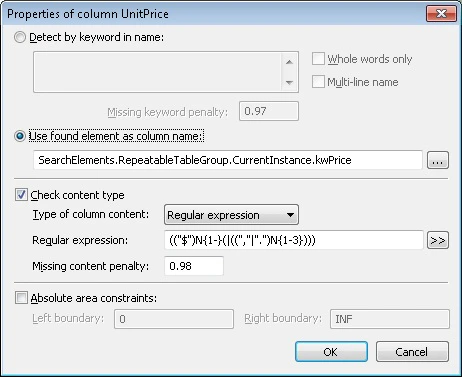
Use keywords to detect column names
To detect a column name with keywords, select the Detect by keyword in name option. In the field underneath, enter the keywords or phrases that occur in the column name on the test images. Press Enter after typing each keyword. To make the program use only whole words when looking for column names, select the Whole words only option. In a narrow column, words in the name are often carried over to the next line. Select the Multi-line name option to detect column names like that. Since the same column can have different names on different images, the list of keywords must include all the variants that can actually occur. However, on some images the column can have no name at all or can be absent altogether. For this reason, the name of a column is always optional. This means that the name of a column need not be found when matching the FlexiLayout with the images. If a keyword is not found (either because it is actually absent or because the image quality is inadequate for OCR), the hypothesis is penalized: its quality is multiplied by the quality of the null hypothesis for the undetected keyword. The penalty for the hypothesis is set in the Missing keyword penalty field. The default value is 0.97.Use another element’s region to detect column names
You can use an already-found element to find the name of a column. This lets you set additional search constraints on the keyword. This method also lets you look not only for Static Text, but also for a Character String, for Inverted Text, or just for a region. To find a column name by means of an already-found element, select the Use found element as column name option, and then click and, in the Select Element dialog box, select the element whose region is then also considered the region of the column name.
The element you use to detect a column name must be located above the described Table element in the FlexiLayout tree. When describing a multi-page table, use repeating elements to search for a column name. For more information about multi-page tables, see Detect multi-page tables.
Check whether the column was detected correctly
When looking for columns, the program uses not only information about their names, but also information about their content. So if you know that a particular column contains a particular type of data, you can specify this to help the program detect the column more reliably. To let FlexiLayout Studio check the data type in a column, select the Check content type option and, in the Type of column content field, specify one of the available data types that the column is likely to contain:- Text
- Currency
- Date
- Regular expression
- Number