
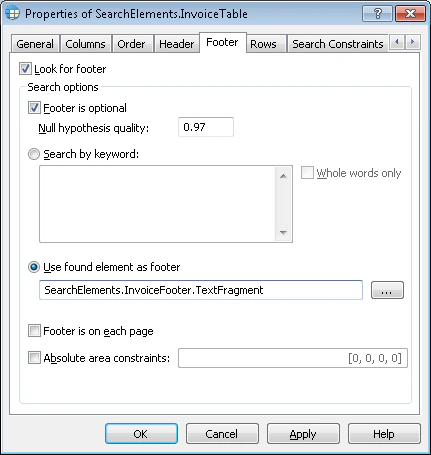
- Look for footer tells the program whether to look for a footer when matching the FlexiLayout. This option is not selected by default.
- Footer is optional tells the program that the table can have no footer. This does not prevent the FlexiLayout from matching. This option is selected by default.
- The Null hypothesis quality field sets the quality of the null hypothesis for the footer (the program generates this hypothesis if it does not find the footer). The default value is 0.97.
Configure the footer search
The Search by keyword option lets you use keywords or phrases to look for the footer. To use keywords, select this option, and then enter the keywords in the field next to it. Press Enter after typing each word. To restrict the search for the table footer, select the Whole words only option. When this option is selected, the program must find the specified keywords or phrases as whole words when it searches for the table footer by keywords. For example, if you specify “Pages” as a keyword, the program does not consider the word “Page”. The Use found element as footer option lets you use an element to look for the footer. The region of the found element is also considered the region of the footer. You can use an element of any type to look for the footer. For example, you can find a horizontal White Gap and use it as the bottom boundary of the table. To use an element, select this option, and then click . In the Select Element dialog box, select the element whose region is used as the region of the footer.
The element you use for the footer must be located above the current Table element in the FlexiLayout tree.
[left, top, right, bottom]. You can enter the coordinates of only one rectangle in this field.