
Header properties
The header properties are set on the Header tab of the Table element’s Properties dialog box.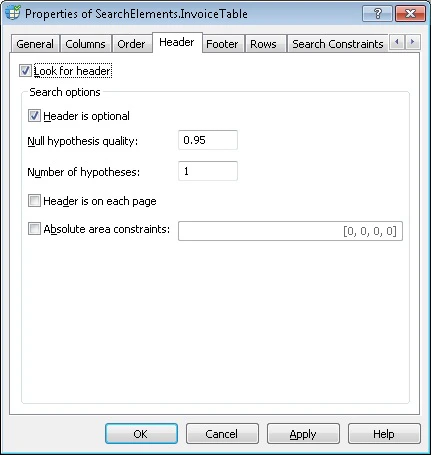
- Look for header – Tells the program whether to look for a header when matching the FlexiLayout. This option is selected by default.
- Header is optional – Tells the program that the table can have no header. This does not prevent the FlexiLayout from matching. This option is selected by default.
- Null hypothesis quality – Sets the quality of the null hypothesis for the header. This hypothesis is generated if the header is not found. The default value is 0.95.
- Number of hypotheses – Sets the maximum number of hypotheses to generate when looking for the header. The default value is 1.
- Header is on each page – Specifies that the header of a multi-page table occurs on every page. This option is selected by default.
- Absolute area constraints – Lets you specify the coordinates of the header search area. To enter the coordinates, select this option and, in the field next to it, enter them in the following format:
[left, top, right, bottom]. You can enter the coordinates of only one rectangle in this field.