
Prerequisites for relation training
- The Reference layout must contain elements for which relations are to be generated.
- All pages to be included in the training set must be marked as Use for Training on the Batch tab.
The element being trained must be located lower down the tree of elements than the elements that relations are created with. All elements must be non-recurring.
Generate element relations
1
Open the Select Element dialog box
On the element’s shortcut menu, select Train Element → Generate Element Relations. The Select Element dialog box opens.
2
Choose the elements to generate relations with
Add the elements to the right side of the window by clicking  (to add a selected element) or
  (to add all available elements), or by double-clicking an element. The selected elements are highlighted in bold on the left side of the window.
(to add a selected element) or (to add all available elements), or by double-clicking an element. The selected elements are highlighted in bold on the left side of the window.3
Click OK
The Choose Trained Element Relations dialog box opens. It contains three lists: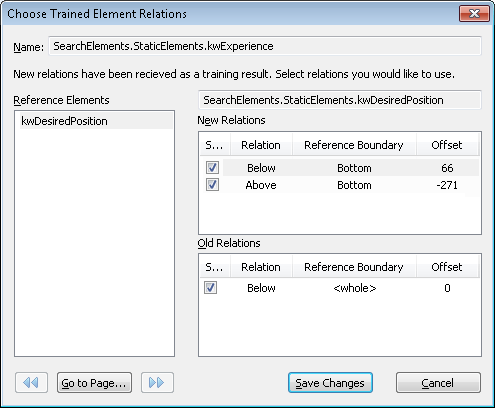
- Reference elements – The elements that relations have been created with.
- New Relations – New relations obtained from training.
- Old Relations – Previously created relations.
4
Preview a relation on the image
Select a relation in the list to view its visualization in the Image window. The reference element in the Image window is enclosed in a thick frame and the search area is highlighted with a green background.
When selecting several relations, the intersection of the selected relations is displayed. The intersection area is highlighted with a green background, while the areas outside the intersection borders are highlighted in blue.
5
View relations on other pages of the training set
To view visualized relations on the next or previous page from the training set, click  and in the bottom left corner of the window respectively. To go to the page with a specified number, click the Go to Page… button.
and in the bottom left corner of the window respectively. To go to the page with a specified number, click the Go to Page… button.6
Save the relations
Select the checkbox next to the relations you want to use and click the Save Changes button.