
- Right-click the element in the FlexiLayout tree and select Properties… on the shortcut menu.
- Double-click the element in the FlexiLayout tree.
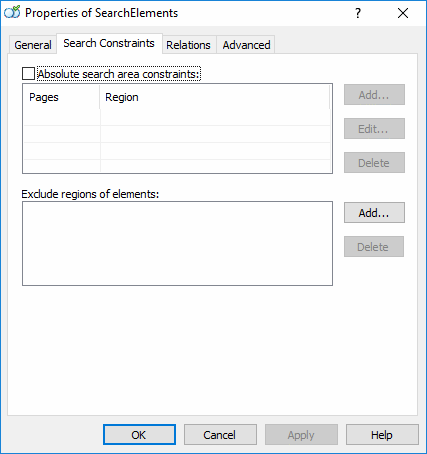
Specify the absolute coordinates of a search area
Open the Properties dialog box for an element, click the Search Constraints tab, and select the Absolute search area constraints option. For a multi-page document, you can specify the pages on which to search for an element by selecting one of the following five options from the Pages drop-down list: All, Even, Odd, Last, or Range. If you select Range, enter the numbers of the pages, separating them with commas, and specify a page range using a hyphen:2, 4, 6-8, 15.
You can define the absolute coordinates of a search area in the Region field. Enter the coordinates in the format [left, top, right, bottom]. You can specify the coordinates of several rectangles in this field.
Use the Measure tool to determine the absolute coordinates of objects.
After you have specified the properties of the search area, click Add…. The search area appears in the Search areas list. To edit a search area, enter the values in the Pages list or in the Region field and click Replace. If the Region field is empty, FlexiLayout Studio searches for the element across the entire page range.
Exclude an element from the search area
The Exclude regions of elements property lets you exclude from the search area the region of the hypothesis found for an element. If no hypothesis for an excluded element is generated, this constraint does not affect the search area of the element.An exception occurs when additional constraints are specified for some of the boundaries of the hypothesis for an excluded element in the Advanced pre-search relations pane. In this case, if the program fails to find the excluded element, it cuts out the rectangular search area of this element from the surrounding search area. For more information about internal rectangles, see Fuzzy rectangle.
Recognize vertical text
For the Currency, Date, Phone, Character String, Static Text, and Paragraph elements, the Search through vertical text option is available. It enables recognition of both horizontally and vertically oriented text.Vertically oriented text is a line of text that has been rotated 90 degrees left or right. Text fragments where the letters are placed one under the other but retain their normal reading orientation are not detected as vertical.

