
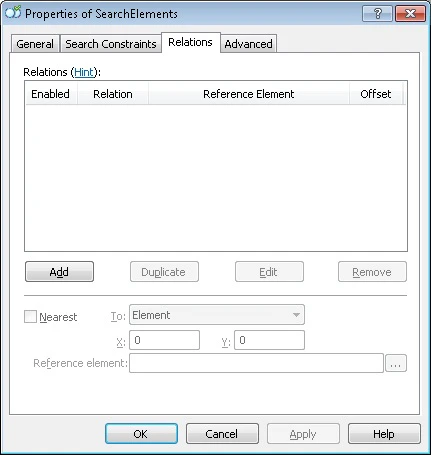
- To add a new relation, click Add. The Add New Relation… dialog box opens.
- To edit an existing relation, click Edit.
- To duplicate a selected relation, click Duplicate.
- To remove a selected relation, click Remove.
- Right-click the element in the tree of elements and select Properties… on the shortcut menu.
- Double-click the element in the tree of elements.
Specify the boundaries of a search area relative to another element
In the Add New Relation or Edit Relation dialog box, specify the relation parameters:1
Select the relation type
In the Type field, select Left of, Right of, Above, or Below.
2
Select a reference element
Click the  button next to the Reference element field, and then select the element relative to which you define the search-area boundaries. For instructions on defining a search area relative to subelements of a repeating group, see Use instances of a Repeating Group as reference, excluded, or source elements.
button next to the Reference element field, and then select the element relative to which you define the search-area boundaries. For instructions on defining a search area relative to subelements of a repeating group, see Use instances of a Repeating Group as reference, excluded, or source elements.3
Select the reference boundary
In the Reference boundary field, select the boundary of the element’s region relative to which you define the boundary of the search area.
4
Set the offset
In the Offset field, set the offset value for the boundary of the search area.
5
Add or save the relation
Click Add Relation to add a new relation, or Save Changes to save the relation after editing. All relations are displayed in the Relations table.

The elements used as reference elements and the elements excluded from the search area must be located higher up the tree of elements than the element for which the constraint is being specified.
Visualization of relations
When you edit relation properties or select a relation in the Relations table, the relation appears in the Image window. The reference element is enclosed in a thick frame, and the search area is highlighted with a green background.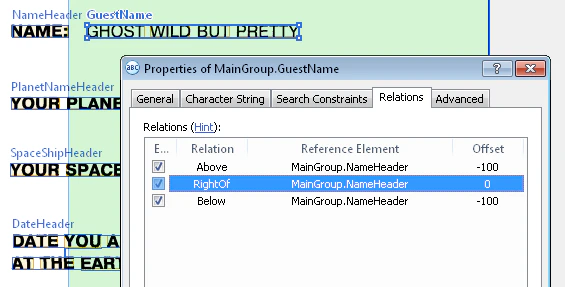

Select the element closest to a certain object
The Nearest property tells the program that, all other things being equal, it must look for a hypothesis located closest to a certain element or point on the image. Specify the closest element, point, or coordinate axis in the Nearest property of the element. To instruct the program to select the element closest to a certain object on the image, select the Nearest option, and then choose the object from the To drop-down list. The option you select determines what else you specify:
The Minimum quality parameter specifies the minimum quality of the element hypothesis. By default, its value is equal to the quality of the null hypothesis.
The element closest to the given element is selected based on the shortest distance between element centers.