
8 can be recognized as B, 7 as ?, 5 as S, and 4 as H or the letter combination LI. This can happen if the digits are “glued”, which is common when documents are filled in using a typewriter.
Add misrecognized characters to the alphabet
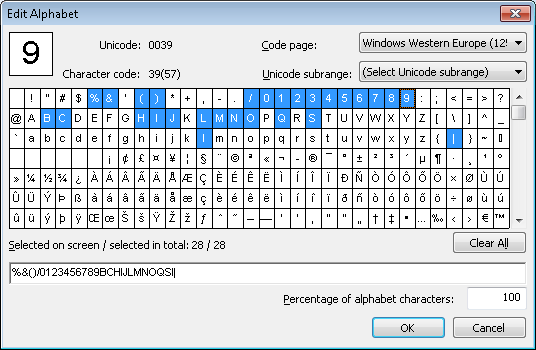
The degree of correspondence between the results of recognition and the actual characters depends on the image quality. If there is a tendency to misinterpret characters on all or most of the processed images, then you should add these recognition variants to the alphabet in the Edit Alphabet window of the corresponding Character String element. By specifying these characters, you tell FlexiLayout Studio not to penalize the hypothesis if these characters are encountered in the search area.There is no need to specify all the possible recognition variants. If the quality of the images is bad, it may be an extremely time-consuming task to find all such variants.If, because of low image quality, the results of the recognition are unpredictable, then you should run the search using some other element properties, such as string length and length of spaces in the string.
Match with a digits-only alphabet
Consider the project1.fsp (folder Digital strings\Project1).
The project has three pages, each with a different recognition error:
To detect the digit string, the project uses a Character String element named DigitalString, with only digits specified as its alphabet. The maximum percentage of non-digit characters is set at 20.
After running the FlexiLayout matching procedure on all the pages, the digit field on page 3 was not fully detected. The quality value of the hypothesis is about 0.98. On pages 1 and 2, the string was detected. However, since it contains non-alphabetic characters, the corresponding hypotheses were penalized, and their quality is 0.978 and 0.982 respectively.
Rematch with the extended alphabet
Now consider the results of the FlexiLayout matching when the characters that were mistakenly recognized instead of digits (L, I, e, a, B, S) are added to the alphabet.
The result of the FlexiLayout matching can be seen in the project 2.fsp (folder %public%\ABBYY\FlexiCapture\12.0\Samples\FLS\Tips and Tricks\Digital strings\Project2).
The other settings in the projects are identical.
As you can see, the string on page 3 has been fully detected, and the quality of all the generated hypotheses is 1.