
This is only true if the name’s static text has been recognized without errors. This is because the maximum number of errors (set for Static Text elements by two parameters, Max number of errors and Max error percentage) refers to the number of errors in a word.Thus, if Max number of errors is set to 1, the name consists of 3 words, and the value of the Static Text is entered without spaces, FlexiLayout Studio can make no more than 1 mistake during recognition. When the name is entered without spaces, FlexiLayout Studio treats it as a single word, regardless of the actual number of words in it.But if you separate the words in the name with spaces, the allowed number or percentage of errors will apply to each of the words you typed in the Search text field. If any recognition errors are made in a Static Text, the hypothesis is penalized in accordance with a certain algorithm, and the quality of the hypotheses with and without spaces may be different.
The Spaces.fsp sample project
TheSpaces.fsp project (folder %public%\ABBYY\FlexiCapture\12.0\Samples\FLS\Tips and Tricks\Spaces in StaticText\Project1) demonstrates some methods of working with Static Text elements.
The project has two pages:
- Page 1 – The quality of the image is good.
- Page 2 – The name of the data field is noisy.

Enter the static text value as a single word without spaces
The project contains a Static Text element named NameOfFatherHeader. Its value is specified as one word without spaces (that is, Pleaseindicateyourfather’snamehere:). Letter case in the name is irrelevant. All the other properties of the element keep their default values. The maximum number of errors in the name is 10 characters (30% of the 35 characters which make up the text). After you have run the FlexiLayout matching procedure by selecting the Match command, you will see that the name has been successfully detected on both pages. However, on Page 2 the Chain quality of the element hypothesis is about 0.994, because it has been penalized for the recognition error caused by the noise on the document.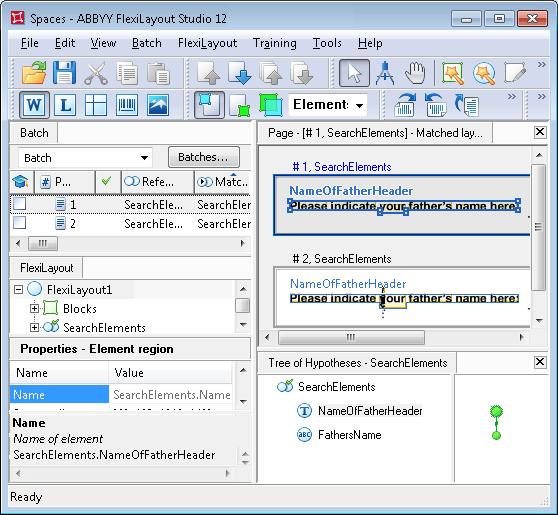
To see the pre-recognition results for the sought name, click L (Show Recognized Lines) on the toolbar and point at the text of the name. The pre-recognition result for the field name on Page 2 will look like this:
PLEASEINDICATE|OURFATHER'SNAMEHERE:.Alternatively, you can display the detected Static Text by selecting the hypothesis of the NameOfFatherHeader element in the Tree of Hypotheses window and moving your mouse pointer to the line Keyword in the Properties-Hypothesis window. In this case the pre-recognition results and detected errors (if any) will be displayed in the bottom part of the Properties-Hypotheses window.Enter the value as words separated by spaces
Now try matching the FlexiLayout with the same images, but with the value of the NameOfFatherHeader element entered as words separated by spaces. To do this, open theSpaces.fsp project in the Spaces in StaticText\Project2 folder. The value for the element NameOfFatherHeader looks like this: Please indicate your father’s name here:. All the other settings are left unchanged (they are identical to those of the Spaces.fsp project located in the Spaces in StaticText\Project1 folder).
After you have run the FlexiLayout matching procedure by selecting the Match command, you will see that the field name has been successfully detected on both pages.
However, the Chain quality for the hypothesis of the NameOfFatherHeader element on Page 2 is now about 0.987, because the hypothesis was penalized for one recognition error caused by the low quality of the initial image.
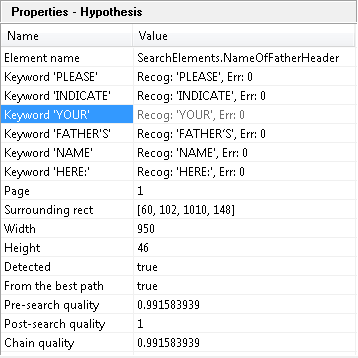
If there are spaces in the Static Text value you type in the Search text field, each word will be analyzed individually and the maximum number or percentage of errors will apply to each of the words. The final quality of the Static Text hypothesis will then depend on the qualities of these separate words.