
When the Date element cannot detect a date
FlexiLayout Studio offers a special Date element that is used to detect dates. However, when creating a FlexiLayout you may find this element insufficient. This may happen when the date on the documents does not match any of the formats available in the Date element. For instance, FlexiLayout Studio allows the following languages to be used in specifying the month in the date field: English, Czech, Danish, Dutch, Estonian, Finnish, French, German, Greek, Hungarian, Italian, Latvian, Lithuanian, Norwegian, Polish, Portuguese, Russian, Spanish, Swedish, Turkish. If the month is spelled out as a word in a language other than those listed, the date does not match any of the available formats, so you cannot detect it with a Date element. Date search errors can also occur if the image has elements which cannot be removed. For example, the date may be underlined with no visible gap between the date and the underline, crossed out, or written in character cells with black separators (frames, combs). Speckles in the search area, or a date that is filled in by hand rather than typed, can also make the Date element unusable for date search.The SearchOfDate.fsp sample project
The best way to organize a search for a date field is described in the sample projectSearchOfDate.fsp (folder %public%\ABBYY\FlexiCapture\12.0\Samples\FLS\Tips and Tricks\Date).
The project contains five pages:
The goal is to find the date on all the images, including those where the date format is not supported by the Date element.
Search for supported date formats with the Date element
All the elements describing the date field are joined into a DateGroup element. First, this group has an element which looks for the name of the date field. In the sample project, this is a Static Text element named DateHeader with the single value Date:.Setting up the search constraints for all the elements in the Relations section is not difficult and thus is not described here. You can look it up directly in the project.
Search for other date formats with a Character String element
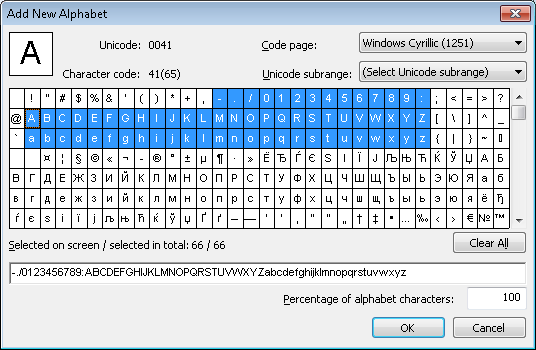
To search for dates on the other pages, the project uses a Character String element named DateAsString. This element uses an alphabet to represent all the characters that are likely to occur on the images.If the content in a data field can be structured and has a format which is not supported by the Date element, it is advisable to describe this format with a regular expression instead of specifying an alphabet.However, you must be sure of the high quality of the processed images, as a regular expression presumes a 100% match between the field and the described structure (alphabets, on the other hand, allow a certain percentage of errors, which is specified in the element’s properties). Thus alphabets are a more flexible tool in the cases where accuracy of recognition cannot be guaranteed.If you know that the month in the date will be written as a word in the same language as the pre-recognition language, then it may be advisable to divide the date field into three sections (day, month, year) and to search for the month field separately by using an element of type Static Text.Such a Static Text element should describe all possible variations of the month (for example, full and abbreviated names of the month in the given language). The day and year fields can then be found to the right and left of the month by means of Character String elements.
Capture partially recognized dates with an Object Collection element
On Page 4, however, the detected string contains only part of the date field. If you look at the pre-recognition results for the date field (by clicking Show Raw Objects on the toolbar), the reason for the partial detection becomes clear. The search area contains not only text objects but also other object types: Picture and Punctuation mark. This situation is typical of low-quality images: text objects are not always recognized during pre-recognition.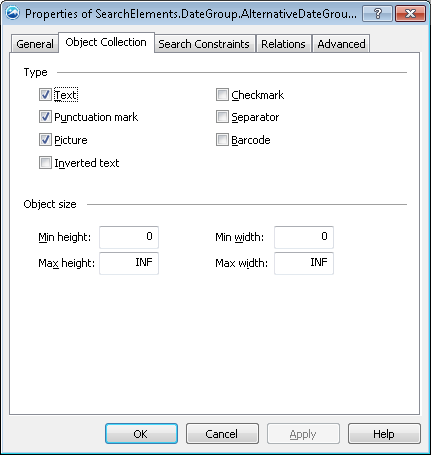
The condition
if (DateAsString.IsNull == FALSE) then Dontfind() cannot be added to the Advanced properties of the DateAsObjectCollection element because, as the example shows, the detected string may contain only a part of the date.Define the Date block region from AlternativeDateGroup
At this stage, the set of elements describing the search constraints for the date fields is complete. The Group elementSearchElements.DateGroup.AlternativeDateGroup, which consists of the DateField, DateAsString, and DateAsObjectCollection elements, is specified in the project tree as a Source element for the Date block.
Since the Dontfind() method was used to describe the properties of the DateAsString and DateAsObjectCollection elements, the actual region of the detected block will match either the region found by the hypothesis for the Date element or the combined regions of the DateAsObjectCollection and the DateAsString elements.
In the latter case, the region of the DateAsString element is expected to be part of the region of the DateAsObjectCollection element, so the resulting region will be the region of the DateAsObjectCollection element.
In this case, you can specify the Group element
SearchElements.DateGroup.AlternativeDateGroup as a Source element because the situation is relatively simple. The region of the group is a combination of the regions of its detected subelements.The Dontfind() method allows skipping the search for some of the subelements. Thus the region of the Group element SearchElements.DateGroup.AlternativeDateGroup will match the region of the subelement. In the given example, the Dontfind() method not only helps to optimize FlexiLayout matching, but also makes the description of blocks simpler.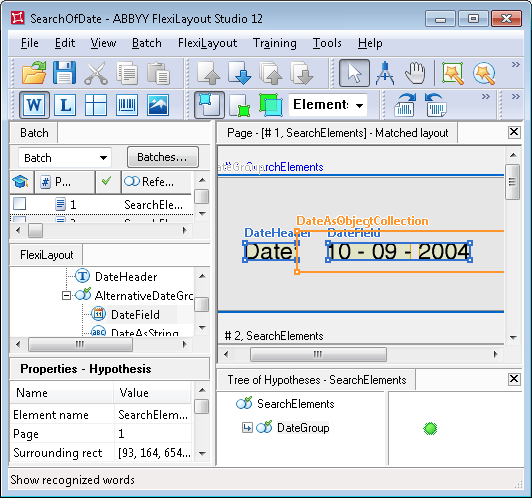
Using a Character String element to look for a date field, without defining the string format or using an Object Collection element, as in the given example, can lead to good results if the search area of the date field can be clearly defined.However, if there are several character strings in the search area, the string format should be described by means of a regular expression or a narrower alphabet. Otherwise, the final hypothesis can be unsatisfactory.With a Character String element, you can limit the number of characters in a string, the number of word ends, and the length of spaces to filter out wrong hypotheses. If an Object Collection element is used, the hypothesis will include all the objects on the image that are located within the search area and meet the constraints on the object size.