When to search for boundaries with White Gap elements
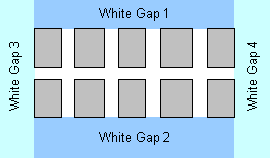
If data fields sought on the document are of “framed letters” or “separate framed letters” type, a separator-based search for the boundaries of such fields can be very complicated, and the description of elements can become bulky, particularly if the names for such fields are not available or are recognized unreliably. Moreover, it is very important that the block contain not only these fields but the entire frame as well. If separator lines are thin, they may sometimes be misprinted or lost during scanning. In such cases, search for the boundaries using White Gap elements. Such field boundaries are described in the special FlexiLayout language in the Expression field of the block’s Properties dialog box. You can describe the top boundary of the field as the bottom of the top white gap, and the bottom boundary as the top of the bottom white gap. Similarly, the right boundary of the field is the left boundary of the right white gap, and the left boundary of the field is the right boundary of the left white gap. A FlexiLayout Studio project which contains test images and a tested FlexiLayout can be found in%public%\ABBYY\FlexiCapture\12.0\Samples\FLS\Tips and Tricks.
Derive the field boundaries from four White Gap elements
Assume that all four gaps (LeftGapName, RightGapName, TopGapName, BottomGapName) which are required to formally describe the location of the data field in the picture have been found.
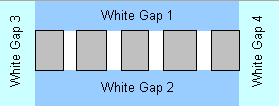
Instead of
LeftGapName, RightGapName, TopGapName, and BottomGapName, use the names of the corresponding White Gap elements. If required, you can extend the field’s width and height by using the Inflate option.Search for individual lines in multiline framed fields
If data fields sought on the document are multiple-line fields which have the marking of “framed letters” or “separate framed letters” type, and the lines are not separated from each other by gaps, then you should look for the top, bottom, right, and left boundaries by using White Gap elements. The search for individual lines should then be specified by a special algorithm in the Expression field. In the given example, the height of each individual line can be calculated by dividing the height of the entire field by 2.