
Work with multiple batches
ABBYY FlexiLayout Studio lets you work with multiple batches within one project. This lets you put images from different sources into groups and work with each group separately. By default, every new project contains one batch. You can add, remove, and edit batches, provided that there remains at least one batch in the project.Create or edit a batch
To create a new batch or edit an existing one, open the Batches dialog box in one of the following ways:- Click Batches… on the Batch menu.
- Click the Batches button in the Batch pane.
Batch properties
To open the properties dialog box of a batch, click the Edit button. The General tab contains the following information:By default, project settings are applied to all the batches in the project.
Switch between batches and move pages
You can switch between batches in one of the following ways:- Use the drop-down list in the Batch pane.
- Select a batch in the Batches dialog box.
- Right-click an image and select Move Pages to Batch… on the shortcut menu.
- Click Move Selected Pages to Another Batch on the Batch menu.
Shortcut menu commands for FlexiLayouts
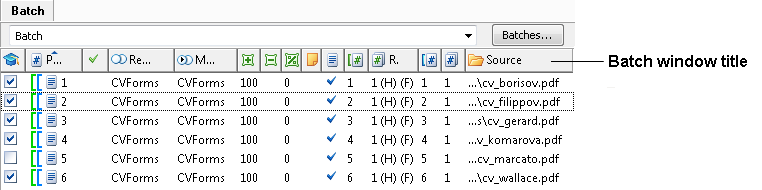
| Command | Description |
|---|---|
| Fit Column Width | Fits the width of the column to the longest field. |
| Fit All Columns Width | Fits the width of each column to the width of the longest field it contains. |
| Set Filter | Filters pages by column values. The column used as the filtering criterion is marked with  . . |
The Training Layout State column can show the following states:
| Icon | State | Description |
|---|---|---|
 | No elements marked | No fields or reference elements are marked on the page. |
 | Has unmarked elements | The page contains unmarked fields or reference elements; some unmarked elements have not been classified as missing. |
 | Has unmarked required element | A required element has not been marked on the page. |
 | All elements marked | All elements have been marked; unmarked elements have been classified as missing. |
 | No reference class set | No reference class has been specified for a training page. |
Shortcut menu commands for the classifier
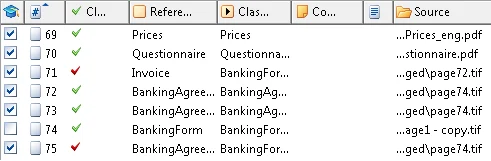
| Command | Description |
|---|---|
| Fit Column Width | Fits the width of the column to the longest field. |
| Fit All Columns Width | Fits the width of every column to the width of the longest field it contains. |
| Set Filter | Filters pages by column values. The column used as the filtering criterion is marked with . |
Column width and visibility
To show or hide a column, click its name in the shortcut menu. A flag appears next to the names of visible columns. The Batch window must contain at least one visible column, and the last visible column cannot be hidden. You can also change the width and location of a column with the mouse. To change the width, drag the column’s edge until the column is the width you want. If you change a column’s width to 0, the column becomes hidden.The contents of the shortcut menu can differ depending on the context. For example, if the Allow multipage documents parameter in the FlexiLayout properties is set to
false, the commands related to multipage documents are not available on the shortcut menu. If a project has only one alternative, the Match Selected Alternative item is not available on the shortcut menu.Tooltips in the Batch window
A tooltip is a small window that appears when you position the mouse pointer over an interface element and briefly describes it. A tooltip can change depending on context. For example, the tooltip for the icon in the Analyzed column can be either
 Matching assembling differs from etalon or Matched with no reference alternative, depending on the state of the page.