
Uneditable parameters

Single-line text

Multiple-line text

 button appears in the text box. To edit a multiple-line parameter, open the text editor by clicking the button. The value is set when you click the button again, or when you click another interface element.
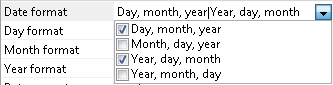
Drop-down list

Complex parameters
Integers

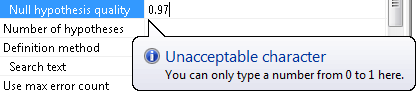
Numbers
Percentages

Distance in custom units
This editor looks exactly the same as the numbers editor. The value is updated if you change the measurement unit.FlexiLayout element
 button next to the text box. A dialog box for selecting a tree node opens. Incorrect element names are ignored.
File
 button next to the text box. A dialog box for selecting a file opens. Manually specified values are not checked.
Recognition language
 button next to the text box to edit parameters of this type. A dialog box for selecting recognition languages opens. The text box contains languages separated by vertical lines, and you can type language names. Incorrect language names are ignored.
Fuzzy interval
 button next to the text box. You can type values. New values and their formats are not checked, and incorrect values are ignored.
Recognition area
 button next to the text box to edit parameters of this type. A dialog box for specifying recognition area properties opens. Values cannot be typed.
Named parameter
 button next to the text box to open the properties dialog box of the FlexiLayout, batch, or page, where you can edit named parameters. For more information, see Named parameters.