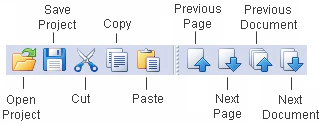
The Standard toolbar contains buttons which correspond to the standard commands such as creating, opening and saving FlexiLayouts.The buttons on the Standard toolbar:
ButtonDescription
OpenOpens the Open Project dialog box where you can select a project file to open.
SaveSaves the current project.
CutDeletes the selection and places it into the Clipboard.
CopyCopies the selection (text in the Properties window, blocks in the Image window, pages in the Batch window, blocks or elements in the FlexiLayout window) into the Clipboard.
PastePastes the selection from the Clipboard.
Previous PageOpens the previous page in the project.
Next PageOpens the next page in the project.
Previous DocumentOpens the previous document in the project.
Next DocumentOpens the next document in the project.
The Extracted Objects toolbar contains buttons which allow you to show/hide the objects detected during pre-recognition.The Extracted Objects toolbar buttons:
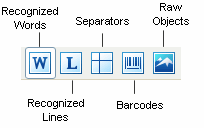
ButtonDescription
Recognized WordsDisplays only the objects classified as Text during pre-recognition.
Recognized LinesDisplays only the objects classified as Recognized Lines during pre-recognition.
SeparatorsDisplays only the objects classified as Separators during pre-recognition.
BarcodesDisplays only the objects classified as Barcodes during pre-recognition.
Raw ObjectsDisplays only the objects which the program managed to classify during pre-recognition.
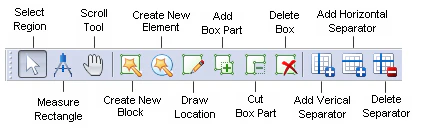
The Block-Drawing Tools toolbar contains buttons which allow you to edit the reference layout.The Block-Drawing tools toolbar buttons:

Button

Description

Select Region

Selects a region on the image and moves the selected block.

Sometimes a block may be too small to be moved, as its borders are very close to one another and pointing the mouse on any of them will activate the “change size” mode. Hold down the Ctrl key to move such blocks.

Measure Rectangle

Detects the coordinates and sizes of objects on the image and copies them to the Clipboard.

To measure an object on the current image, activate the Measure Tool and select the rectangular area to be measured: right-click one corner of the area, drag the mouse diagonally into the opposite corner, and release the mouse. The Measure Tool dialog box displays the coordinates and the width and height of the measured object in the user-defined units of measurement.

If you select Automatically copy results to Clipboard in the Measure Tool dialog box, the coordinates of the rectangle will be copied to the Clipboard so that you can easily paste them, for example, on the Search Constraints tab in the Properties dialog box of any element to define its search area.

Scroll Tool

Scrolls the image in the Image window.

Create Element

Creates a new block or element and allows you to specify its properties based on the pre-recognized image.

Draw Location

Draws an area on the image corresponding to the selected block or element.

Note. The button is available in the Reference layout mode and Training Mode.

Add Block Part

Adds a rectangular area to the selected area.

Note. The button is available in the Reference layout mode and Training Mode.

Cut Block Part

Cuts a rectangular area from the selected area.

Note. The button is available in the Reference layout mode and Training Mode.

Delete Box

Deletes a block or element from the image.

Note. The button is available in the Reference layout mode and Training Mode.

Add Vertical Separator

Adds a vertical separator to the selected Table block.

Note. The button is available in the Reference layout mode and Training Mode.

Add Horizontal Separator

Adds a horizontal separator to the selected Table block.

Note. The button is available in the Reference layout mode and Training Mode.

Delete Separator

Deletes a separator from the selected Table block.

Note. The button is available in the Reference layout mode and Training Mode.

The Layout toolbar contains buttons which allow you to view the test images in different modes.The Layout toolbar buttons:
ButtonDescription
Matched layoutDisplays the image in Matched layout mode. Use the arrow to the right to select the objects to be displayed: blocks, elements, or both.
Reference layoutDisplays the image in Reference layout mode.
Difference layoutDisplays the image in Difference layout mode.
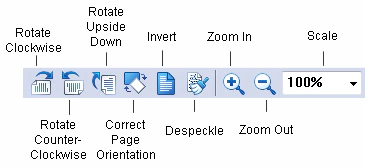
The Image Tools toolbar contains buttons which correspond to the standard commands such as rotating and scaling the selected image(s).The buttons on the Image Tool toolbar:
ButtonDescription
Rotate ClockwiseRotates the image by 90° clockwise.
Rotate Counter-ClockwiseRotates the image by 90° counter-clockwise.
Rotate Upside DownRotates the image by 180°.
Correct Page OrientationAuto corrects the orientation of pages. The correct orientation is selected automatically based on the selected pre-recognition language and the settings made in the Optionsdialog box (Tools → Options).
InvertInverts the image (turns black into white and vice versa).
DespeckleRemoves excess dots from the image.
Zoom InMakes the image twice as large.
Zoom OutMakes the image twice as small.
ScaleScales the image.
Note. When you perform image operations, all the pre-recognition and FlexiLayout matching results are deleted. When rotating and flipping images, the Reference Layout is also deleted.