
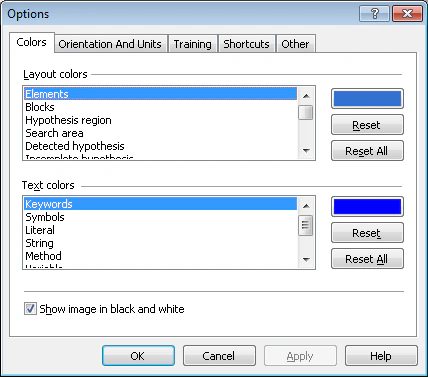
The Options dialog box lets you set the colors of objects and highlighted lexemes, the possible page orientation, the units of measurement used in the program, the settings applied when training a FlexiLayout, and several other options.
To open the Options dialog box, select Tools → Options… or press F12.
Colors tab
| Option | Description |
|---|
| Layout colors | Sets the colors of objects in the program (elements, hypotheses, search area, and so on). Select the object, click the color button, and choose a color from the palette. Click Reset to restore the default color for the selected object, or Reset All to restore the default colors for all objects. |
| Text colors | Sets the color of lexemes in code (key words, variables, comments, and so on). Select the object, click the color button, and choose a color from the palette. Click Reset to restore the default color for the selected object, or Reset All to restore the default colors for all objects. |
| Show image in black and white | Select this option to display color images in black and white. Clear it to display color images. |
Orientation and Units tab
Orientation correction
The Correct orientations of pages option sets the possible orientations of pages in the batch.
The possible page orientations are:
- Rotated 180° — Select this option if the batch may contain pages rotated by 180°.
- Rotated 90° clockwise — Select this option if the batch may contain pages rotated by 90° clockwise.
- Rotated 90° counterclockwise — Select this option if the batch may contain pages rotated by 90° counterclockwise.
To correct page orientation automatically based on the selected pre-recognition language, select Image → Correct Orientation. If none of the orientation options is selected, orientation is not corrected automatically.
Units
The Units group sets the units of measurement used in the program: dots, centimeters, millimeters, points, or inches. All measurements (element sizes and distances) use the units selected here.
Training tab
Navigation
The Navigation group sets the navigation mode used when training a FlexiLayout.
You can navigate to pages that contain:
- Any unmarked element
- Any unmarked field
- Any unmarked static element
- An unmarked selected element
For more information, see Auto-creating a FlexiLayout.
Draft layout prediction
| Option | Description |
|---|
| Predict layout automatically on navigation | Select this option to match the draft layout on navigation. |
| Replace existing regions of fields on batch prediction | Select this option to remove existing boxes from the image when matching a draft layout. |
Template generations
Select Create Identifiers on Generation to automatically create identifiers for layout alternatives during training.
Shortcuts tab
Use the Shortcuts tab to specify keyboard shortcuts for specific commands, or to change existing shortcuts.
| Element | Description |
|---|
| Category drop-down list | Lists all command categories. When you select a category, all of its commands appear. Select All commands to display every command in the command list. The category name usually matches the menu item that contains its commands. The Elements tree category contains commands from the FlexiLayout menu in a flexible layout project, or from the Classifier menu in a classifier project. |
| Command list | Lists all commands in the selected category. The Action column shows command names, and the HotKey column shows one of each command’s keyboard shortcuts. A command can have several shortcuts. To sort commands by name or shortcut, click the Action or HotKey column heading. |
| Current shortcuts box | When you select a command, all of its keyboard shortcuts appear in the Current shortcuts box on the right. |
| Description area | Shows a short description of the selected command. |
| Press new shortcut key box | Used for entering keyboard shortcuts for commands. |
| Reset all | Resets the keyboard shortcuts for all commands to their default values. |
| Delete shortcut | Deletes a keyboard shortcut. |
| Reset command | Resets the keyboard shortcut for the selected command to its default value. If the default shortcut matches another command’s shortcut, you are prompted to change one of them. |
| Assign | Assigns a keyboard shortcut to the selected command. |
Assign a keyboard shortcut
Click the shortcut box
Click the Press new shortcut key box.
Press the keys
Press the key or key combination on the keyboard.
Assign the shortcut
Click Assign to assign the keys to the command.
To delete a keyboard shortcut, press Backspace.
If you try to assign a shortcut that is already in use, a message appears with the name of the command it is currently assigned to. Click Yes to reassign the shortcut, or No to cancel.
A keyboard shortcut can be assigned to multiple commands, provided that these commands are never available at the same time. For example, the Match, Classify, and Generate Alternatives commands from the training mode are assigned to Ctrl+E by default.
Some keyboard shortcuts are reserved for specific commands and cannot be assigned to other commands, such as Ctrl+A, Ctrl+C, Ctrl+V, Ctrl+X, Ctrl+Y, Ctrl+Z, Ctrl+Ins, Shift+Ins, and Del.
Other tab
| Option | Description |
|---|
| Export | Select this option to increment the version automatically on export. |
| Advanced code | Sets the maximum number of characters allowed in each field on the Advanced tab. |
| Search area | Select this option to show the search area on the image. |
| Prerecognition area | Select this option to show the prerecognition area on the image. |
| Appearance | Select this option to use large toolbars in the program. Restart the program for the change to take effect. |