
Create the LongFooter element
1
Add the Static Text element
In the InvoiceFooter element, create an optional element of type Static Text and name it LongFooter.
2
Enter the search text
On the Static Text tab, in the Search text field, type
TOTALAMOUNTMUST|Carriedover|TotalCHF.3
Add a position relation
Because the search text is always located under the name of the Description column, click the Relations tab and specify this relation:
- Below the AddTag element, Offset = 100.
4
Constrain the search to the topmost text
On some documents (for example, documents 3 and 9), FlexiLayout Studio finds several text variants and selects the wrong one, so you must impose additional constraints. After you analyze the images, you will notice that the text of interest is the topmost text in the search area, closest to the table, so it can serve as the table’s Footer.On the Relations tab, specify an additional search constraint that finds the string closest to the upper boundary of the document: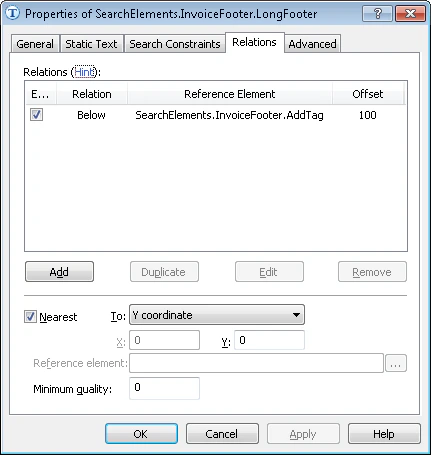
- Select the Nearest option.
- In the To field, select Y coordinate from the drop-down list.
- In the Y field, type 0.