
Allowed Values Rule
Use the Allowed Values Rule dialog box to define a list of admissible values.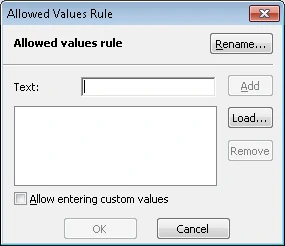
The Allowed Values Rule dialog box.
- Rename… – Renames the rule. Enter a new name and click OK.
- Text – Manages the list of allowed values:
- Add – Adds the entered value to the list.
- Remove – Removes the selected value from the list.
- Allow entering custom values – Allows values that are not in the list. If cleared, only list values can be selected.
Regular Expression Rule
Use the Regular Expression Rule dialog box to define admissible values with regular expressions.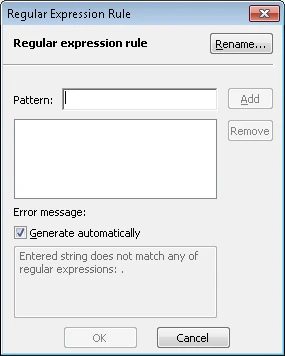
The Regular Expression Rule dialog box.
- Rename… – Renames the rule. Enter a new name and click OK.
- Pattern – Manages the list of regular expressions:
- Add – Adds the entered regular expression to the list. See also Regular expressions.
- Remove – Removes the selected expression from the list.
- Error message – Select Generate automatically to generate the error message text automatically, or clear it to enter custom text.