This technology is provided as a preview and will be improved in future versions.
Setting Up a Hypothesis Filtering Container
- Click the block with the Deep Learning activity and select Filter Hypotheses. This will create a new Hypothesis Filtering container and put the selected Deep Learning activity inside it.
- (Optional) Drag more Deep Learning activities onto the Hypothesis Filtering container. This will let you combine and compare the output of two or more Deep Learning activities. Two activities may be needed, for example, when working with text fields and tables at the same time.
- Add an Extraction Rules activity to the container. You can either create a new activity by clicking on the placeholder or drag an existing activity onto the container.
- Set up the Extraction Rules activity. For each of the values found by the Deep Learning activities, add a Deep Learning search element and set its properties. You can add all the output fields of one Deep Learning activity at the same time. A Deep Learning search element supports all properties that limit the search area and the conditions for finding the element.
- Connect the input and output of the Hypothesis Filtering container to other blocks in the document processing workflow. The output fields of the Hypothesis Filtering container will be the same as the output fields of the Extraction Rules activity.
Examples
These are just a few examples that show how a Hypothesis Filtering container can be used. However, there are many other possible situations where you can use this functionality to control the output of neural networks and fine-tune fields extraction. Only you can determine which adjustments are needed for the documents you are working with, and we encourage you to try this technology out in each case where the Deep Learning activity results will benefit from some tuning. The examples below use the same sample skill, where the outputs of two Deep Learning activities are fed to an Extraction Rules activity.Skill Workflow
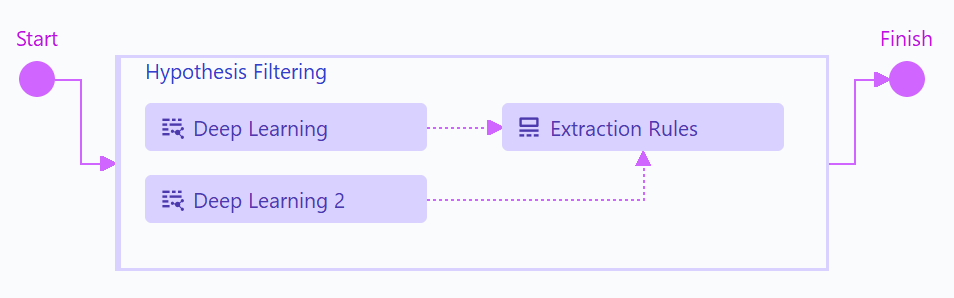
- Deep Learning activity extracts text fields.
- Deep Learning 2 activity extracts a table.
- Hypothesis Filtering container selects and combines their results.
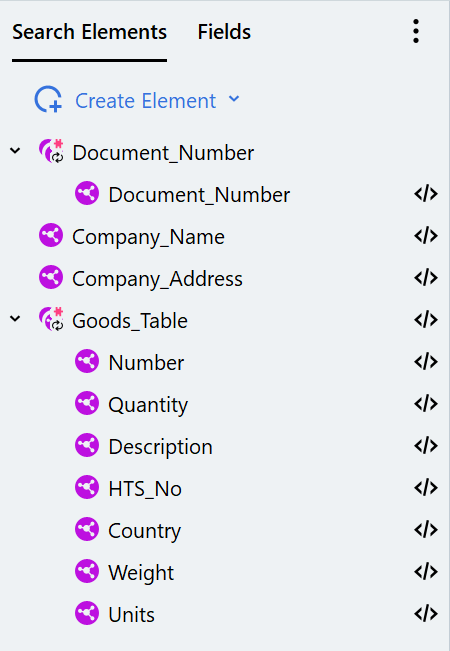
Structure of Search Elements in the Extraction Rules Activity
Example 1: Correct a Value Found by a Deep Learning Activity
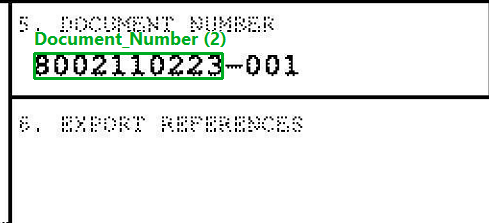
In this example, a Deep Learning activity finds a value for the document number that is too long, and a new search element is created to correct the value. The value for the document number found by the Deep Learning activity includes the part after the dash: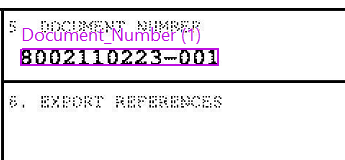
- To correct the Document_Number value, a new search element is created. This search element, named DocNumber_Corrected, should be located within the region of the Document_Number search element and contain a limited number of characters.
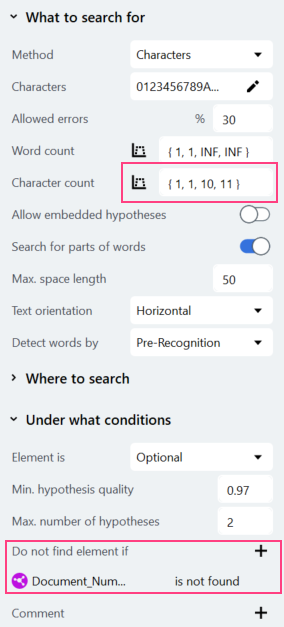
- The search area for the new element is restricted to match the Document_Number region by adding the following line to the element’s code:
- The corrected search element is mapped to the field that extracts the document number:
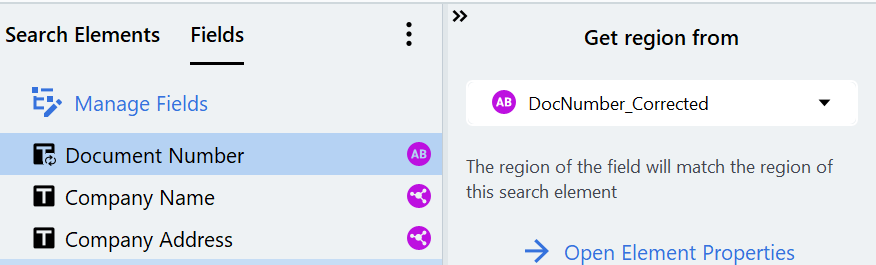
Example 2: Select One of Several Repeating Values
In this example, a Deep Learning activity is trained to find all instances of the document number, but the end result of the skill needs only one document number field. To achieve this, the Allow Multiple Items setting is disabled for the Document Number field and conditions are specified to select the right instance of the document number. We recommend that you save the labeled document set to a folder first. When you disable the Allow Multiple Items setting for a field, all extra instances of that field will be deleted from the labeling. The model trained in the Deep Learning activity will still work, but should you want to modify and retrain it, you will need to load the original document set.- The Allow Multiple Items setting is disabled for the Document Number field (the setting can be accessed by clicking Manage Fields).

- The Document_Number search element with multiple instances cannot be mapped to the Document Number field. So a new Deep Learning search element is created from the document number output of the Deep Learning activity and mapped to the Document Number field.
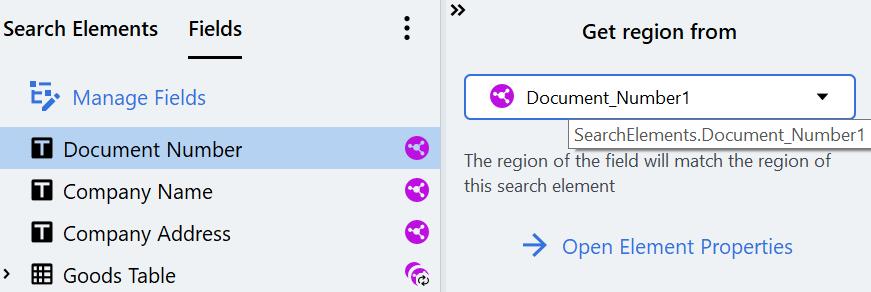
- The multiple instances of the document number found by the Deep Learning activity are used to build a tree of hypotheses, of which only one will be selected as the value of the Document_Number search element.
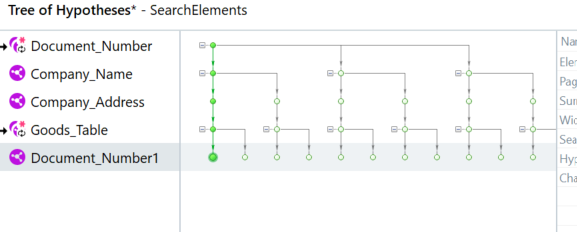
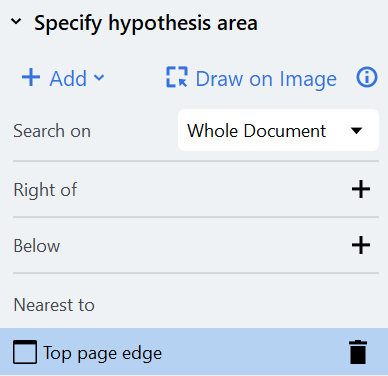
- To find a particular instance, certain conditions are added for the Document_Number search element (in this case we want to find the topmost instance of the document number).
Example 3: Combine the Output of Two Deep Learning Activities
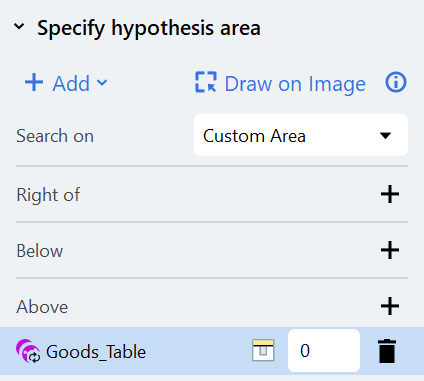
A Hypothesis Filtering container lets you combine the results of two or more Deep Learning activities to check them against each other or to simply fine-tune these results within the same activity. In this example, two Deep Learning activities were needed because one Deep Learning activity cannot be trained to extract both text fields and tables. A condition is added specifying that the Company_Address search element should always be found above the Goods_Table search element. As a result, the correct address will be found even if other addresses are printed at the bottom of the page.