Documentation Index

Fetch the complete documentation index at: https://docs.abbyy.com/llms.txt

Use this file to discover all available pages before exploring further.

Continuing with the German documents, configure their Extraction Rules activity. Fast Learning has handled some fields already; this activity covers the rest.

Before you begin

1

Open the activity in the Activity Editor

  1. Open the “Sick Note DE” activity in the Activity Editor.
  2. Select one of the documents from the document set.
2

Enable advanced element properties

Make sure that the advanced mode for the element properties is enabled. To toggle this mode on or off, click the icon on the Properties pane.
All uploaded documents have undergone pre-recognition. Click the icon (or click the more icon and select Recognized Words if the icon doesn’t fit on your screen) to highlight detected objects on the document image. You can switch between object types at any time — for example, Recognized Lines helps when looking for paragraphs, and Separators facilitates Separator search element configuration.
If a search element lies outside the search area, it will not be found. Enable the Show search area option in the document image context menu. The search area for each element will be highlighted in green when you evaluate the matching results.
Keep in mind that it may be helpful to experiment with advanced properties of the search elements to improve extraction accuracy. We also encourage you to often click Match to check how your extraction rules work and to compare extraction results on different documents in the set. You can test a single element without relations to other elements by clicking Match Element in its context menu. In this case hypothesis quality for previous elements won’t affect matching results.

Extracting the patient’s data

Extract the missing patient data by creating several search elements. Group elements that relate to one entity. Search elements are matched one after another — if a top element fails, hypothesis quality drops for the rest of its chain. Groups, however, are processed independently with their own hypothesis, so grouping gives you control over how elements influence each other and lets you evaluate matching results at a glance. Grouping can also reduce matching time.
1

Create the PatientDataArea group

  1. Click Create Element and select the Group element from the drop-down list. Change its name to “PatientDataArea”.
  2. In the Under what conditions section, change the Element is value to Optional.
A new group search element is set to be required by default. If a required element is not found, the Activity Editor runs into an error and matching is aborted. This scenario lets activities be skipped if they are not suitable for a certain document. However, in this tutorial we are creating an activity to extract data from all incoming documents, so we want the group to be optional.
2

Find the patient label with a Static Text element

In German documents, the paragraph containing the patient’s name and address is always located in the field with the label “Name, Vorname …”. We need to find this text on the document and use it as a reference to search for the data we want to extract.
  1. Click Create Element and select the Static Text element from the drop-down list. Change its name to “kwPatientTitle”.
  2. Enter the text “Name, Vorname” in the Text to find field on the Properties pane.
  3. Click Match. When processing is finished, you will see the Tree of Hypotheses below the document. Make sure that Advanced Designer has successfully found the desired static text — a green dot next to the element name indicates a successful match. Click the element name in the Tree of Hypotheses to see a violet frame around the corresponding region on the document.
If an element wasn’t found, you will see an orange dot next to its name and an orange frame around the document image. Keep in mind that the hypothesis quality of an element affects the state of subsequent elements in the chain and the overall quality of a chain. You can find detailed information about hypothesis quality in the documentation.
3

Find the lower boundary with a Separator

Find the lower boundary of the cell that contains the patient’s name and address using a Separator element.
  1. Add a Separator element to the group and call it “SeparatorBottom”. Set its minimum length to 200.
  2. Right-click the element and select Match Element in the context menu. The Tree of Hypotheses contains many green dots — they correspond to different separators that fit the search criteria. Click each dot to see the corresponding object on the image.
  3. To narrow down the search criteria, specify the search area for the separator. Click Match to find the “kwPatientTitle” element that will be used as an anchor element. In the Where to search section of the Properties pane, click Draw on Image. Select the “kwPatientTitle” element on the document and click the down arrow icon to specify the search area below the keyword and the nearest icon to look for the separator nearest to the keyword.
  4. Click Match and check that Advanced Designer has found the separator below the “kwPatientTitle” element.
4

Find the name and address Paragraph

A label and a separator are reliable reference elements for the patient’s data. However, if the print quality is too low, the label text might not be recognized or the separator might not be found. To ensure good extraction results, search for a paragraph that lies between the label and the separator — a paragraph is a uniform block of text and can successfully be found even if some of the boundary elements were not found.
  1. Create a Paragraph search element and call it “NameAddressParagraph”.
  2. Change Text alignment to Left.
  3. The patient’s data occupies from two to five lines, so specify the Line count from 2 to 5.
  4. Specify the search area for the paragraph using the Add menu in the Where to search section. The element should be located below the “kwPatientTitle” element and above the “SeparatorBottom” element.
  5. Click Match.
5

Create the PatientGroup

Create a new group element called “PatientGroup” to hold the search elements that extract the patient’s data.
6

Configure the NameGroup repeating group

The patient’s name can occupy one or two lines. To capture several instances of an element, use a repeating group.
  1. Create a Repeating Group search element and call it “NameGroup”. Specify 2 as the maximum number of repetitions. Make the element optional.
  2. To restrict the search area to the lines that are part of the “NameAddressParagraph” paragraph, click the code editor icon below the document image and paste the following script in the Search Conditions section of the Code Editor:
    RSA:PatientDataArea.NameAddressParagraph.Rect;
    
  3. Inside the repeating group, create a Character String element designed to capture a line of characters. Call it “NameLine”.
  4. The text we are looking for may contain upper- and lower-case letters and a set of punctuation marks. Configure two separate character sets:
    • The first set contains all Latin upper- and lower-case letters. To add characters with diacritical marks, change the Unicode subrange or paste the characters directly into the Selected characters field.
    • The second set contains the punctuation marks: ,-.()’. To prevent the string from containing only punctuation marks, set the Portion in text, % for the second set to 40%.
  5. Disable the Search for parts of words option.
  6. Specify the search area for the “NameLine” element: below the “kwPatientTitle” element and nearest to it.
  7. Click Match and review the Tree of Hypotheses. Two character strings are found, but the second string contains the patient’s address.
  8. To exclude the address from the search results, add a script search condition. Select the “NameLine” search element and open the Search Conditions code editor. Paste the following script — it assumes that the first line contains a full name if it contains a comma and a whitespace, and if a full name is found, the repeating group stops searching for a second instance:
    if (NameGroup.HasInstances and LastFound.NameLine.Value.Find(", ") > 0) then DontFind;
    
  9. Click Match and make sure that the name is found correctly.
The default settings allow the string to contain up to 30% of characters not included in any set. This helps find strings even when some characters are recognized incorrectly or are not included in the set (such as characters with diacritical marks). You can adjust this setting by changing the Allowed errors value on the Properties pane.
7

Configure the Address element

The patient’s name extracted in the previous step will be mapped to the “Name” field. Now extract the patient’s address.
  1. Inside the “PatientGroup”, create a Character String search element called “Address” with the same character set configuration as the “NameLine” element.
  2. Specify the search area for the element using code. The address must be located below the “NameLine” or, if that element was not found, below the first line of the “NameAddressParagraph” element:
    RSA: PatientDataArea.NameAddressParagraph.Rect;
    if NameGroup.HasInstances then
      RSA.Top: Max(RSA.Top, LastFound.NameLine.Rect.Bottom);
    else
      RSA.Top: PatientDataArea.NameAddressParagraph.Lines[0].Rect.Bottom;
    
  3. Disable the Search for parts of words option.
  4. Click Match.
The search element structure should look like this:
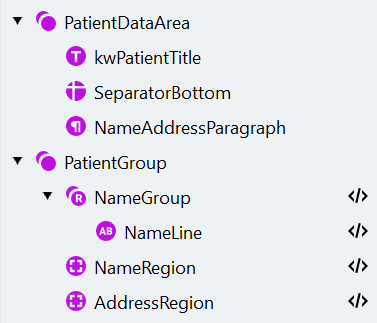
Search element hierarchy for German patient data: PatientDataArea group containing kwPatientTitle, SeparatorBottom, NameAddressParagraph, and PatientGroup with NameGroup and Address
8

Create and map the patient fields

Open the Manage Fields dialog, create the corresponding fields, and map them to search elements as follows:
NameTypeSearch element
NameText field in the “Patient” groupNameLine
AddressText field in the “Patient” groupAddress
Delete the search elements that were automatically created for the new fields.

Extracting the type of sick note

The type of sick note field has two checkboxes. They are labeled as “Erstbescheinigung” and “Folgebescheinigung”. The task is to find the labels and then to check whether there are filled checkmarks next to them.
1

Create the TypeOfSickNoteGroup

Create a Group element called “TypeOfSickNoteGroup” and make the element optional.
2

Configure the PrimaryGroup

Create a Repeating Group search element called “PrimaryGroup” to store the information about both checkmarks.
  1. Restrict the search area for the element group using code — to the right of the “PatientGroup” element and above the “DoctorAreaGroup” element (which will be created later):
    if PatientGroup.Exists then RSA.Left: PatientGroup.NameGroup.NameLine.Rect.Right;
    if DoctorAreaGroup.Exists then RSA.Bottom: DoctorAreaGroup.DataArea.SeparatorTop.Rect.Top;
    
  2. Create a Static Text search element called “kwPrimary” (text to find: “Erstbescheinigung”) and make it required.
  3. Create an Object Collection search element called “Checkmark” with these settings: Type Checkmark, Checkmark state Checked, Minimum height 10, Maximum width 20, Maximum height 20. Specify that the element is located to the left of the “kwPrimary” element and nearest to it.
  4. Click Match.
Always specify the Exists condition when referencing future elements (like “DoctorAreaGroup” above).
3

Create and configure the SecondaryGroup

  1. Copy and paste the “PrimaryGroup” group. Rename the copied group to “SecondaryGroup” — this group is required.
  2. Rename the “kwPrimary” element inside it to “kwSecondary” and set the text to find to “Folgebescheinigung”. Specify the search area: below the “kwPrimary” element from the “PrimaryGroup”.
  3. Specify the search area for the “Checkmark” element: to the left of “kwSecondary” and nearest to it.
  4. The Object Collection search element finds a collection of all suitable objects within the search area. If the checkmarks are located on the same line, the “Checkmark” element of the “SecondaryGroup” may also find the Primary checkmark. To avoid this, exclude the primary checkmark from the search area.
  5. Click Match.
The search element structure should look like this:
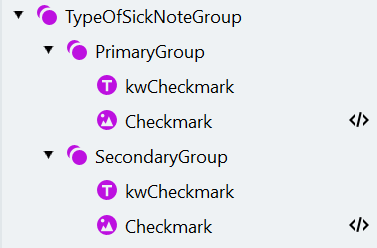
Search element hierarchy for German type-of-sick-note: TypeOfSickNoteGroup containing PrimaryGroup and SecondaryGroup, each with kwPrimary or kwSecondary keyword and Checkmark elements
4

Create and map the type-of-sick-note fields

Open the Manage Fields window, create the corresponding fields, and map them to search elements as follows:
NameTypeSearch element
Type of Sick NoteCheckmark group
PrimaryCheckmark in the “Type of Sick Note” checkmark groupPrimaryGroup -> Checkmark
SecondaryCheckmark in the “Type of Sick Note” checkmark groupSecondaryGroup -> Checkmark
Delete the search elements that were automatically created for the new fields.

Extracting the doctor’s data

We now have to process the last block of data on these documents. It contains the doctor’s data and signature. We’ll first find the box which holds the data and then extract a paragraph with the doctor’s information and an image region containing the signature.
1

Create the DoctorAreaGroup and DataArea

  1. Create a Group element called “DoctorAreaGroup” and make the element optional.
  2. To find the box label, create a Static Text element called “kwDoctorTitle” (text to find: “Unterschrift des Arztes”).
  3. Inside the “DoctorAreaGroup” group, create another group called “DataArea”.
2

Add the four boundary Separators

The box that contains the doctor’s information and signature is a combination of four separators located around the “kwDoctorTitle” element. Configure the elements so the program can find them even if “kwDoctorTitle” wasn’t found.In the “DataArea” group, create four Separator search elements with the following properties:
NameOrientationMinimum lengthSearch area
SeparatorRightVertical180Right of “kwDoctorTitle”, Nearest to the right page edge
SeparatorLeftVertical180Left of “kwDoctorTitle”, Left of “SeparatorRight” (in case “kwDoctorTitle” wasn’t found), Nearest to “SeparatorRight”, Below “SeparatorRight” (click the icon to the right of the separator name and select Top Boundary of Region), Exclude “SeparatorRight”
SeparatorBottomHorizontal200Below “kwDoctorTitle” (with adjustment of -10 points), Right of “SeparatorLeft”, Left of “SeparatorRight”, Nearest to the bottom page edge (this setting will be useful in case “kwDoctorTitle” wasn’t found)
SeparatorTopHorizontal200Above “kwDoctorTitle”, Right of “SeparatorLeft”, Nearest to “TypeOfSickNoteGroup”, Exclude “SeparatorBottom”
Disable the Fits entirely within search area option for all four elements.
3

Create the BoxRegion

Create a Region search element called “BoxRegion” and specify the search area: left of “SeparatorRight”, right of “SeparatorLeft”, above “SeparatorBottom”, and below “SeparatorTop”.This region corresponds to the area bounded by the four separators — using it avoids having to specify search areas for the signature and doctor information manually.
4

Create the DoctorGroup

Create a new group called “DoctorGroup” inside “DoctorAreaGroup” to hold the signature and information elements.
5

Add the Signature Object Collection

To locate the doctor’s signature, create an Object Collection element inside the “DoctorGroup” with the following settings:
PropertyValue
NameSignature
TypePicture
Minimum width15
Minimum height15
Maximum width600
Maximum height350
Search Conditions section of the Code EditorThe signature may be partly located outside the box. To find the whole image, expand the search area by 100 dots in each direction: RSA: DoctorAreaGroup.DataArea.BoxRegion.Rect.GetInflated(100dot,100dot);
6

Add the DoctorInformation Paragraph

To extract the text information in the box, create a Paragraph element with the following settings:
PropertyValue
NameDoctorInformation
Maximum line count6
Search areaAbove “kwDoctorTitle”, Exclude “Signature”
Search Conditions section of the Code EditorRSA: DoctorAreaGroup.DataArea.BoxRegion.Rect;
7

Verify the elements are found

Click Match and make sure the elements are found correctly.The search element structure should look like this:
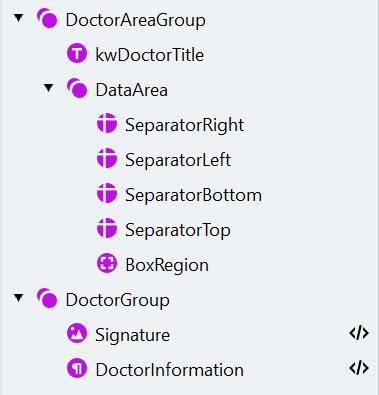
Search element hierarchy for German doctor data: DoctorAreaGroup containing kwDoctorTitle and DataArea (with four boundary Separators and BoxRegion), plus DoctorGroup with Signature and DoctorInformation
8

Create and map the doctor fields

Open the Manage Fields dialog, create the corresponding fields, and map them to search elements as follows:
NameTypeSearch element
Doctor InformationText field in the “Doctor” groupDoctorInformation
SignatureImage field in the “Doctor” groupSignature
Delete the search elements that were automatically created for the new fields.

Testing the activity

We have configured all the necessary search elements and fields. Select all documents, click Match, and switch to the Fields tab to review the field regions on the document images. Keep in mind that a region will be passed to a field only if it belongs to the hypothesis from the best path. Once you’re satisfied with the results, click the copy icon above the document image to copy predicted labeling to reference labeling.

What’s next

Step 8. Configure the Sick Note BE-NL activity

Configure the Extraction Rules activity for Dutch and Belgian sick notes.

Tutorial overview

Back to the tutorial introduction.