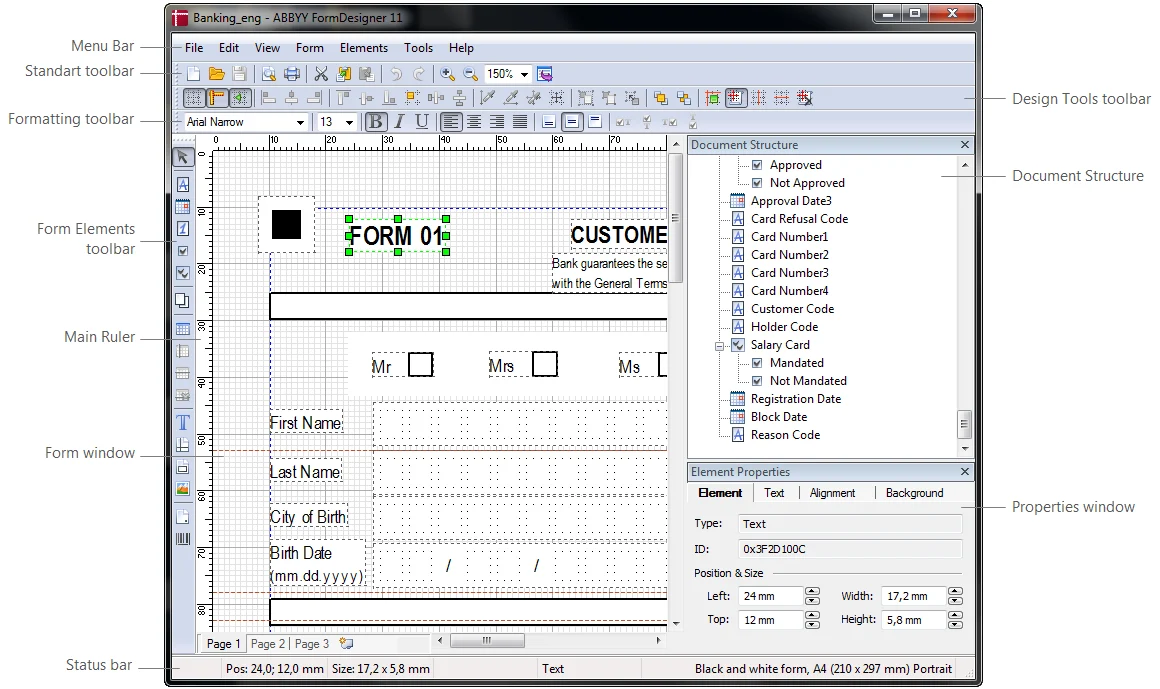
Explore the FormDesigner main application window: Quick Start dialog, menu bar, toolbars, ruler, form window, Document Structure pane, and status bar.
When you start ABBYY FormDesigner, the main window appears, together with the Quick Start dialog box. The Quick Start dialog box allows you to start working immediately, prompting you to choose from among the most commonly used commands: Open a file, Recent files, Create a new form, or start the Form Wizard.You can customize the appearance of the main application window in the Options dialog box, and show or hide interface elements from the View menu.
A pane that displays the hierarchy of a document’s fields. Each field has one or more elements linked to it.
Properties window
Lets you view and change the properties of the selected element. The tabs displayed depend on the type of element currently selected. Click a tab name on the right to open it.
Status bar
Displays information about the current element: the coordinates of its top-left corner (in mm), its size (in mm), and its type. The page type and size also appear here. For entry fields, date fields, and numeric fields, it also shows the number of character cells in each row and column.
Was this page helpful?
Assistant
Responses are generated using AI and may contain mistakes.