For any data type, you can automatically process the entered value: remove whitespace, convert letters to uppercase or lowercase, or replace specific characters or text. On the Data tab of the field properties dialog box, click Edit to the right of the AutoCorrect options field, and then select the processing options.
If Apply AutoCorrect only once after recognition is selected, processing runs once after the field value is recognized. Otherwise, it runs each time the value in the field changes.
Replace characters
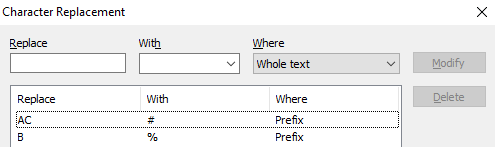
To replace characters in the recognized value, click Edit to the right of the Replace characters field. In the dialog box, add the characters to replace (added values are sorted alphabetically). Specify the following parameters:
The replacement string applies only when replacing in the whole text. For Prefix, Suffix, and Prefix and Suffix, only the first character applies.
" B" with "%" and "AC" with "#" in the prefix converts ABC ENTERTAC CORP to #%#%ENTERTAC CORP.
Replace text
To replace the entire recognized value or separate words in it, click Edit to the right of the Replace text field. In the dialog box, add the words and expressions to replace.
- To replace only whole fields, select Match entire field contents.
- Select Exact search to find and replace the exact word or expression, or Fuzzy search to find and replace a similar one. The number of allowable errors depends on the length of the word.
- Select Match case for case-sensitive replacement.
Change capitalization
Choose one of the following in the Change capitalization dropdown list:
Remove excess spaces
Enable Remove excess spaces to remove whitespace from the value.
Use a script
You can also use an autocorrection script for replacement: select Use script, click Edit to open the script editor, and type the script code.