
Verify that the Application Server responds
1
Open the IIS starting page
On the machine where the Application Server is installed, go to 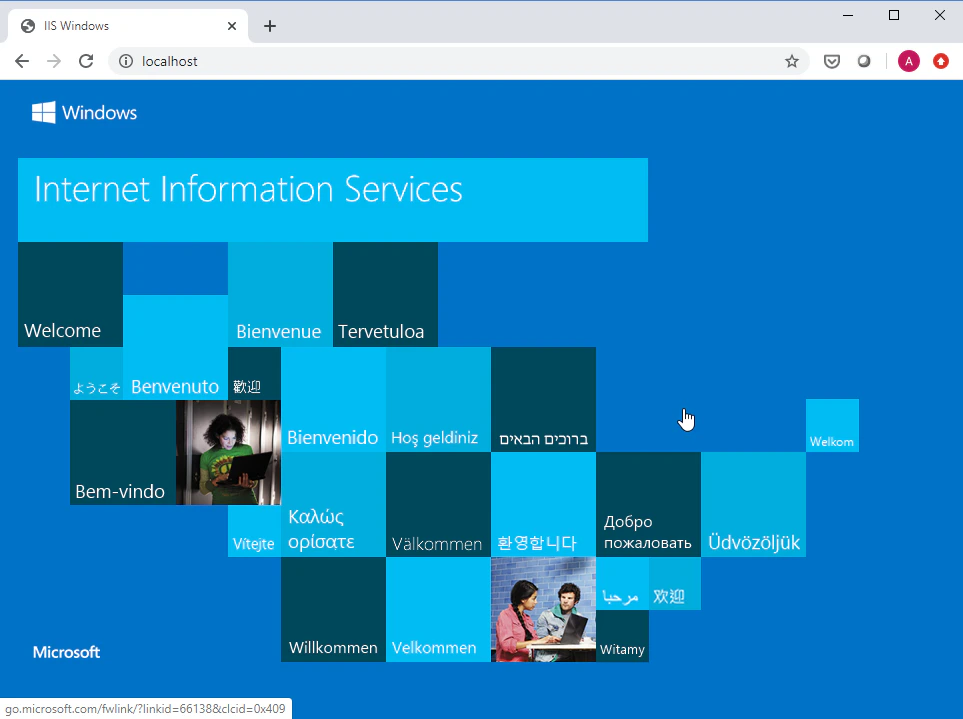
https://localhost or https://127.0.0.1. The IIS starting page should appear.2
Open the WSDL endpoint
Go to 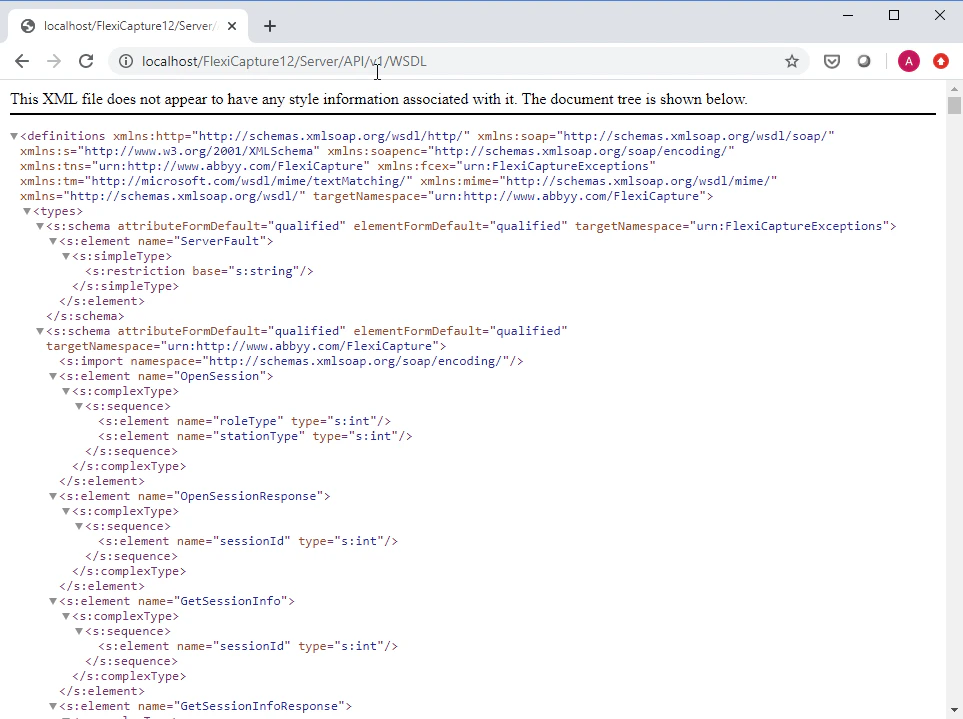
https://localhost/FlexiCapture12/Server/API/v1/WSDL. A page of XML code should appear.- In the IIS settings, confirm that the Application Server has been launched.
- Verify that your machine satisfies the minimum system requirements.
- Check the error messages in the system log on the Application Server machine.
- The
web.configfiles fromC:\inetpub\wwwroot\FlexiCapture12\Server,C:\inetpub\wwwroot\FlexiCapture12, andC:\inetpub\wwwroot - Any messages shown when you tried to open the IIS starting page
- System log messages
3
Reach the Application Server from another machine
From a different machine, such as one running a Processing Station, open
https://AppServer.If that page does not open, access to the Application Server machine is blocked. Incorrect firewall or proxy settings are the usual cause.