
Document states
During training, each document is in one of the following states:| State | Icon | Description |
|---|---|---|
| Unused |  | Not used when training the classifier. |
| For Testing |  | Used to test the classifier. |
| For Training |  | Used to train the classifier. Assigned by default when documents are loaded into a classifier training batch. |
Split documents for training and testing
Before launching training, move some documents to the For Testing state. This lets you analyze the classification results afterward and improve the classifier. You can split the batch automatically or manually.Split automatically
1
Open the Benchmark dialog box
Click the Benchmark button on the toolbar, or select Classification Training → Benchmark.
2
Set the split
Specify the percentage of documents to use for training and for testing. Optionally, set a minimum number of training documents per class (the default is 1).
3
Run the test or split only
To split the documents and start training, select Run benchmark test and click OK. To only assign document states and keep setting up the classifier, select Only split documents and click OK.
Split manually
Select the documents and click Set Document State in the shortcut menu or the Classification Training menu.Launch training
After setting up the classifier, launch training in one of the following ways:- Click the Train button on the toolbar.
- Select Classification Training → Train.
- Select Train in the shortcut menu.
Classification result colors
FlexiCapture highlights the names of the resulting and reference classes (or the absence of both) with the classification-results color:| Example | Meaning |
|---|---|
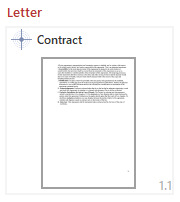 | Bright red: the resulting class does not match the reference class. Page state: For Testing. |
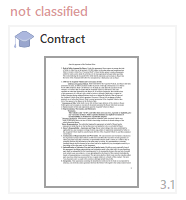 | Dull red: the resulting class does not match the reference class. Page state: For Training. |
 | Green: the resulting class matches the reference class. Page state: Unused, so the reference class name is grey. |