
- Create a project and upload it to the PreProd server.

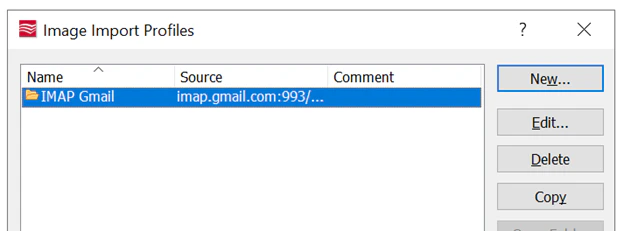
- Configure IMAP Image Import Profile using Gmail.
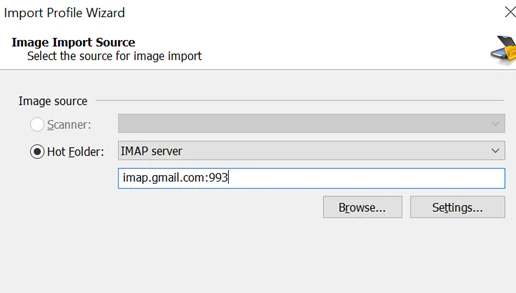
- Select the source for image import.
- Open the image import profile configuration.
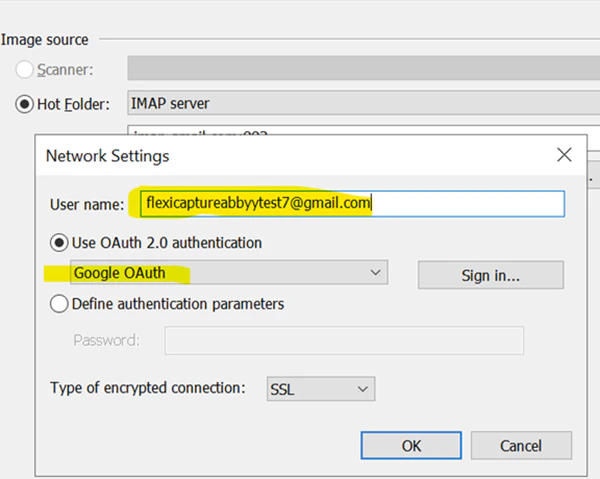
- Enter your Gmail ID.
- Click Sign-in to initiate OAuth authentication. A Google OAuth window will appear.
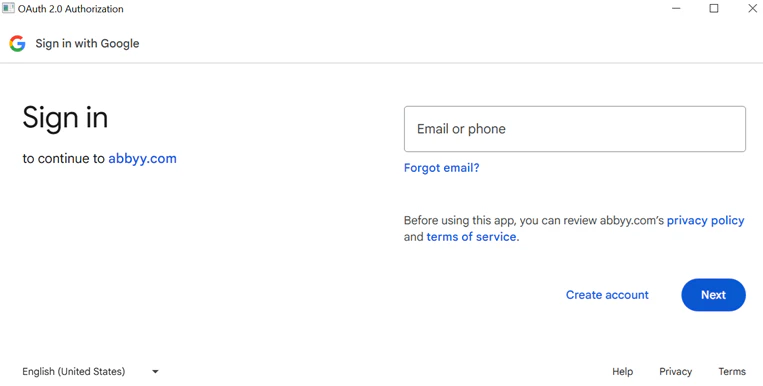
- Enter your Gmail account and click Next.
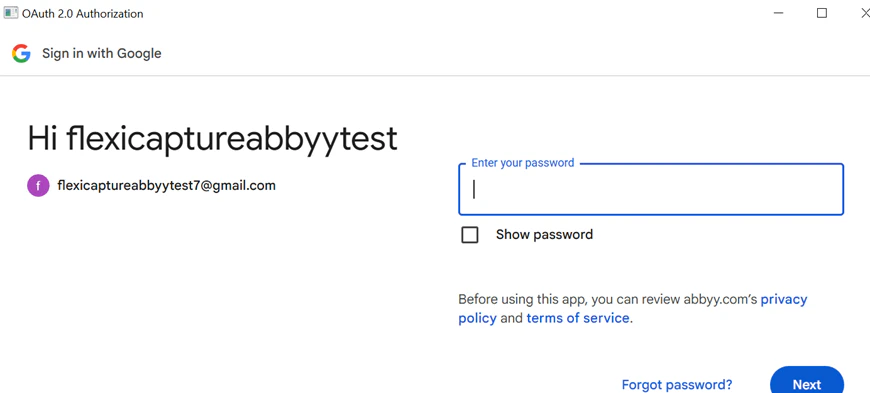
- Enter your password.
- Review the trust message and click Continue. If authentication is successful, a message saying ‘Thank you for allowing’ will appear. The OAuth popup will close, returning you to the project setup station.
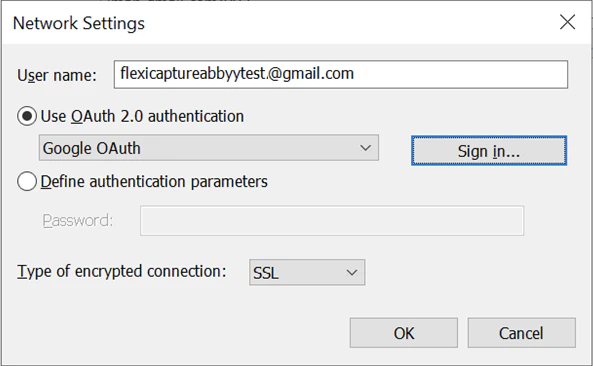
- Finalize IMAP Profile settings.
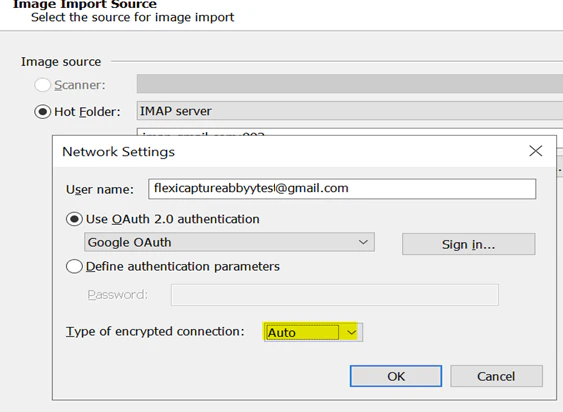
- Set Type of encrypted connection to Auto and click OK.
- Click Browse to access the Gmail folder hierarchy.
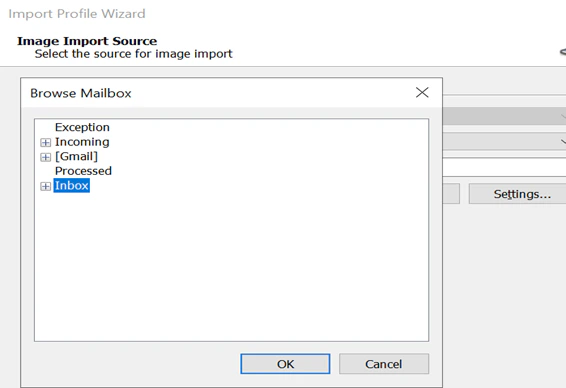
- Select the folder where documents will be dropped for processing.
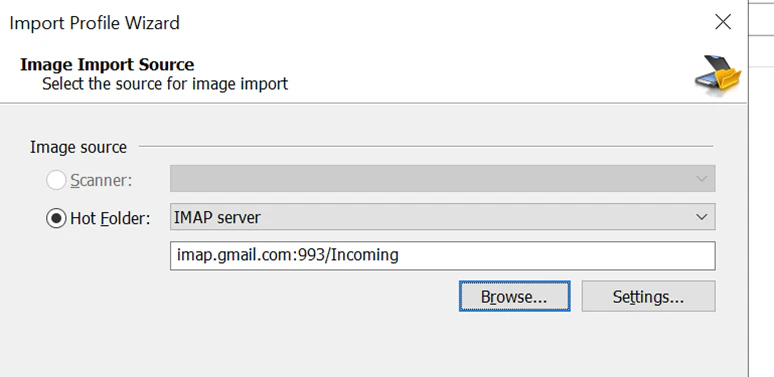
- Complete the remaining IMAP profile steps.
- Enable Hotfolder toggle for the project from the Admin & Monitoring Console.
- To test Import, send an email with an attachment to the selected Gmail folder.
- Confirm that the document is processed and a batch is created successfully.
