
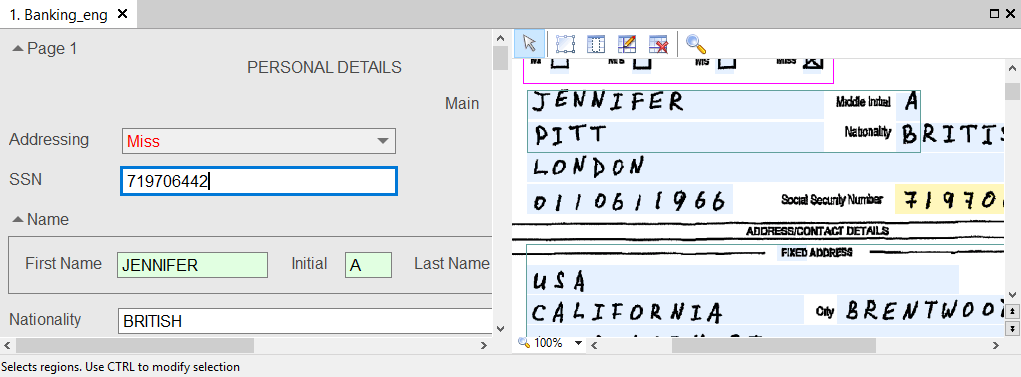
What the document window contains
The document window comprises the data region, the page image, and the errors region if errors are present. You can choose which error types to display: assembly errors, format errors, rule errors, or any combination. To display errors of one type, click the corresponding button in the top right corner of the errors pane. In the data region, uncertainly recognized and questionable characters are marked with color. Fields with incorrect data types or unfulfilled rules are highlighted.Configure the window layout
To configure the window layout, click Layout. To view the page image on a secondary monitor, click Image Window → Undocked. In this mode you can scale the page image, select a block, and delete unnecessary separators. You can arrange the fields for viewing and editing recognized data in any order that suits you, not only sequentially. Change their arrangement in the Document Definition editor. For more information, see Configuring data presentation in the document window.Confirm a field and navigate errors
To confirm a field with uncertainly recognized characters, place the cursor on the field and press Enter. To move to the next or previous error, click and
and  on the main window toolbar. The program navigates all errors, including assembly errors, rule errors, and mismatches of key fields.
The local menu of the document window carries several more commands:
on the main window toolbar. The program navigates all errors, including assembly errors, rule errors, and mismatches of key fields.
The local menu of the document window carries several more commands:
- Confirm a field.
- Show format errors.
- Copy cell values to other cells.
- Move to the previous or next item to verify.
- Set the data text size.
- Set the field navigation mode.
- Click Go to Uncertain Field on Confirmation to navigate uncertainly recognized fields.
- Click Go to Next Unmatched Field on Matching to navigate fields with undetected regions. For more information, see Navigate unmatched fields.
Enter values for unmatched fields quickly
Fast input is available for projects with FlexiLayouts, and transfers data to an active field from a region you select with the mouse. When a field value is not found or is found incorrectly, click the field region on the page to add the value quickly. You can also select part of the text by holding the mouse button. If the document has only one unmatched field, the value is added automatically. Otherwise you are prompted to choose the value associated with the field. If none of the suggested values is correct, click Recognize (Ctrl+R) in the local menu of the region. The field is then recognized according to the settings specified for it in the Document Definition. This is available on the Project Setup Station and the Verification Station, but not on a web station.Navigate unmatched fields
To navigate fields whose regions were not detected, click Go to Next Unmatched Field on Matching in the local menu of the document window. When this mode is enabled, the first unmatched field gets the focus. Focus then shifts to the next unmatched field when you enter a field value, or when you click the previous error or next error button.For a field to be highlighted when its region is not found, the Should be matched option must be enabled in the properties of the field.
Copy a cell value to other cells
You can copy the value of a cell in a table, and the values of identical cells and cells in identical groups. Right-click the cell and click one of the following items on the shortcut menu:- Copy Value to Other Rows (Ctrl+Q) – Copies the value of a field to rows of the same type within a group.
- Copy Value to All Rows (Ctrl+Shift+Q) – Copies the value of a field to all rows in a table. Within a group, it copies to the recurring fields and to the same fields in other iterations of the group.
Errors associated with hidden fields
A field in the data form can be hidden for either of the following reasons:- The Show on verification option is cleared in the field properties.
- The field set is restricted in the stage properties.
- A format error associated with a hidden field is not reported.
- A multi-field rule error is not reported when the hidden field is the only field involved in the rule.
- A multi-field rule error is reported when other fields in the form are also involved in the rule. For the hidden field, only its name appears, without a link to the field.
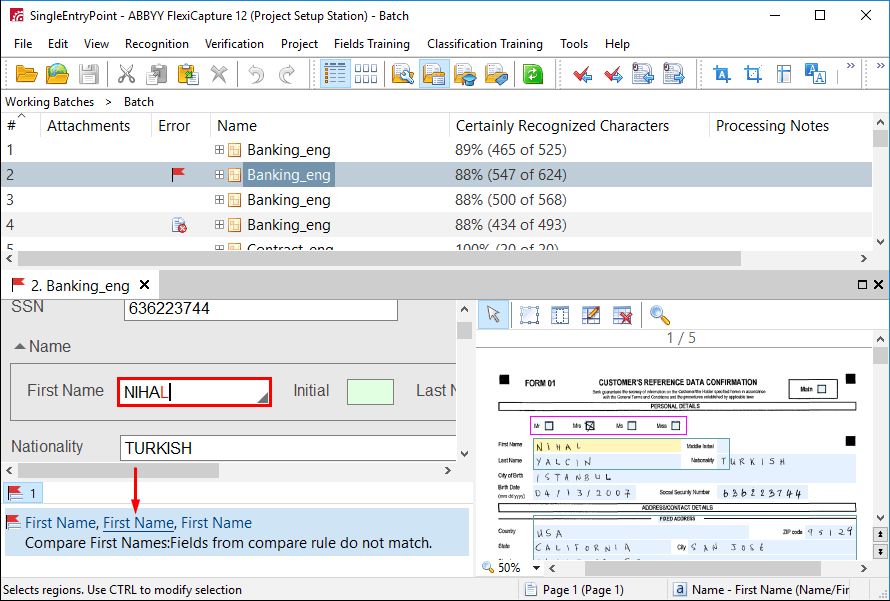
How the document appears in the list
When a document contains errors that the errors region does not report because the fields are hidden, its appearance in the document list depends on the stage you view it at:- At a Verification stage where the data set is restricted, the document appears without an error icon, and the errors region reports nothing.
- At a stage where the data set is not restricted, for example the Exceptions stage, the document appears with the
 error icon, and the errors region reports nothing.