
- The name of the Invoice Number field appears on all the images, and it distinguishes this document from others. Make the field name a required element so it serves as the identifier for this document type. For more information, see Required, optional, and prohibited elements.
- The name may contain one of these phrases:
Invoice no.,Credit note No,Invoice Number:, orInvoice Number. List all the possible variants in the search string. Type each phrase without spaces, so that the maximum number of errors applies to the whole phrase and not to separate words. - Only the field on the first page, in the upper part, is of interest. Some first pages contain static text similar to the name but located at the bottom of the page.
Create the kwInvoiceNumber element
1
Create the Static Text element
In the InvoiceHeader element, create a Static Text element and name it kwInvoiceNumber.
2
Mark the element as required
On the General tab, select Required element.
3
Enter the search text
Click the Static Text tab. In the Search text field, type
InvoiceNo.|CreditNoteNo|InvoiceNumber:|InvoiceNumber.4
Set the maximum error percentage
Set Max error percentage to 20.
5
Specify the search area
Click the Search Constraints tab and use absolute coordinates to specify the rectangular search area on the first page: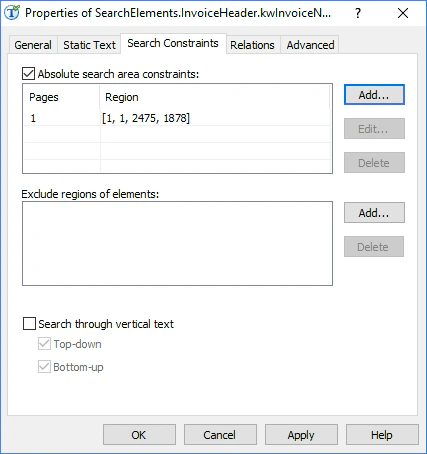
- Select Absolute search area constraints.
- In the Pages field, select Range from the drop-down list.
- In the Range field, type
1. - In the Region field, specify the coordinates of the rectangle
[1, 1, 2475, 1878]. - Click Add…. The search area appears in the Search areas list.
6
Add pre-search relations
Click the Advanced tab. In the Advanced pre-search relations field, specify additional constraints:
7
Add post-search relations
An additional check in the Advanced post-search relations field influences the quality of the generated hypotheses. For example, if the element is detected, calculate the difference between the reference width and the width of the detected element’s region, and check whether it belongs to the fuzzy interval. In the FlexiLayout language:
To specify object locations and the distances between them, FlexiLayout Studio uses a two-dimensional coordinate system. The (0, 0) point, where the vertical and horizontal axes intersect, is in the top left corner of the image. The horizontal axis runs left to right, and the vertical axis runs top to bottom.
8
Match the FlexiLayout
Temporarily exclude the InvoiceFooter element and match the FlexiLayout.