
- The field name always appears on the first page, in the upper part. You can therefore limit the search area to the first page and use absolute coordinates to specify a rectangular area.
- Use the
AddressHeaders.txtfile to search for the text. - You can set the maximum error percentage to 20, which here means no more than 3 errors in each phrase.
The optimal number of errors can only be found through trial and error. For more information about Static Text elements, see Static Text.
Create the kwDeliveryAddress element
1
Create the Static Text element
In the InvoiceHeader element, create a Static Text element and name it kwDeliveryAddress.
2
Read the search text from a file
Click the Static Text tab, select Search text from file, and provide the path to the 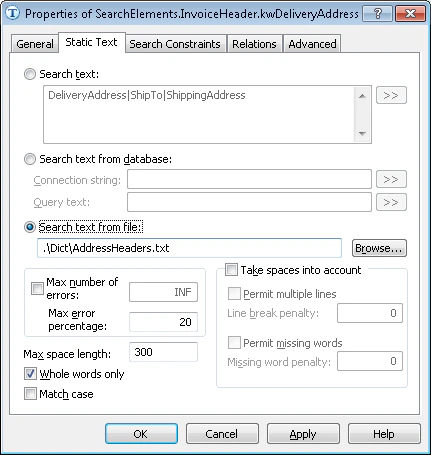
AddressHeaders.txt file (folder %public%\ABBYY\FlexiCapture\12.0\Samples\FLS\English\Invoice\Dict).A text file is accessed by its name, which can be absolute or relative. Relative names are specified relative to the FlexiCapture project folder (the folder that contains the *.fcproj file) or the FlexiLayout Studio project folder (the folder that contains the images).3
Set the maximum error percentage
Set Max error percentage to 20.
4
Specify the search area
Click the Search Constraints tab and use absolute coordinates to specify the rectangular search area on the first page:
- Select Absolute search area constraints.
- In the Pages field, select Range from the drop-down list.
- In the Range field, type
1. - In the Region field, specify the coordinates of the rectangle
[1, 1, 2475, 1878]. - Click Add…. The search area appears in the Search areas list.
5
Add pre-search relations
Click the Advanced tab. In the Advanced pre-search relations field, specify:
6
Match the FlexiLayout
Temporarily exclude the InvoiceFooter element and match the FlexiLayout.