
Availability of this feature depends on your role. For more information, see Role-based access control.
Only published skills can be exported. The Export button is disabled in the toolbar for unpublished skills and for read-only skills (Vantage built-ins and third-party skills).
Before you export
When you export a skill, Vantage includes its document set and data catalog records by default. You can change these settings in the Export Skill dialog box.The structure of any data catalogs linked to a Document skill is always included in the export, regardless of your settings.
- If the exported skill will be used by people outside your organization, make sure the document set does not contain confidential information.
- A skill exported without its document set can’t be trained further. You can only retrain it from scratch using a new document set.
- The export uses the most recently published version of the skill. To export an earlier version, duplicate the skill first and then export the copy.
When exporting a Process skill, you can choose to include all skills it references, along with their data catalog records and document sets. The data catalog structure for any referenced Document skills is always exported.
Run the export
1
Open the Export Skill dialog
In the Skill Catalog, select the skill (click anywhere except the skill name), and then click Export in the toolbar.
2
Choose what to include
In the Export Skill dialog box, clear the Export skill with document set option if you want to exclude the training document set. Clear Export with data catalogs records if you want to exclude data catalog records.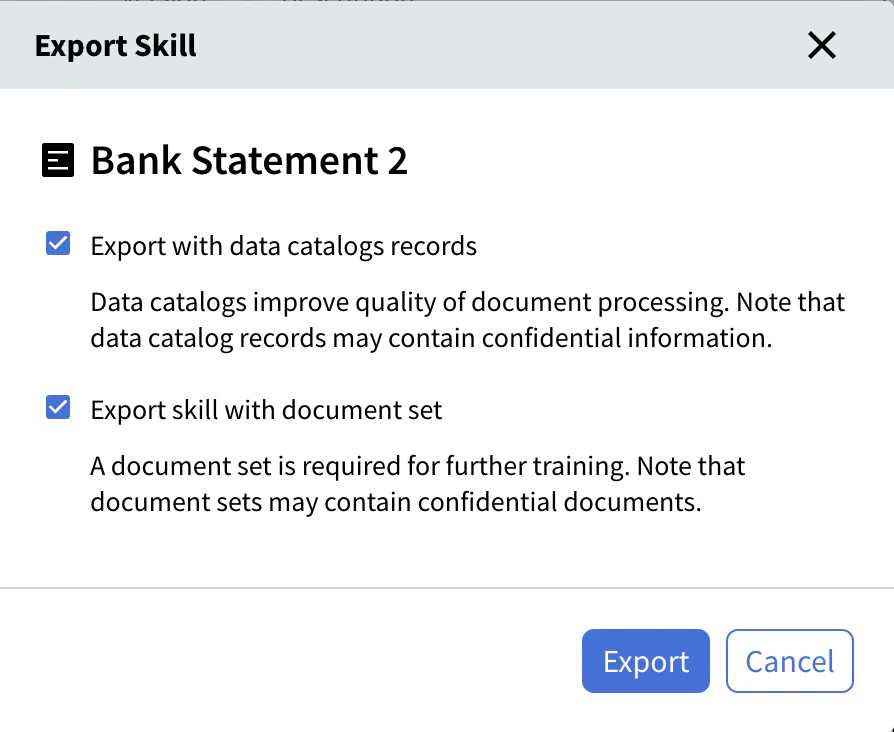
3
Export the skill
Click Export. Vantage packages the skill as a ZIP file (this may take a moment) and downloads it to your local Downloads folder.
Skills with large document sets (more than 100 documents) are delivered via SFTP instead of a direct download. Vantage emails you a link to a shared folder, with credentials embedded in the link, so no separate username or password is needed. The folder contains a single ZIP archive, the same package as a direct download. Download it and import it as-is, without extracting it. The folder is deleted after 14 days. For more information, see Use an SFTP shared folder.