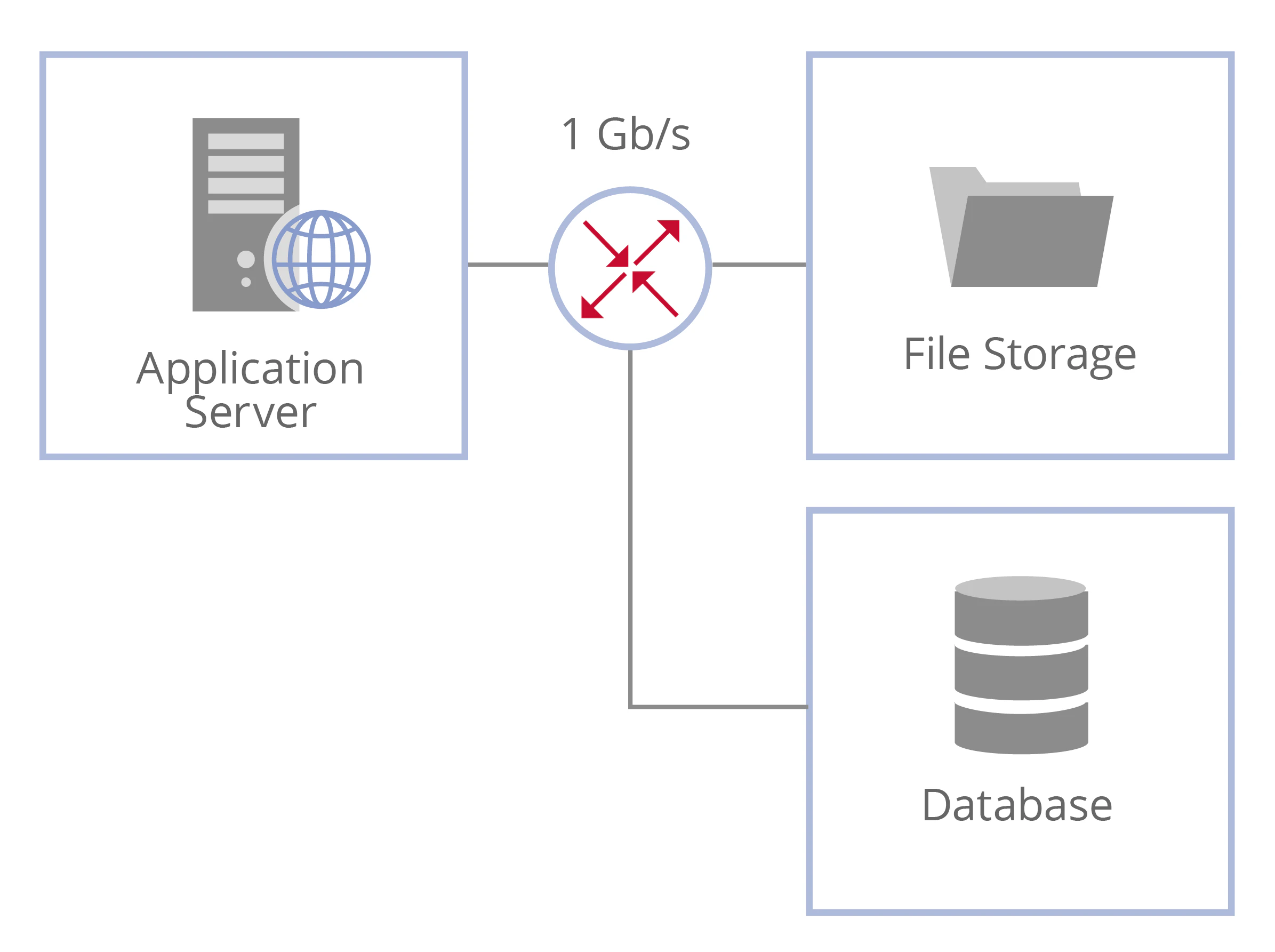
Secure your connection with HTTPS
By default, ABBYY FlexiCapture uses the HTTP protocol, which suits staging, testing, and demo environments only. For production, use HTTPS to protect sensitive data. HTTP also carries data between the Web Scanning Station and the ABBYY Scanning Plugin. That is by design, because the plugin is deployed locally on the user’s machine only.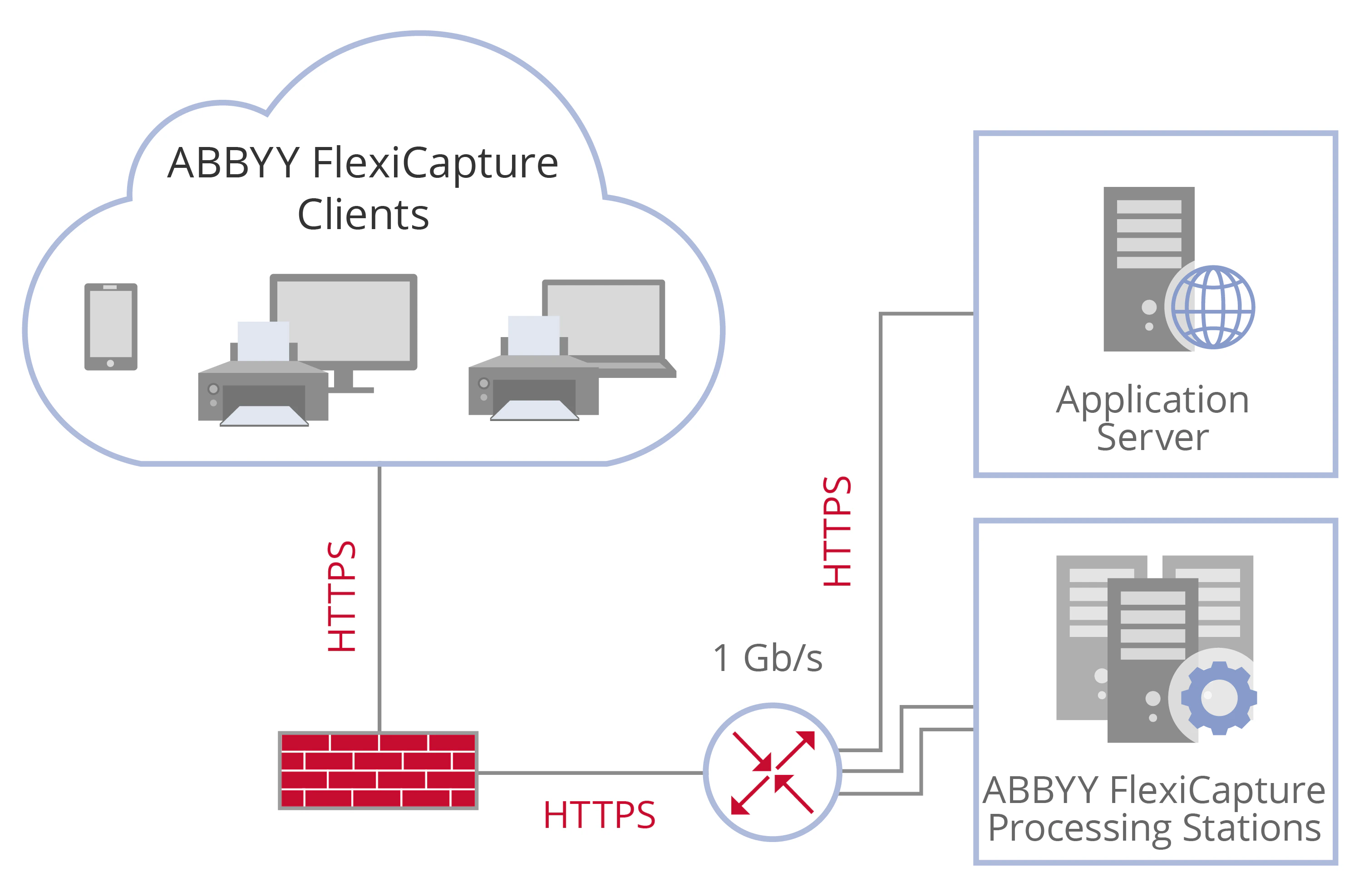
Specify HTTPS for the default website
1
Open the IIS Manager console
Run it from the Control Panel.
2
Open the site bindings
Select Default Web Site and click Bindings in the Actions pane.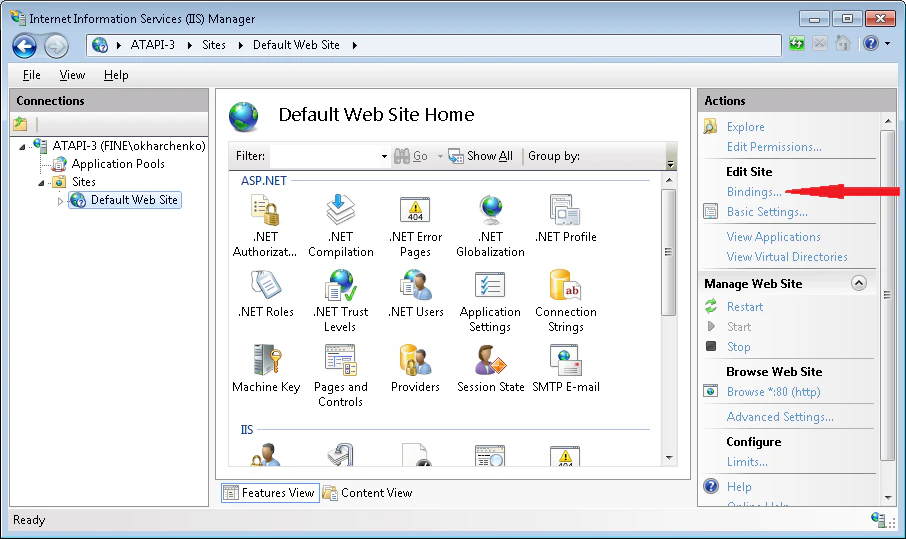
3
Add an HTTPS binding
In the dialog box that opens, click Add and select https from the Type drop-down list.
4
Select the SSL certificate
From the SSL Certificate drop-down list, select a certificate and click OK.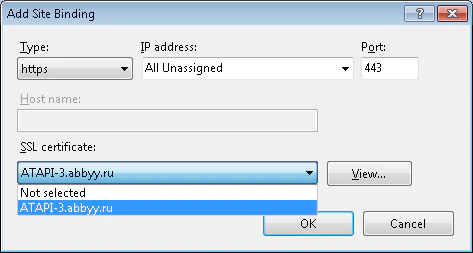
5
Require SSL (optional)
To make a site available over HTTPS only, select it in the tree pane. Double-click SSL Settings in the content pane and select Require SSL.Set Client certificates to Ignore, because client certificates are not verified here.
https://<server name>. The name of every client machine connecting to the Application Server must match the name in the certificate.
Specify the new address on the Processing Server, on user stations, and on web stations.
Specify the Application Server address on the Processing Server
1
Open the Change Application Server dialog
Start the Processing Server Monitor, open the Processing Server shortcut menu, and select Change Application Server.
2
Enter the address
In the dialog box that opens, specify the address:
https://<server name>.https://<server_name>/FlexiCapture12/<web_station_name>.
TLS 1.2 for data encryption
ABBYY FlexiCapture 12 supports the TLS 1.2 protocol, which is the recommended encryption protocol for secure connections. Connections to ABBYY FlexiCapture can also use other protocols at the operating system level. For more information, see managing SSL protocols in the Microsoft documentation.Secure your connection with Mutual SSL
Configuring HTTPS gives you one-way SSL authentication by default, where the client verifies the server certificate. Mutual SSL tightens this. The client verifies the server certificate, and the server verifies the client certificate in turn.Mutual SSL cannot be configured for the Web Scanning Station or the Web Capture Station.
Configure Mutual SSL for the Application Server
1
Set HTTPS as the protocol
In IIS, specify HTTPS as the protocol for connections to the Application Server. For more information, see Secure your connection with HTTPS.
2
Require SSL for the server folder
For
Default Web Site\FlexiCapture12\Server, select the Require SSL option in SSL Settings.3
Require client certificates
For Client certificates, select the Require option.
- Project Setup Station and Verification Station – No additional configuration is required. On connecting, the client is asked to select a certificate to provide to the Application Server.
- Processing Server and Processing Station – Specify the thumbprint of the certificate in the registry. Locate
HKLM\Software\ABBYY\FlexiCapture\12.0\FlexiBrand specify<ClientCertificateThumbPrint>. - Administration and Monitoring Console – Specify which certificate to provide by adding the following keys to the
web.configfile.
Store the client certificate with that thumbprint in Local Computer > Personal. The account providing the certificate needs permission to use it.
Secure your connection to the database and file storage
The Application Server interacts with the database and file storage.