
Register an application in Azure Active Directory
1
Open the Azure portal
Go to https://portal.azure.com/ and log in to your Microsoft Azure account.
2
Open Enterprise applications
Go to the Azure Active Directory > Enterprise applications section.
3
Add a non-gallery application
In the Add an application window, go to the Non-gallery application section and specify a name for the new application. If several tenants are used, create a separate application for each.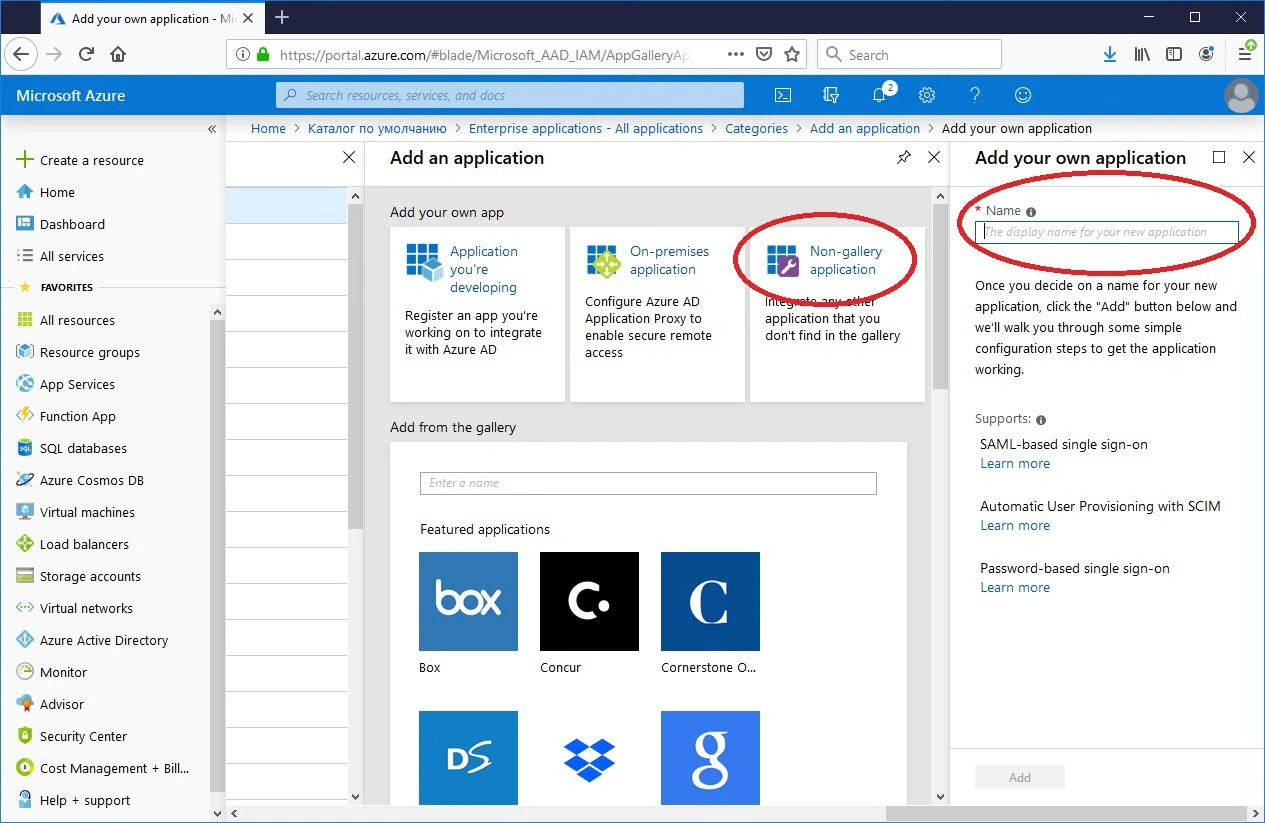
4
Add users and groups
Go to the Users and groups section and add all required users. Give them the User role.
5
Select the SAML sign-on method
Go to the Single sign-on subsection and select SAML.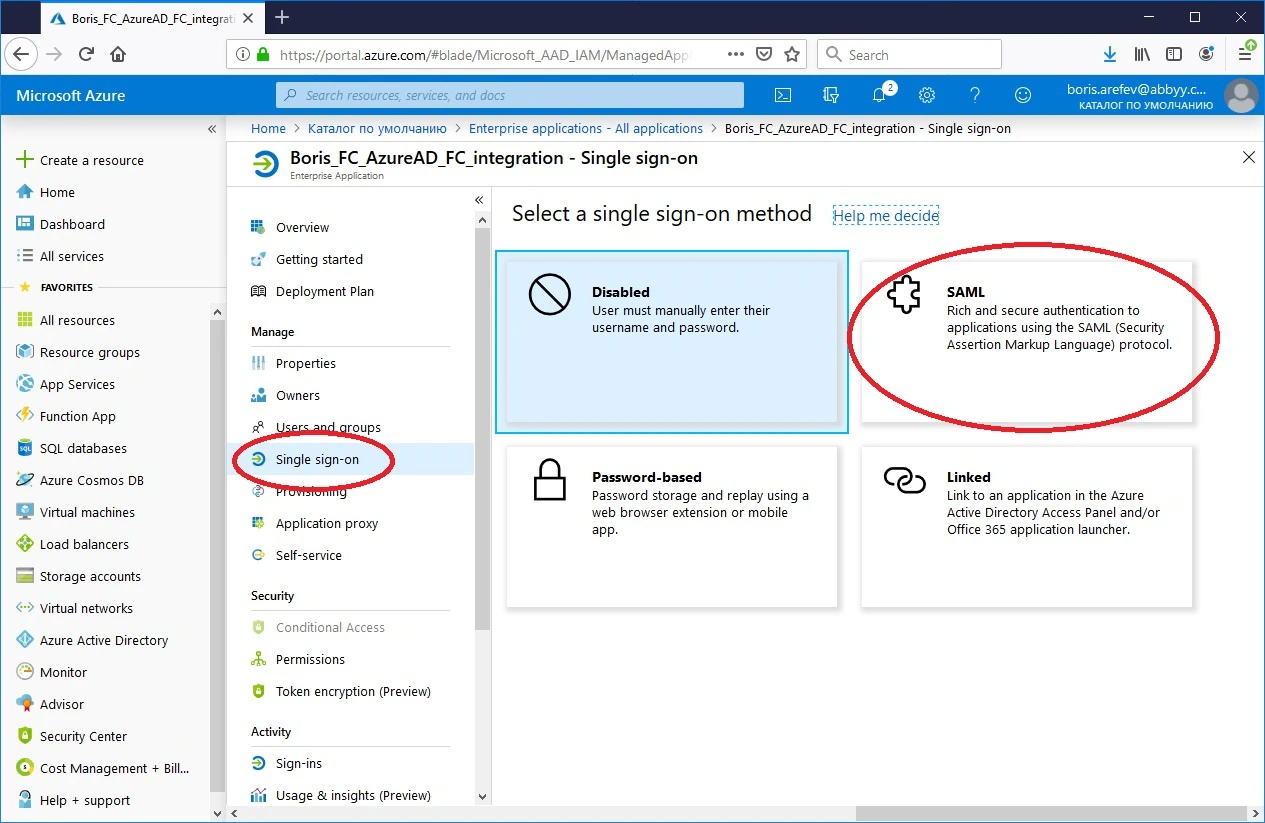
6
Configure the Basic SAML settings
Edit the Basic SAML Configuration section. In the Identifier (Entity ID) and Reply URL (Assertion Consumer Service URL) fields, enter the URL in the following format, and leave the rest of the fields blank:Here, 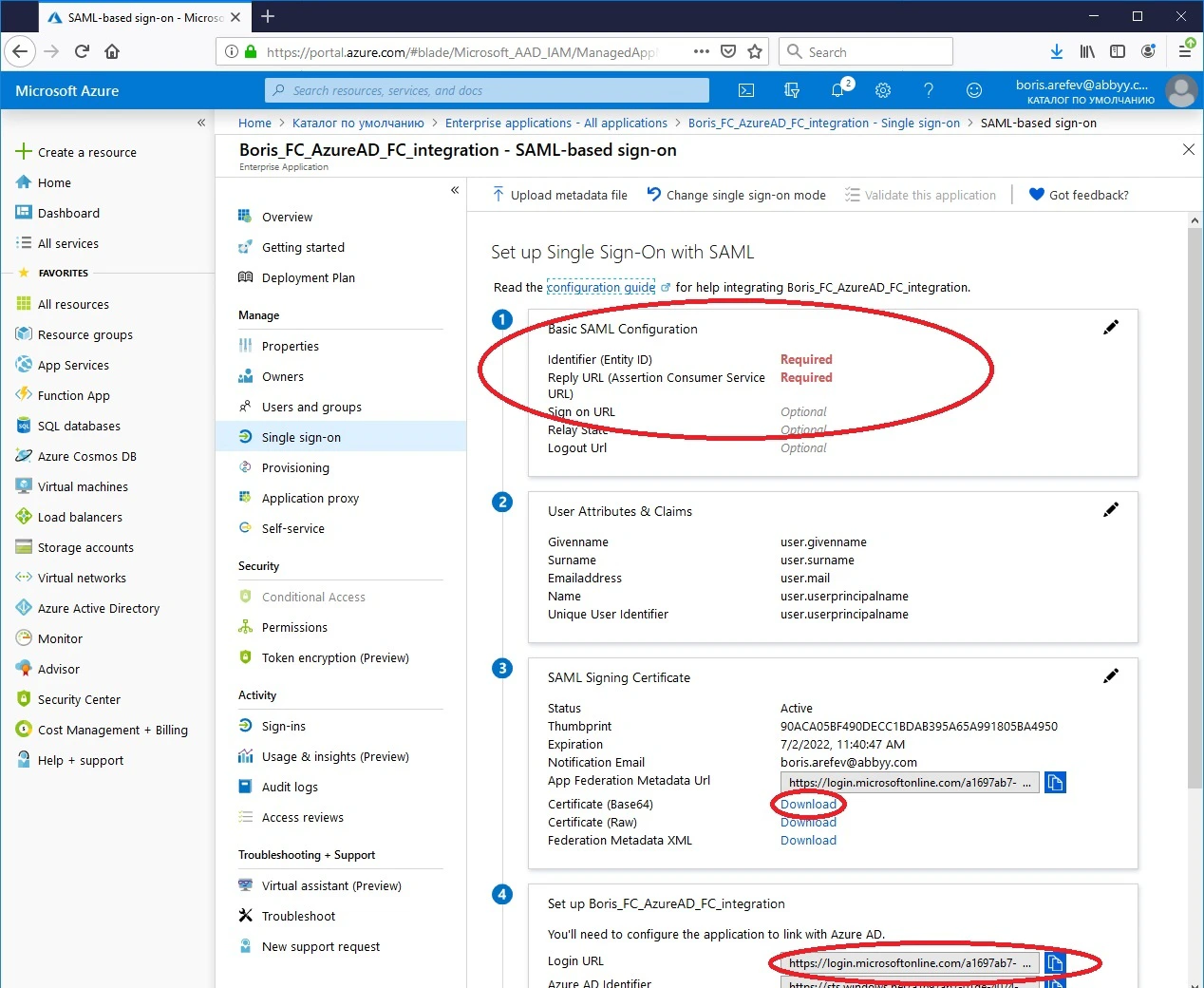
<cloud-host-name> is the host name of the SaaS URL of your processing location, and <TenantName> is the name of your tenant in FlexiCapture Cloud.7
Download the public certificate
In the SAML Signing Certificate section, download your public certificate in Base64 format by clicking the link next to Certificate (Base64).
8
Copy the login URL
From the Login URL field in the Set up [application name] section, copy the URL for accessing the server of the external identity provider.
Provide details to cloud support
Provide the following information to cloud support or the account manager:- The URL of your FlexiCapture Cloud region and your tenant name
- The public key certificate
- The login URL
- The image for the new Log in with… button (images in
.svg,.jpg, and.pngformats are supported) - The name of the external identity for the Log in with… button
For more technical details about the SAML authentication requests and responses that Azure Active Directory supports for Single Sign-On, see this article on Microsoft.com.