
Open the Sending Tasks tab
1
Open the Options dialog box
Select Tools → Options….
2
Open the Sending Tasks tab
Click the Sending Tasks tab.
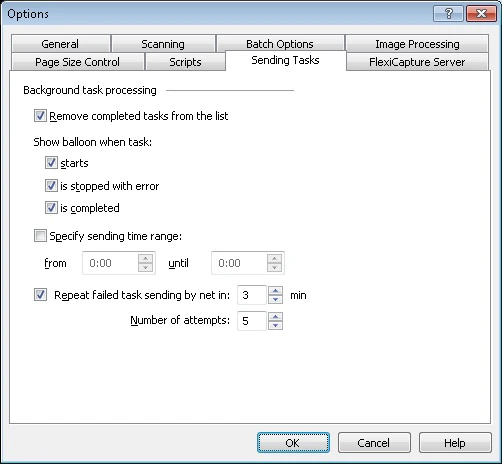
Export task options
| Option | Description |
|---|---|
| Remove completed tasks from list | Select this option to delete completed tasks from the list in the export tasks dialog box. This dialog box contains information about the exported batches, task status, its start time, and progress. You can open this dialog box during export or after export is finished by clicking the shortcut in the notification area of the Windows taskbar. |
| Show balloon when the task… | Select this option to show a balloon notification when: starts – Task processing starts. is stopped with error – An error occurs during task processing. is completed – Task processing is completed. |
| Specify sending time range | Specify a daily time period when batches should be sent to their destination. After the time range is specified, select the batch to be sent and click the Send to button on the toolbar or select the corresponding item in the menu. Batches waiting to be sent are marked with  . . |
| Attempt to send failed task every… | Select this option to enable repeat sending of a failed task over the network: n min – An attempt to send the task again is made in n minutes. Number of attempts – Attempts to send the task are made n times. |