セクションと dynamic layout の作成
1
セクションを作成する
Verification Flow Action で
Verification という名前のセクションを作成し、Design tab で開きます。2
2 つの dynamic layout を追加する
1 つ目の dynamic layout に
VerificationSection という名前の Embedded section を追加し、2 つ目に Submit という名前のボタンを追加します。それぞれの設定方法については、埋め込み 検証セクション を追加するおよびカスタムの Submit ボタン を追加するを参照してください。埋め込み検証セクションを追加する
1
ページコンテキストとセクションを設定する
Page context リストで Use current page context を選択します。次に、Section フィールドで By name を選択し、
VerificationSection を指定します。2
新しいセクションを作成する
設定ボタンをクリックして、新しいセクションを作成します。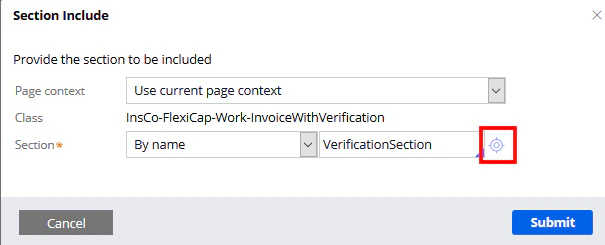
3
HTML タブを開く
Create and open をクリックし、次に HTML タブをクリックします。
4
セクションのコードを入力する
Auto-generated HTML オプションをオフにして、セクションのコードを入力します。
VerificationSection.html
このフォルダー内のVerificationSection.html ファイルからセクションのコードをコピーします。
カスタム Submit ボタンを追加する
ボタンを追加する前に、dynamic layout を画面の右側に寄せておきます。dynamic layout のプロパティを開き、Presentation タブをクリックし、Float field で Right を選択して、Submit をクリックして変更を適用します。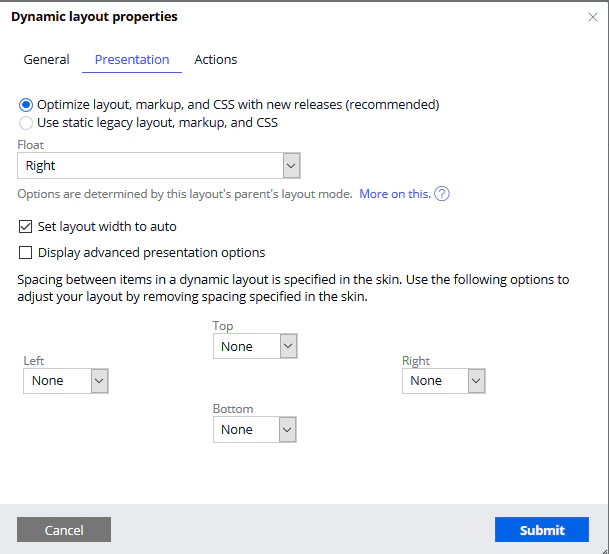
1
ボタン要素を追加する
基本的な Button 要素を dynamic layout に追加し、そのプロパティを開きます。
2
ボタンのキャプションを設定する
General タブをクリックし、ボタンのキャプションテキストに 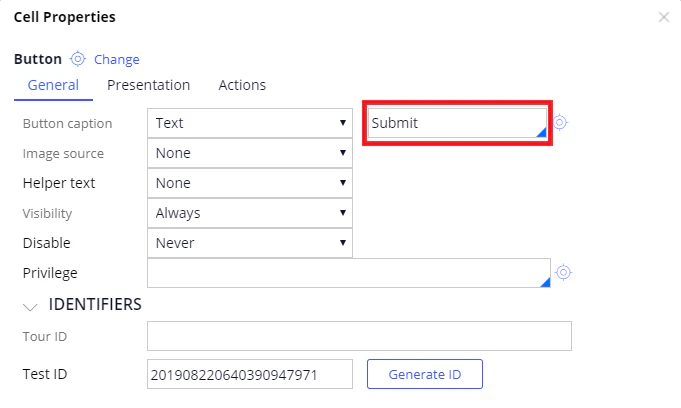
Submit を指定します。3
コントロールの書式を設定する
Presentation タブで、Control format リストから Strong を選択します。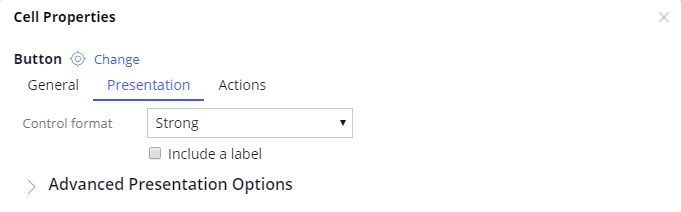
お使いの case で Submit ボタンが表示されない場合は、代わりに Standard を選択してください。
4
クリックアクションを接続する
Action タブで Click イベントを追加し、Finish Assignment アクションに接続します。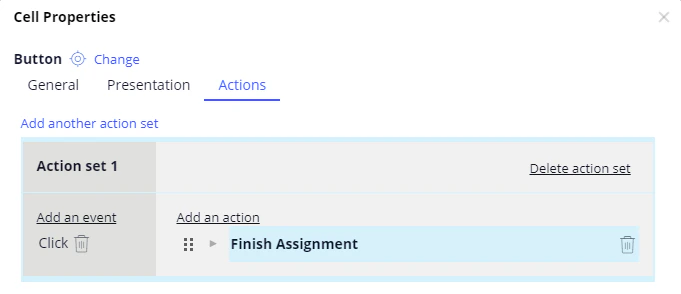
5
既定のボタンを非表示にする
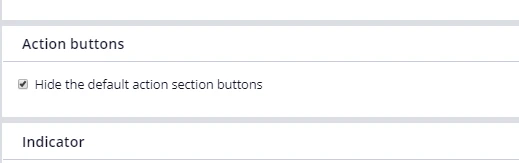
Submit をクリックします。flow の標準ボタンセット、つまり Cancel、Save、Submit を非表示にするには、Records → Process → Flow Action をクリックして Verification を開き、Action タブをクリックして Hide the default action section buttons を選択します。