
Assign and check document types
1
Assemble images into documents
Assemble the document images into documents based on their types, manually or automatically.
2
Assemble documents into document sets
Assemble the documents into document sets, and specify the type of each document and document set.
3
Check the batch before sending
Before sending a batch, the Scanning Station checks whether it contains the required number of documents of the specified types.
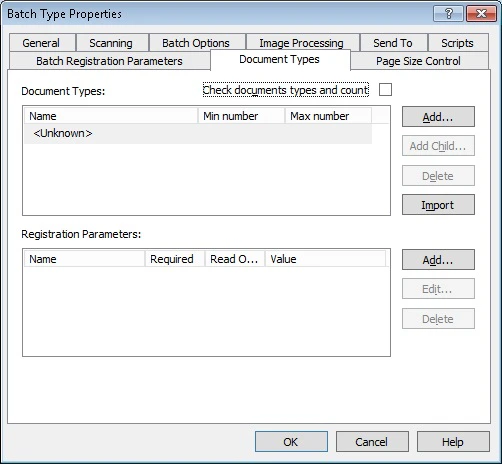
Add a document type
1
Click Add
Click Add… to the right of the Document Types list. To add a child element, click Add Child….
2
Name the document type
Enter a name for your document type.
Delete a document type
In the list, select the type you want to delete and click Delete. The document type and its registration parameters are removed. Document types and their registration parameters are set when a batch is created. Changes you make to a document type do not affect batches that already exist. For instructions on specifying document types, see Work with documents, batches, and pages. When you move a document to a batch of a different type, or change the type of its current batch:- If the new batch type already has a document type with the same name, the moved document’s registration parameters are updated with those of the existing document type.
- If you move a document between batches of the same type, its registration parameters are preserved.
Import document types from ABBYY FlexiCapture
You can import document types from the project’s export destination or from the FlexiCapture batch type set in the settings. To import them, open the Batch Type Properties dialog box, click the Document Types tab, and click Import.What the import creates
The Scanning Station creates document types with names that match the Document Definitions in the FlexiCapture batch type. If the FlexiCapture batch type contains Document Definitions for document sets, it sets the minimum and maximum document count for each type automatically. You must still specify the registration parameters manually. For more information, see Registration Parameters of Batches and Documents.What happens when you re-import
When you import document types again:- Any document types you set up manually are removed.
- The registration parameters of the document types are preserved.
- If a document type was renamed on the Scanning Station, it is removed and added again from the FlexiCapture project.
- If a document type was renamed in the FlexiCapture project, it is overwritten on the Scanning Station.
- The new settings from the FlexiCapture project are applied to the previously imported document types.
Check document types and count
When the Check document types and count option is selected on the Document Types tab of the Batch Type Properties dialog box, the Scanning Station checks whether the batch contains the required number of documents of the specified types before sending it. If the batch fails the check, it is not sent and an error message appears. To make a document type optional so that it does not affect completion checks, set its minimum number of documents to 0 or leave the field empty.Document types in exported batches
When you export the batch to a local folder or an FTP folder, the XML description file indicates the document type:ScanStation_DocumentType registration parameter.