
- For individual batches – The options are selected on the Batch Options tab of the Options dialog box.
- For a certain batch type – The options are selected when creating the batch type with the Batch Type Wizard and can be adjusted on the Batch Options tab of the Batch Type Properties dialog box.
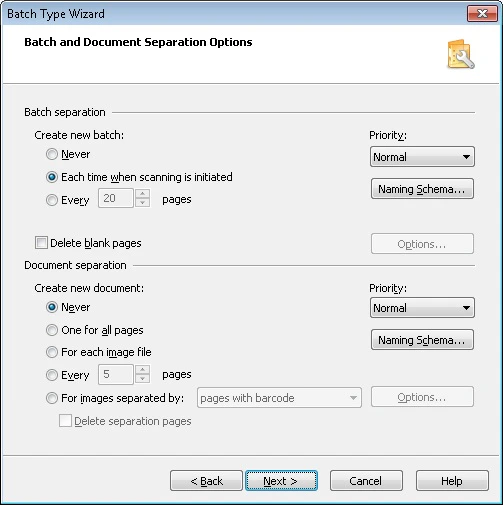
Batch separation
Batch naming scheme
Click Naming Scheme… to open the Batch Name dialog box, where you set up batch naming rules for the selected batch type. Specify a rule in the Batch naming scheme field. This template is used when creating new batches. A batch naming rule can use the following items:- Current time
- Date
- Batch type
- Automatic numbering
- Registration parameters
<>) in the rule. All other items are entered without angle brackets and are used as they are.
For example, the scheme Batch_ names each new batch with the prefix Batch_ followed by the current time.
By default, unique batch identifiers are used during automatic numbering. A unique identifier is not reused even after the batch it was assigned to is deleted.Previous versions of ABBYY FlexiCapture used the total number of batches for automatic numbering. To enable this behavior, set the registry key
[HKEY_CURRENT_USER\Software\ABBYY\ScanStationFC\4.0\Shell] "NextBatchNumber"="-1". This key must be set for every user.Create new batch
The Create new batch option specifies when a new batch is created during scanning:Document separation
Document naming scheme
Click Naming Scheme… to open the Document Name dialog box, where you set up document naming rules for the selected batch type. Specify a rule in the naming scheme field. This template is used when creating new documents. A document naming rule can use the following items:- Current time
- Date
- Barcode value
- Automatic numbering
- Batch name
<>) in the rule. All other items are entered without angle brackets and are used as they are.
For example, the scheme Document_ names each new document with the prefix Document_ followed by the current time.
Create new document
The Create new document option specifies when a new document is created during scanning:
If you separate documents by blank pages, specify the parameters of blank page detection in the Empty Page Detection dialog box, which opens when you click Options….
If you separate documents by barcodes, you can:
- Specify the type and value of the barcode in the Barcode Options dialog box, which opens when you click Options…. The barcode value can also be specified with a regular expression, where
*indicates any string of characters and a question mark (?) indicates any single character. - Select Any type to create a new document upon detection of any supported barcode type.
- Select Any type (except post barcodes) to create a new document when any barcode except a postal barcode is detected. Postal barcodes are not searched for, which speeds up recognition.
The QR Code, Aztec, DataMatrix, and Code 39 without asterisk barcode types must be specified explicitly. Barcodes of these types are not detected when Any type or Any type (except post barcodes) is selected.