
Add a registration parameter
1
Open the registration parameter list
Open the Batch Type Properties dialog box, and then open the list for the type you want: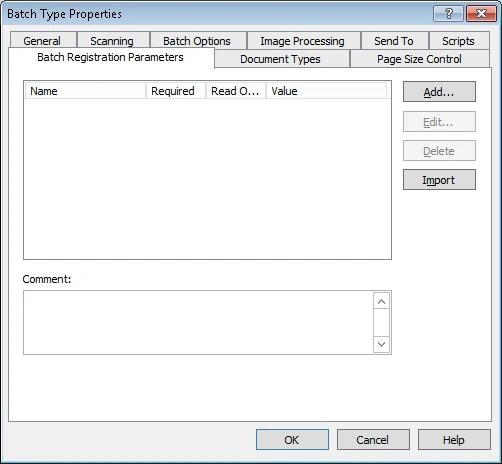
- For the current batch type, click the Batch Registration Parameters tab and click New….
- For a document type, click the Document Types tab and click Add….
2
Name the parameter
In the Registration Parameter dialog box, type a name for the new registration parameter.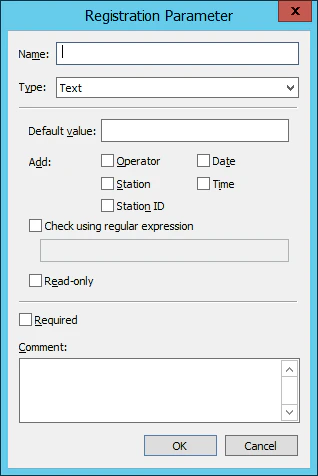
3
Select the parameter type
From the Type drop-down list, select Text or Drop-down list. The available settings depend on the type. See Text registration parameters or Drop-down list registration parameters.
Text registration parameters
A text registration parameter is a text string. It can contain user-specified text, automatically generated text, or both, but it cannot be empty. The Default value field holds the user-specified text and any automatically generated tags. To include data automatically, select the options you want. The following data is available.
Two more options are available:
- Check using regular expression – Checks the parameter against a template that you specify with the Alphabet Used in Regular Expressions. If the parameter does not match the template, the batch cannot be sent, and a message explains why.
- Read-only – Prevents the Operator from changing the default value. Not available when Check using regular expression is enabled.
Drop-down list registration parameters
For this type, the Operator selects a value from a drop-down list. Populate the list in one of the following ways:- Create list items manually – Click Add…, and then type a value in the dialog box that opens (see Text registration parameters).
- Import list items from a TXT file – Click Import, and then select the TXT file. Each line becomes a list item.
- Use an external source – Select Use external source of values, and then choose a file or a database in the Values Source Settings dialog box.
Use a file as the external source
Click Browse and select a file in the Source of Values dialog box. Each line of the file becomes a list item.Use a database as the external source
1
Open the provider settings
Click Set Up… in the Values Source Settings dialog box.
2
Select a provider
On the Provider tab, select a provider.
3
Configure the connection
On the Connection tab, specify a connection string and connection settings. Test the connection if necessary, and then click OK.
4
Select the values
In the Values Source Settings dialog box, specify a schema, a database table, and a database field, and then click OK.
- Microsoft SQL
- Oracle
- Azure
- Microsoft Access
Values from external sources update only when you create a new batch type or edit an existing one.
Import registration parameters from ABBYY FlexiCapture
To load the registration parameters specified for this batch type in your ABBYY FlexiCapture project, click Import on the Batch Registration Parameters tab of the Batch Type Properties dialog box. When you import registration parameters again:- Registration parameters you added manually are preserved.
- If an existing parameter has the same name as one in the FlexiCapture project, the FlexiCapture parameter and its settings are used.
- The imported parameters are updated.
- If a parameter was renamed on the Scanning Station, it is preserved and the FlexiCapture parameter is added again.
- If a parameter was renamed in the FlexiCapture project, the old parameter is removed from the Scanning Station and the new one is imported.
- Required – The parameter must have a value. A batch with a required registration parameter cannot be exported until the parameter has a value.
- Comment – A comment for the registration parameter.
You can import registration parameters from an external source (a TXT file or a database) and from TXT files at the same time.