
UsageExample.ums5, a sample workflow built on the ABBYY_FlexiCapture_12 user libraries.
What the sample workflow does
The workflow prompts you to select a source image folder and sends the files from that folder to ABBYY FlexiCapture. After the files are processed, it prompts you to specify a folder where the processing results are saved. If the documents need verification, the workflow opens the verification tasks on the ABBYY FlexiCapture Web Verification Station in a browser. After verification finishes, it prompts you for the results folder.Prerequisites
Before you run this scenario, upload an ABBYY FlexiCapture project to the Application Server, configure the project, and specify the ABBYY FlexiCapture connection settings in the process variables. You need credentials for accessing ABBYY FlexiCapture, or for your company’s tenant if you are using ABBYY FlexiCapture Cloud.The ABBYY FlexiCapture operator must have either the Scanning Operator and Verification Operator roles for the given project and batch type, or the Administrator role.
\Samples\FlexiCapture Project folder of the connector distribution package.
Run the UsageExample.ums5 scenario
1
Unzip the sample project
Unzip the
InvoiceDemoProject.zip archive.2
Upload the project
On the Project Setup Station, open the
InvoiceDemoProject.fcproj project and upload it to the Application Server. For more information, see Upload the project to the Application Server.3
Open the sample workflow
In WinActor Office Robot, open the 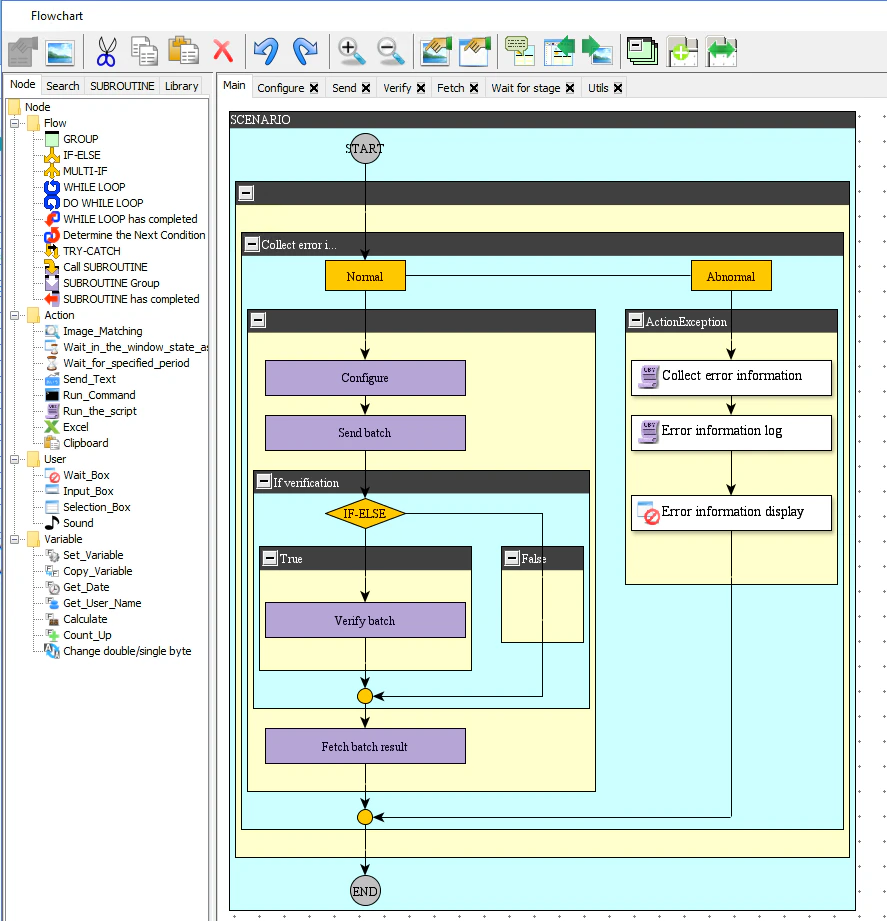
UsageExample.ums5 example. The Flowchart window displays all the elements that make up the scenario, and the Variable List window lists all the variables it uses.4
Specify the connection settings
For the FlexiCapture_connection_settings group, use the Initial value column to specify the settings used to connect to ABBYY FlexiCapture: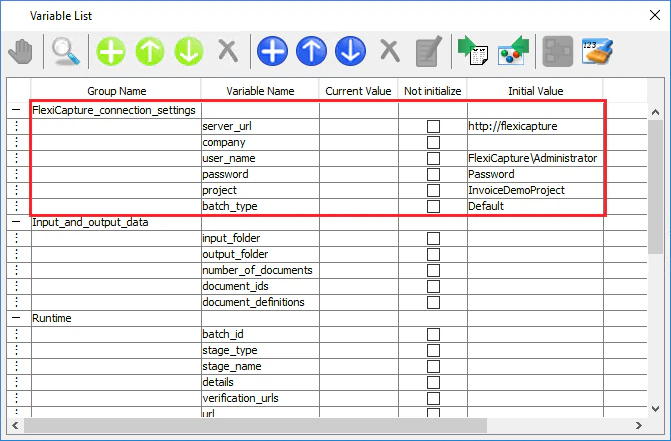
- The address of the server
- The name of your company, if you are using ABBYY FlexiCapture Cloud
- Your user name
- Your password
5
Run the scenario
Click Run.
6
Select the input and output folders
As input, select the
Images folder in the InvoiceDemoProject folder. Wait until document processing finishes, and then specify a folder where the processing results are saved.