
Update the activity in the Workflow Administration Console
1
Open Custom Activities
Open the Workflow Administration Console. In the navigation pane on the left, select Server Configuration > Custom Activities.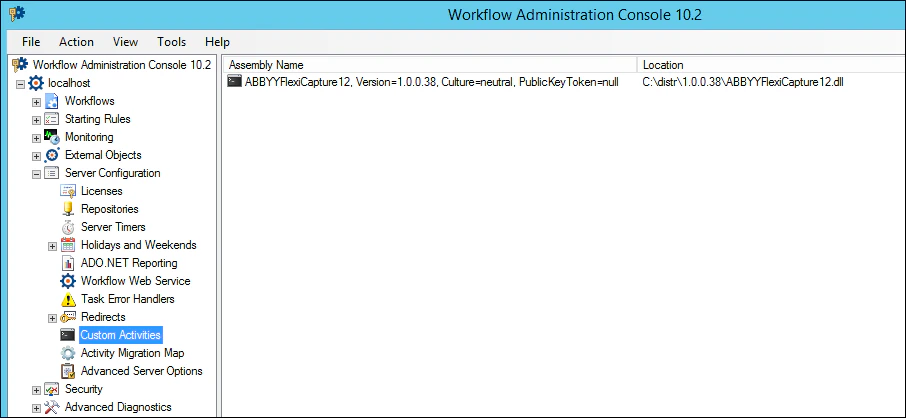
2
Delete the outdated version
In the Actions list on the right, select the outdated version of the ABBYY FlexiCapture activity and delete it.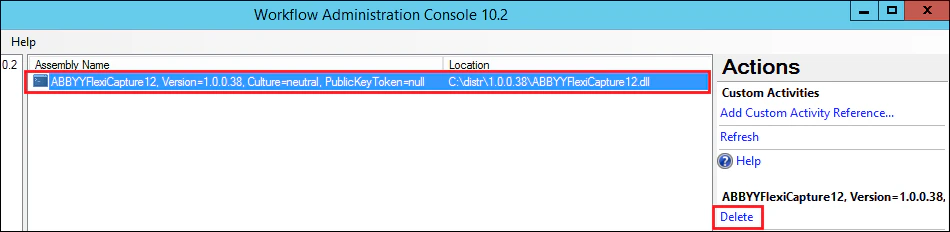
3
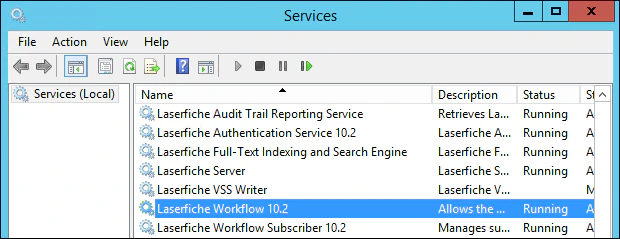
Restart the Laserfiche Workflow service
- Press Win+R and enter
services.mscto open Windows Services. - Restart the Laserfiche Workflow 10.2 service.
4
Add the new version
Select Add Custom Activity Reference and specify the path to the activity file for the new version.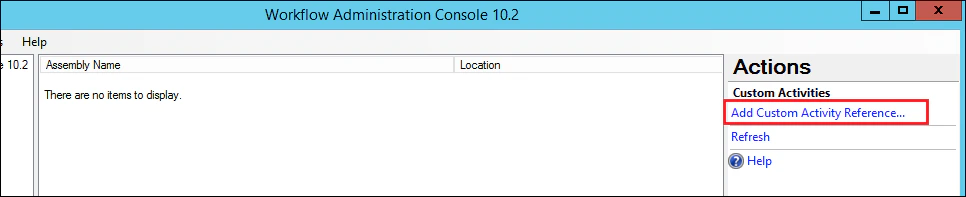
5
Confirm the new version and close the console
The new activity version appears in the Assembly Name column. Close the Workflow Administration Console.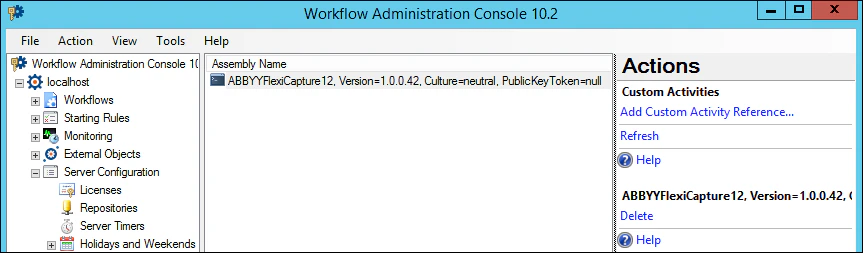
Update the activity in Workflow Designer
1
Open the toolbox activities
Open Workflow Designer. Click any of the activity groups in the left pane to open the context menu, and then select Toolbox > Add/Remove Activities.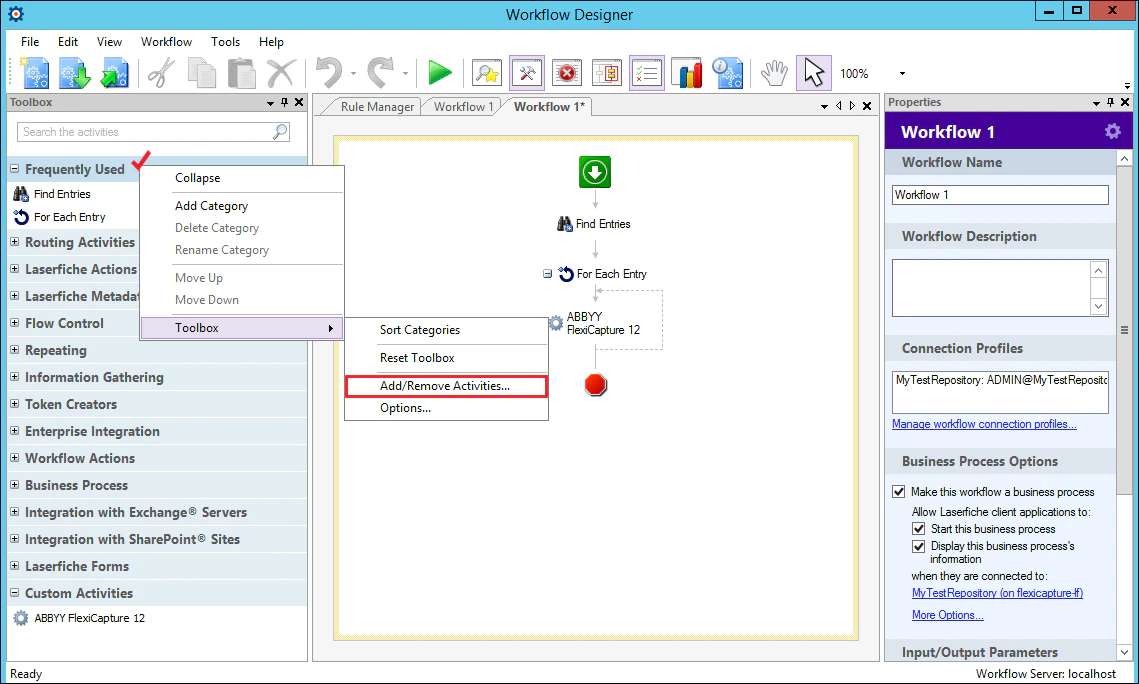
2
Remove the outdated assembly
In the Add/Remove Toolbox Activities dialog box, select the outdated 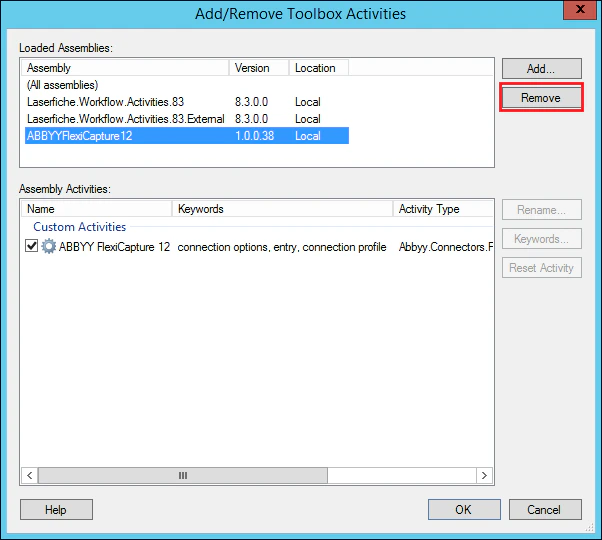
ABBYYFlexiCapture12 assembly and click Remove.3
Confirm the removal
Click Yes in the Remove Assembly dialog box, and then click OK in the Confirm Changes dialog box.
4
Reopen the toolbox activities
Close Workflow Designer and open it again, and then select Toolbox > Add/Remove Activities from the context menu of any activity group.
5
Add the new version
Click Add and specify the path to the activity file for the new version.
6
Confirm the new version
Check that the new assembly version is shown for the 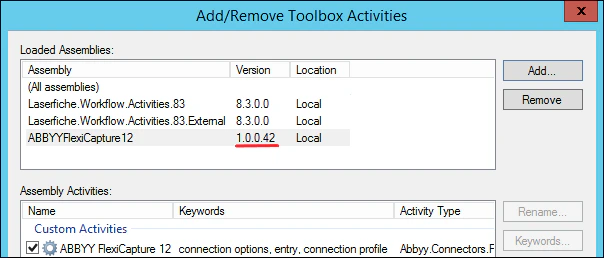
ABBYYFlexiCapture12 activity in the Version column, and then click OK.Reassign the project settings and republish
1
Open a published workflow
Click File > Open Published Workflows, select a workflow that uses an 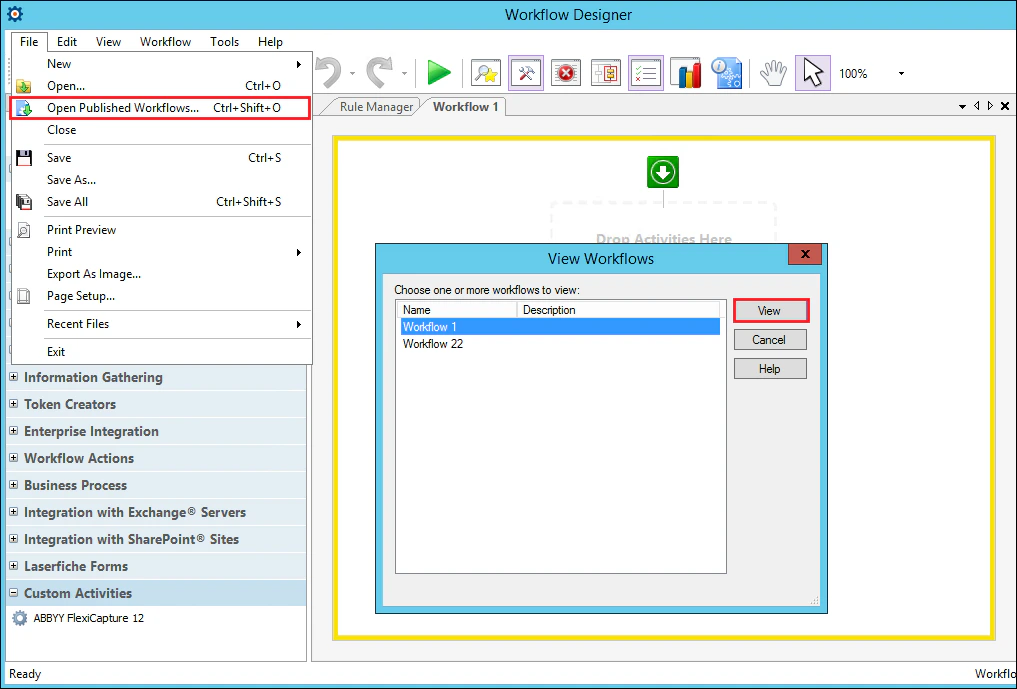
ABBYYFlexiCapture12 activity, and then click View.2
Set the project name and batch type
In the workflow pane, select an 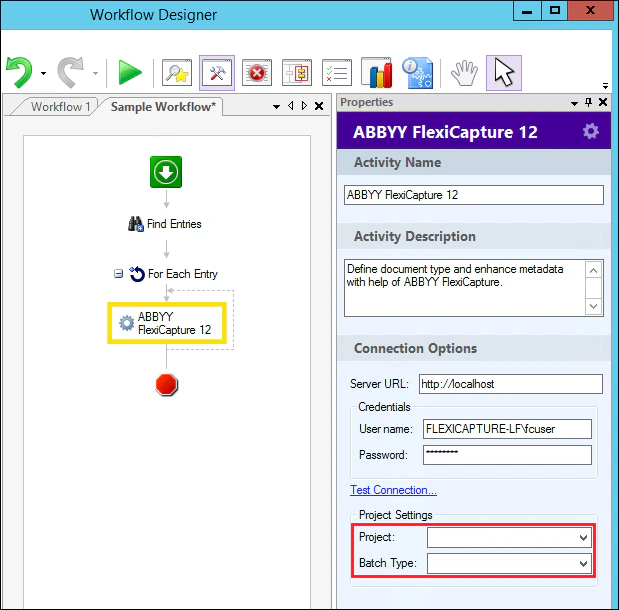
ABBYYFlexiCapture12 activity, and then specify the ABBYY FlexiCapture project name and Batch Type in the Properties panel.3
Save and publish
Save and publish the workflow.