Job Creator

In order to set up the Job Creator application, do the following:
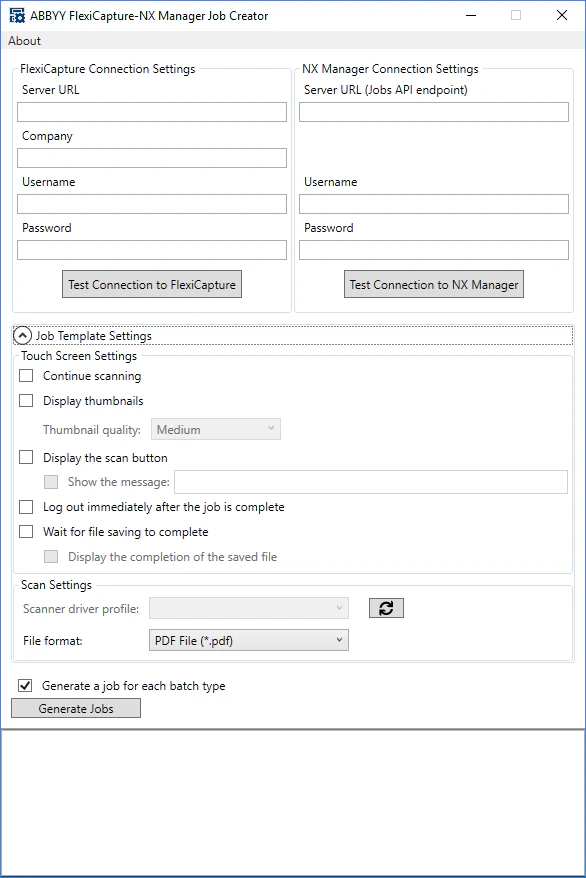
  1. Launch Abbyy.FlexiCapture.NxManager.JobCreator.exe.
  2. In the FlexiCapture Connection Settings section, specify the FC connection settings by filling out the following fields:
    • Server URL is the FC Application Server address. If you are using FC Cloud, fill in the Server URL field by specifying one of the following three FlexiCapture Cloud instances (you should specify the instance that your company is registered in):
    • Company (optional) is the name of the tenant (company) on the FC Application Server. Fill in this field if you are using FlexiCapture Cloud or a local multi-tenant system.
    • Username and Password are the credentials for the user’s ABBYY FlexiCapture account.
Make sure that the user either has the role of Scanning Operator for all projects on the server, or has the Administrator role. Access rights must be set up by a FC administrator using the Administration and Monitoring Console. For more information about setting up access rights, see the Administration and Monitoring Console help guide.
To test the connection settings, click the Test connection to FlexiCapture button.
  1. In the NX Manager Connection Settings section, specify the NX Manager connection settings by filling out the following fields:
    • Server address (Jobs API endpoint) is the address of the Jobs API endpoint on the NX Manager application server — for example, “http://nx-manager:30447”. By default, the Jobs API endpoint uses port 30447.
    • Username and Password are the credentials for the user’s NX Manager account.
To test the connection settings, click the Test connection to NX Manager button.
  1. In the Job Template Settings section, specify the desired job creation settings. These settings are identical to the job creation settings available in the NX Manager administrator window (on the web). The NX Manager administrator window can also be used to modify job settings post-creation.
  2. The Generate a job for each batch type feature specifies whether jobs will be created for every batch type. Uncheck this box if you need to create jobs only for the Default batch type.
  3. Click Generate Jobs. Job creation logs will be recorded in the pane in the lower part of the dialog box. A Job Group named “Send to FC” will be created, and all new jobs will be added to it.
Next, if necessary, use the web interface of the NX Manager administrator window to set up access to the “Send to FC” job group for scanners.

Export Connector

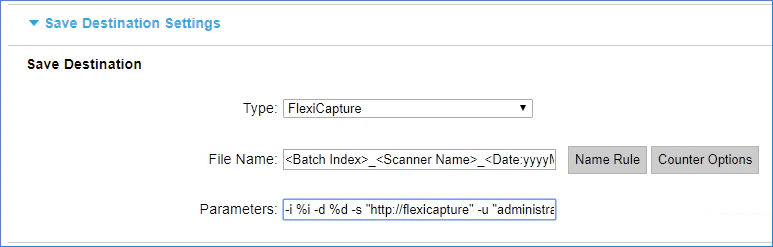
Settings are passed to the Export Connector console application via the call arguments. Job Creator records the call arguments in the Parameters field in Save Destination Settings when jobs are created. If needed, these arguments can be edited. The table below provides a description of all available arguments:

Shortened

Full

Required

Description

-d

—destinationFolder

Yes

Path to the folder where the scanning results are temporarily being stored.

When launching using NX Manager, it’s enough to specify the value ‘%d’. When exporting, NX Manager will change it to the path to the folder containing the original files.

-i

—indexFile

Yes

Path to the index file.

When launching using NX Manager, it’s enough to specify the value ‘%i’. When exporting, NX Manager will change it to the path to the index file.

-n

—names

No (except when -v passed)

Set of registration parameter names for the batch being created, separated by a space.

Together with the -v argument, forms the registration parameter set. The number of registration parameter names should be equal to the number of registration parameter values.

-p

—password

Yes

FC user password.

-P

—project

Yes

FC project name.

-s

—server

Yes

FC server address.

-t

—tenant

No

FC tenant name.

-T

—batchType

No

Name of the batch type in a FlexiCapture project.

-u

—username

Yes

FC user name.

-v

—values

No (except when -n passed)

Set of registration parameter values for the batch being created, separated by spaces.

Together with the -n argument, forms the registration parameter set. The number of registration parameter values should be equal to the number of registration parameter names.

The above table can also be viewed by using the console to call the Export Connector app with the —help option.