
Create the wgAddressRight element
1
Create the White Gap element
In the
InvoiceHeader.grAddress element, create a White Gap element and name it wgAddressRight.2
Set the orientation and width
Click the White Gap tab. In the Orientation group, select Vertical. Set Min width to 100.
3
Set the noise thresholds
Set Lower threshold limit and Threshold coefficient (%) to 10. Leave the default values for the element’s other parameters.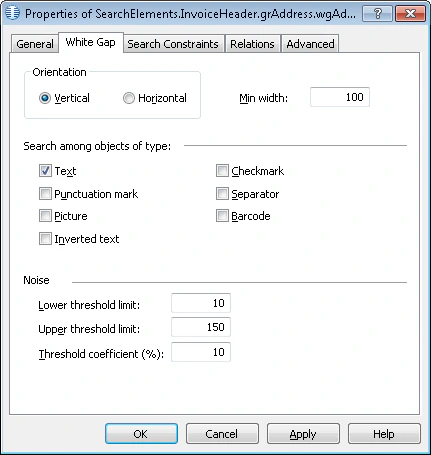
The values of Lower threshold limit, Upper threshold limit, and Threshold coefficient (%) are selected by trial and error. For more information, see White Gap.
4
Set the location relation
Click the Relations tab. The sought white gap can be located only to the right of the kwDeliveryAddress name keywords, so set this relation:
- Right of the kwDeliveryAddress element, Offset = 0
5
Add the search constraints
Click the Advanced tab. The Delivery Address field is optional, but whenever it occurs it has a name, so look for the white gap only if kwDeliveryAddress was detected. The white gap is also adjacent to the Invoice Number field, so look for the object nearest to kwInvoiceNumber. In the Advanced pre-search relations field, set these additional search constraints. In the FlexiLayout language:
6
Verify the match
Match the FlexiLayout with the test images and confirm that FlexiLayout Studio detects the element on all the images where the Delivery Address field occurs.