
Invoice No., and on others as Credit note no. The search string must include both variants. Specify each string without spaces, so the maximum number of errors applies to the entire phrase, not to separate words.
Create the kwInvoiceNumber element
1
Create the Static Text element
In the InvoiceHeader element, create a Static Text element and name it kwInvoiceNumber.
2
Mark the element as required
On the General tab, select Required element.
3
Enter the search text
Click the Static Text tab. In the Search text field, enter
InvoiceNo.|CreditNoteNo.4
Set the error tolerance
Set Max error percentage to 20.
5
Set the location relation
Click the Relations tab. The keywords of the Invoice Number field name can occur only below the Delivery Address field name, so set this relation: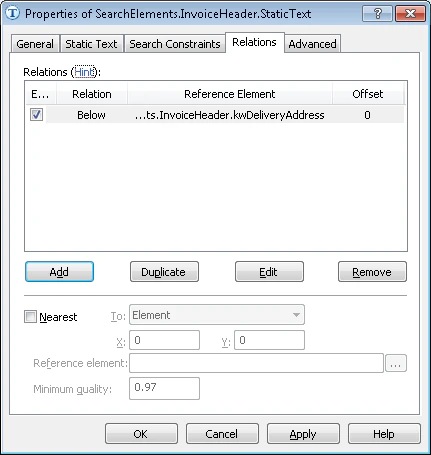
- Below the
InvoiceHeader.kwDeliveryAddresselement, Offset = 0
6
Add the search-area constraint
Click the Advanced tab. Since the Delivery Address field is in the upper third and in the left third of the image, set this additional search constraint in the Advanced pre-search relations field: look for the object in the left third of the image and in the upper third of the image. In the FlexiLayout language:
7
Verify the match
Match the FlexiLayout with the test images and confirm that FlexiLayout Studio detects the element on all the images.