
Create the grDate group element
1
Create the Group element
In the InvoiceHeader element, create a Group element and name it grDate.
2
Set the search constraints
Click the Relations tab. All the elements that detect the Invoice Date field appear only to the right of the kwInvoiceDate name and on the same level, so set these relations: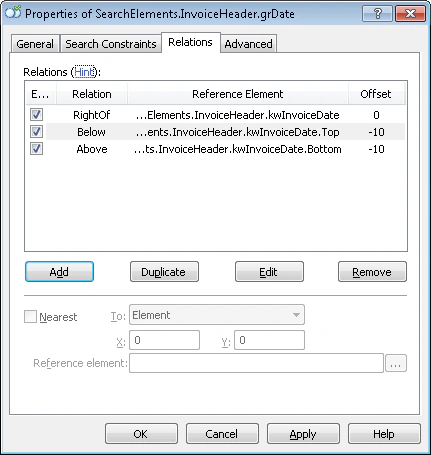
- Right of the kwInvoiceDate element, Offset = 0
- Above the kwInvoiceDate element, Offset = -10, Element boundary = Bottom
- Below the kwInvoiceDate element, Offset = -10, Element boundary = Top
Create the InvoiceDate element
1
Create the Date element
In the
InvoiceHeader.grDate element, create a Date element and name it InvoiceDate.2
Specify the date formats
Click the Date tab and specify all the date formats that may occur on the images. Assume the format is day, month, year; the language is English; and there are no other constraints on the date.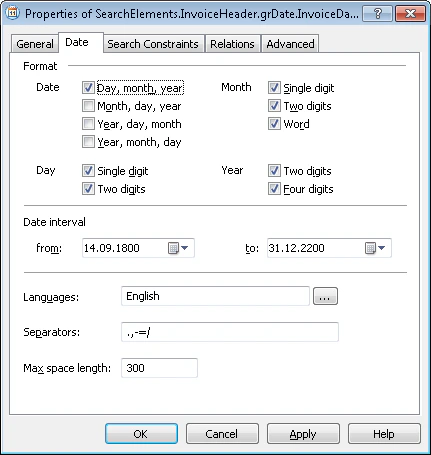
3
Add the search constraint
Click the Advanced tab. The Invoice Date field is optional, but when it occurs it always appears with its name and next to it. In the Advanced pre-search relations field, set this additional search constraint: look for the object only if kwInvoiceDate was detected, and look for the object closest to it. In the FlexiLayout language:
4
Verify the match
Match the FlexiLayout with the test images and confirm that FlexiLayout Studio detects the element on every image that has an Invoice Date field.
Create the InvoiceDateAsString element
1
Create the Character String element
In the
InvoiceHeader.grDate element, create a Character String element and name it InvoiceDateAsString.2
Set the character count
Click the Character String tab. In the Character count field, specify this fuzzy interval:
{-1, 8, 14, INF}. This estimates the string length; assume 8 to 14 characters. Any hypothesis outside this range is penalized.3
Set the maximum space length
Set Max space length to 20, so a space can be 20 dots long. Leave the default values for the other properties.
4
Add the fallback constraint
Click the Advanced tab. FlexiLayout Studio must look for this element only if the InvoiceDate element was not detected. In the Advanced pre-search relations field, set this additional search constraint:
5
Add the location constraint
The Invoice Date field is optional, but when it occurs it always appears with its name and next to it. In the Advanced pre-search relations field, add this additional search constraint: look for the object only if kwInvoiceDate was detected, and look for the object closest to it. In the FlexiLayout language:
6
Verify the match
Match the FlexiLayout with the test images and confirm that FlexiLayout Studio detects the element on every image that has an Invoice Date field, and generates a null hypothesis for the InvoiceDate element.
7
Set the block source element
To describe the location of the InvoiceDate block, select Source element, click  , and select the
, and select the InvoiceHeader.grDate element as the source element.The region of a Group element is the union of the regions of all its detected subelements.