
1
Create the Character String element
In the Footer element, create an element of type Character String and name it Country.
2
Set the character string properties
Click the Character String tab and set these properties: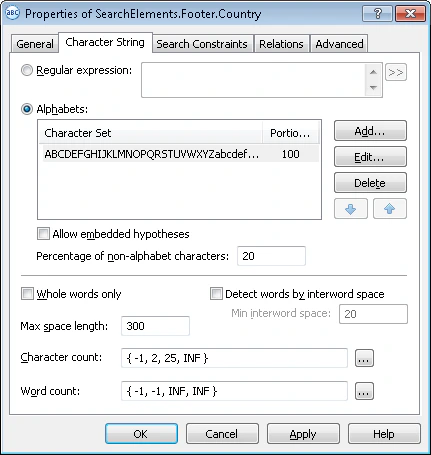
- Select all Latin characters as the alphabet.
- Set Percentage of non-alphabet characters to 20.
- In the Character count field, specify this fuzzy interval:
[-1, 2, 25, 2147483647](2 to 25 characters). Any hypothesis outside this range is penalized.
3
Set the position constraints
Click the Relations tab. The Country field appears only to the right of the kwOrigin name keywords, no farther than 500 dots from its right boundary, and always on the same level as those keywords, so set these search constraints:
- Right of the kwOrigin element, Offset = 10
- Left of the kwOrigin element, Offset = -500, Reference boundary = Right
- Above the kwOrigin element, Offset = -10, Reference boundary = Bottom
- Below the kwOrigin element, Offset = -10, Reference boundary = Top
4
Add the optional-name constraint
Click the Advanced tab. The Country field is optional on this document, but whenever it occurs it always appears next to its name. Set this additional search constraint in the Advanced pre-search relations field: look for the object only if the kwOrigin element was detected. In the FlexiLayout language:
5
Verify the match
Match the FlexiLayout with the test images and confirm that FlexiLayout Studio detects the element on every image where it occurs.
6
Set the block source element
To describe the location of the Country block, select Source element, click  , and select the Country element as the source element.
, and select the Country element as the source element.